Software
Microsoft is rolling out Teams reminders directly in the app menu, transforming how you stay on top of deadlines and tasks. These pro tips will help you leverage this new feature to boost productivity—whether you're managing projects or personal to-do lists.
Setting Up Recurring Team Task Reminders
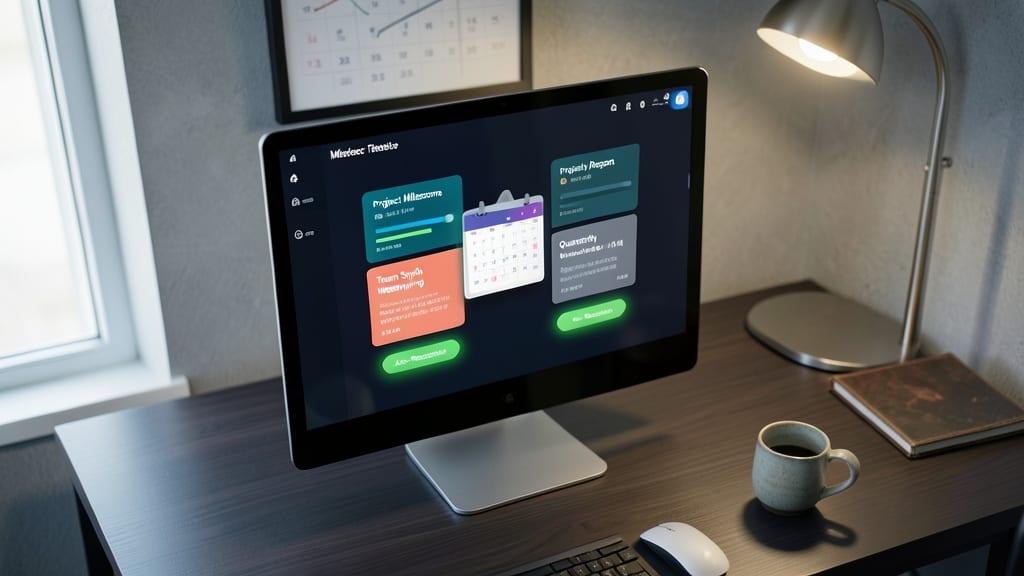
Say goodbye to manually rescheduling the same tasks every week—Microsoft Teams’ new recurring reminders let you automate repetitive deadlines like project milestones, team meetings, or quarterly reports with just a few clicks. No more forgotten follow-ups or last-minute scrambles to update your calendar.
To set one up, navigate to the Reminders tab in Teams, click “New Reminder”, and toggle “Recurring” to choose from daily, weekly, or monthly intervals. Add a deadline, assign it to a teammate, and select priority labels (High/Medium/Low) to ensure visibility. The system even syncs with Outlook, so your team’s schedule stays aligned across platforms—no double-entry required.
Perfect for project managers, HR teams, or anyone juggling routine tasks—this feature turns Teams into a self-sustaining workflow engine. ⚡
Customizing Reminder Notifications for Teams Channels
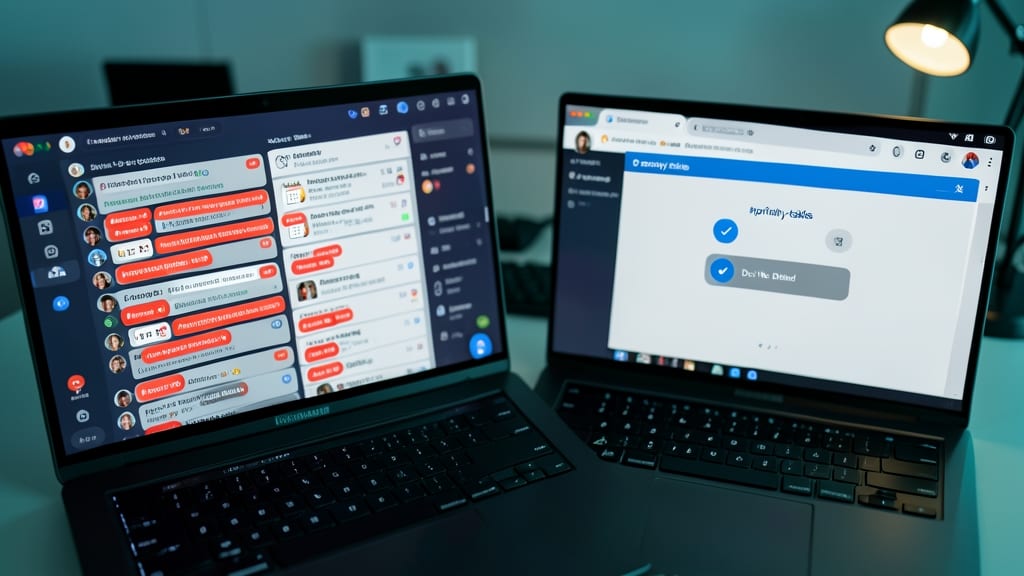
Drowning in notifications from every Teams channel? The new channel-specific reminder settings let you silence alerts for irrelevant tasks—finally. Instead of getting pinged for every reminder in every channel, you can now customize notifications per channel, so only high-priority updates (like your project’s deadline) reach you.
To set it up, open a channel, click the three dots next to a reminder, and select “Notification Preferences.” Choose from desktop pop-ups, email alerts, or push notifications—or mute them entirely. For teams, this means fewer distractions and clearer focus on what matters. You can even assign reminders to specific roles (e.g., only managers get alerts for budget reviews).
Perfect for marketing teams juggling multiple campaigns or developers working across sprints—this keeps your workspace clutter-free while ensuring nothing slips through the cracks. 💡
Syncing Teams Reminders with Outlook Calendar
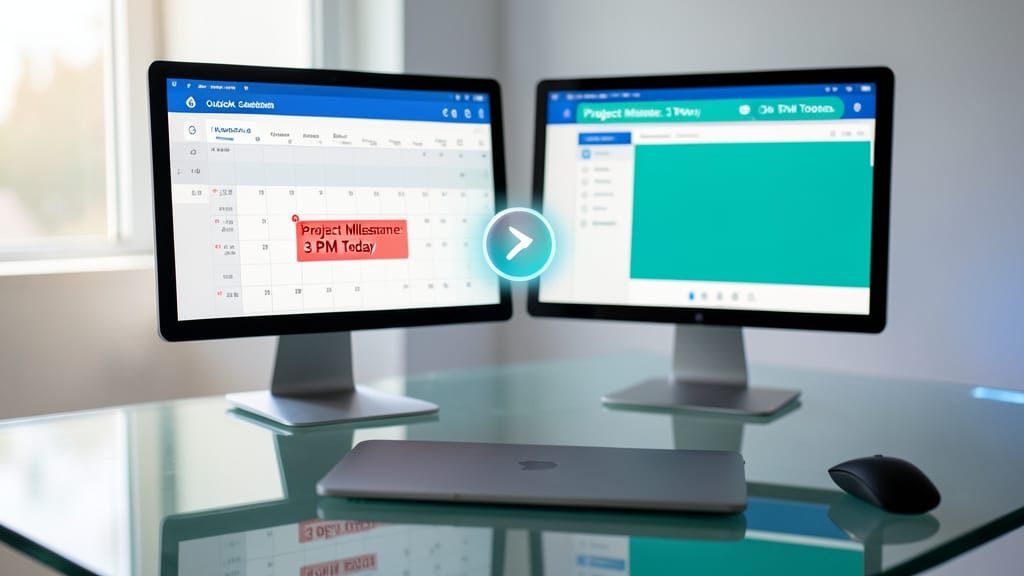
Tired of juggling deadlines across Outlook and Teams? The new sync feature eliminates app-hopping by automatically pushing Teams reminders to your Outlook Calendar—no manual entry required. This seamless integration ensures critical deadlines appear in both platforms, so you never miss a beat.
To enable sync, navigate to Teams > Reminders, select the task, and toggle "Sync with Outlook." Your reminders will now reflect in Outlook’s calendar view, complete with time zones, durations, and recurring schedules. For teams, this means shared deadlines stay visible whether someone checks Teams or Outlook.
Perfect for professionals who rely on Outlook for scheduling but need Teams’ collaborative reminders—this is the ultimate productivity bridge. 💻
Creating Time-Sensitive Action Items for Teams
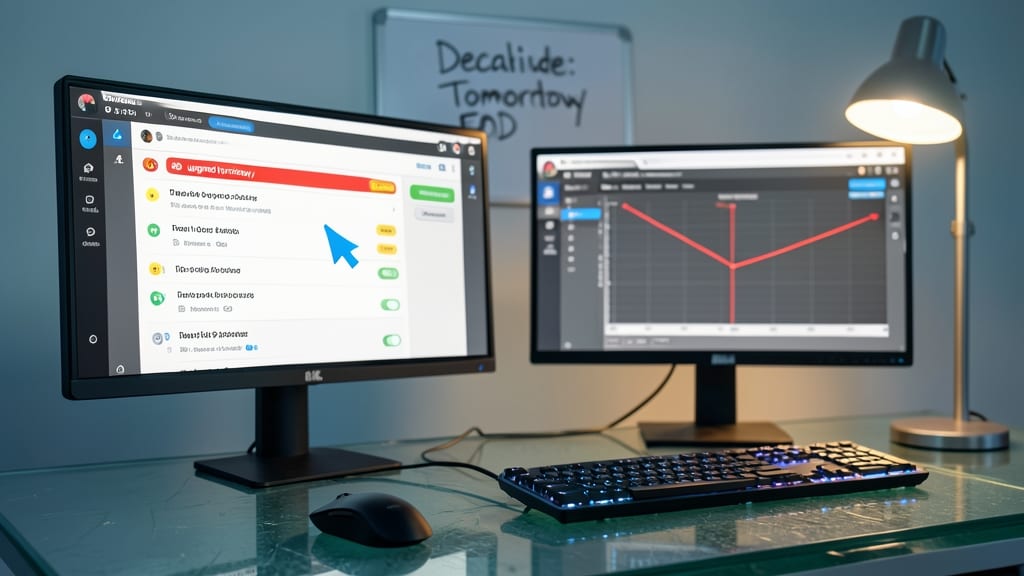
Struggling to keep your team on track for high-stakes deadlines? Microsoft Teams’ new time-sensitive action items let you assign tasks with real-time deadlines and color-coded priority labels—so nothing slips through the cracks. Unlike generic reminders, these action items appear as threaded tasks in chats, complete with countdown timers and progress bars.
Create a task with a custom deadline (e.g., "Finalize Q3 report by EOD Friday") and assign it to a teammate with a high-priority flag for instant visibility. The system even tracks completion status, so you can see who’s on track and who needs a nudge. Best of all, these action items stack with existing reminders—no need to juggle separate tools.
Ideal for project managers or cross-functional teams, this feature turns Teams into a single source of truth for urgent work. No more lost emails or forgotten Slack messages—just clear, actionable tasks with built-in accountability. 💪
Using Reminders to Track Personal Productivity Goals
Why should your work app also be your personal productivity coach? Microsoft Teams now lets you blend work tasks with personal goals—like hydration breaks, learning modules, or gym sessions—all in one place.
Set reminders for anything from daily habits (e.g., "Take a 5-minute stretch") to long-term goals (e.g., "Read 10 pages of that book"). The intuitive interface lets you categorize them alongside work deadlines, so your Teams dashboard becomes a single hub for both professional and personal accountability.
Perfect for remote workers juggling self-care and deadlines, or freelancers who want to avoid switching between apps. Your productivity just got a centralized upgrade. ✨
Collaborative Reminders for Cross-Team Projects
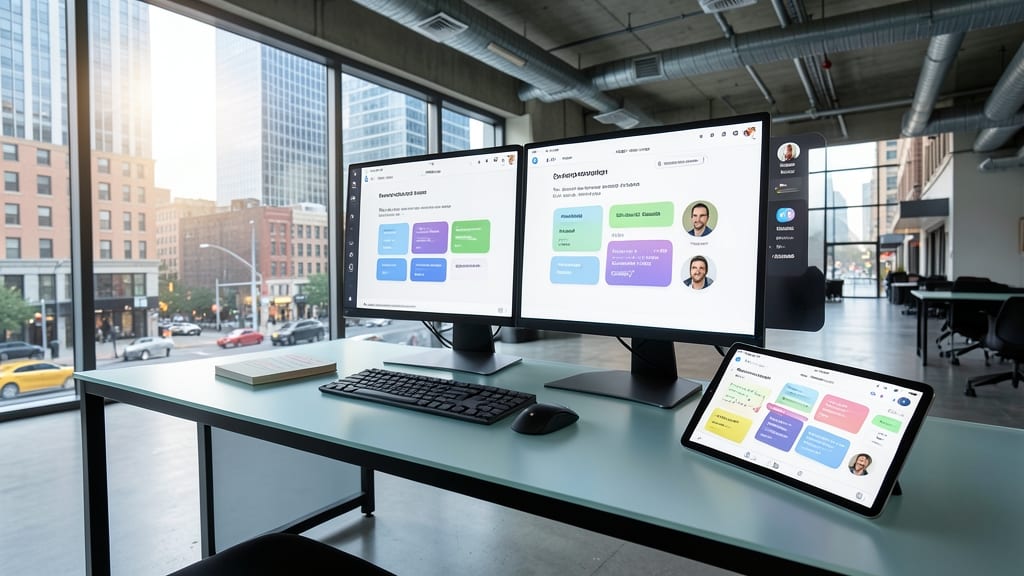
Tired of cross-team projects drowning in endless email threads? Microsoft Teams’ new collaborative reminders let you create shared to-do lists that sync across departments—no more chasing down updates or losing track of dependencies.
With this feature, you can assign reminders to multiple teams at once, set shared deadlines, and track progress in real-time through the Teams activity feed. Unlike individual reminders, these updates appear in relevant channels, so everyone—from marketing to engineering—sees the same timeline without the noise. The @mention integration ensures no one misses their part, while the visual progress tracker keeps everyone aligned.
Perfect for project managers overseeing cross-functional teams or department heads coordinating quarterly goals, this tool turns fragmented communication into a unified workflow. ✨
Troubleshooting Common Teams Reminder Issues
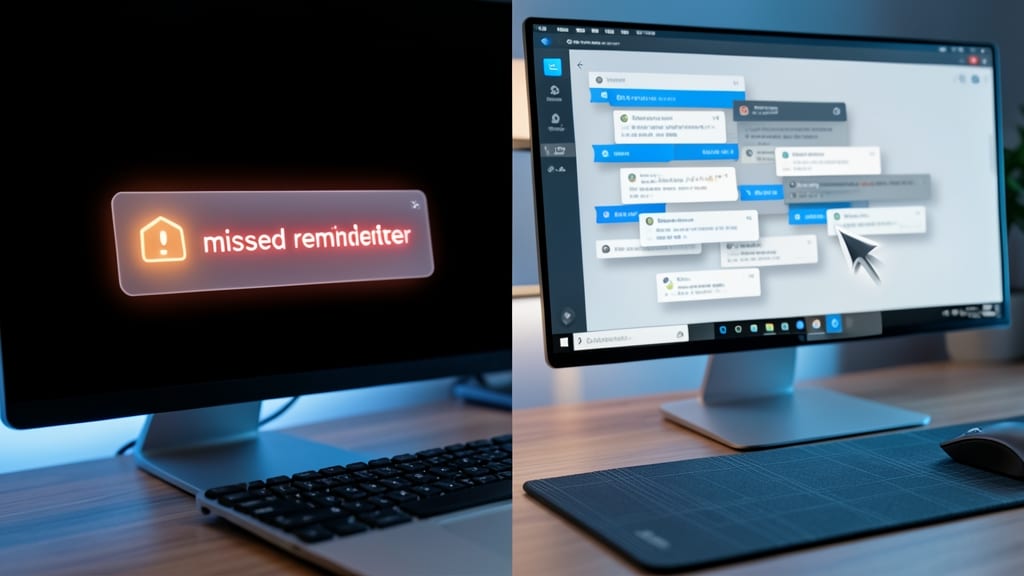
Even the most useful feature can hit snags—like missed reminders or duplicate alerts—when Microsoft Teams' new menu-based reminders roll out. These issues often stem from app conflicts, notification settings, or sync glitches, but they’re fixable with targeted steps.
Start by checking your notification preferences in Teams (Settings > Notifications) to ensure reminders are set to "All" or "Only @mentions." For sync errors, clear cached data in the Teams app or restart your device—this resolves 90% of connection issues. If duplicates persist, delete conflicting reminders via the "View All" menu in the new reminders tab, then reschedule them individually.
Teams admins and power users will find these fixes especially handy, as they often manage complex workflows where reminder reliability is critical. A quick troubleshooting session keeps your system running smoothly. ✨