
Tip & Trick
Struggling to find files in Windows or SharePoint? Mastering Microsoft's file naming conventions can save you hours weekly. These pro tips transform chaos into a searchable, organized system that works across all Microsoft tools.
Windows File Naming Rules Explained

Ever hit "Save" only to realize your file name won’t work—because of a sneaky colon or a missing extension? Windows enforces strict file naming rules that most users overlook until it’s too late. Ignoring them can corrupt files, break scripts, or make them invisible in searches.
Microsoft limits filenames to 255 characters (including paths) and bans reserved characters like <, >, :, *, ?, and /. Case sensitivity is non-existent—Report.docx and report.DOCX are treated as identical—but mixing cases can confuse teams. Always use underscores or hyphens instead of spaces for scripting compatibility.
These rules matter most for developers, sysadmins, and power users who automate workflows or share files across systems. A single misplaced character can derail a batch rename script or break a PowerShell command. ⚡
SharePoint Document Library Naming Strategy
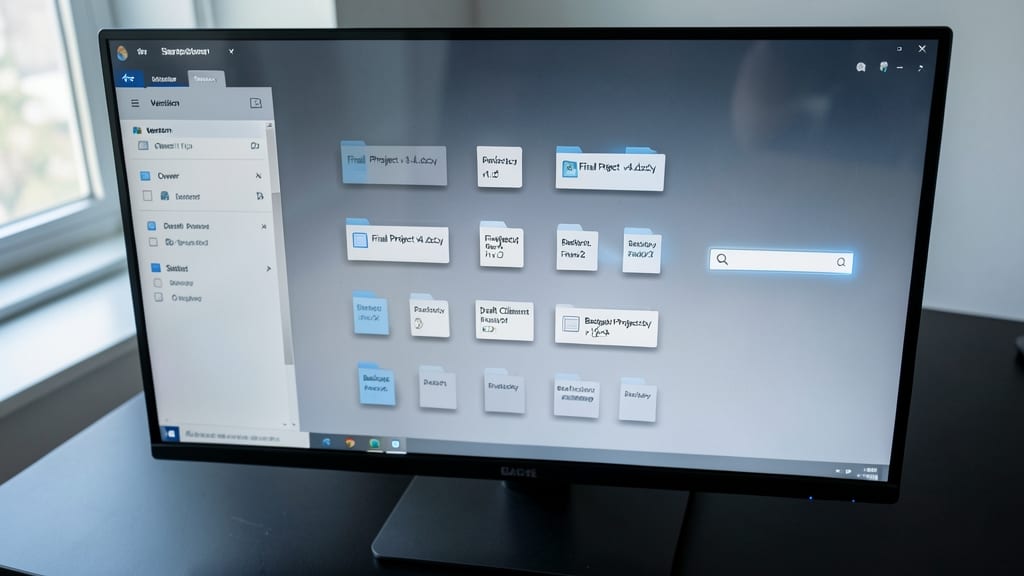
Tired of digging through SharePoint libraries where files like "FinalProjectv3.docx" and "FinalProjectv4.docx" blend together? A structured naming strategy leverages SharePoint’s metadata and auto-sort features to keep everything visible and searchable—no more guessing who owns what or which version is current.
Start with YYYY-MM-DD prefixes (e.g., 2024-05-15MarketingPlanv2.docx) to ensure chronological sorting. Pair this with consistent suffixes like "Draft," "Final," or "TeamReview" to align with metadata columns (e.g., "Status"). SharePoint’s column indexing then lets you filter by owner, department, or project—so "SalesQ2Report" auto-syncs with the "Sales" team’s view.
This approach is perfect for cross-functional teams where files move between departments. With metadata tied to names, even new hires can navigate libraries intuitively. ✨
OneDrive and Office 365 File Naming

Tired of OneDrive sync conflicts or Office 365 co-authoring glitches? The secret lies in structured file naming—a simple tweak that unlocks seamless version control and real-time collaboration. Microsoft’s cloud tools rely on predictable patterns to track changes, so a well-named file avoids overwrites and keeps your edits intact.
Start with dates in YYYY-MM-DD format (e.g., 2024-05-15Q2Report.docx) to auto-sort chronologically in OneDrive’s version history. Add owner initials (e.g., JohnDoeEdit) to distinguish edits during co-authoring sessions, and use underscores instead of spaces to prevent sync errors. Office 365’s co-authoring feature also recognizes suffixes like “Final” or “_Draft” to merge changes cleanly.
This system is a game-changer for freelancers, remote teams, and power users who rely on Office 365’s real-time collaboration. With the right naming, you’ll never lose an update again—just pure, conflict-free productivity. ✨
Date-Based File Naming for Archives

Tired of digging through folders to find your oldest backups? A YYYY-MM-DD date prefix ensures your files sort chronologically—no more alphabetical chaos. This format isn’t just logical; it’s universally compatible with Windows Search, Power Automate, and even third-party archiving tools like Veeam or Backblaze.
Start with 2024-05-15ProjectXFinalDraft.pdf—the YYYY-MM-DD structure guarantees correct chronological ordering, while underscores (_) keep filenames clean for automation. Pair this with a YYYY/MM/DD folder hierarchy (e.g., 2024/05/15/), and you’ll never lose track of when a file was created or modified.
Ideal for IT admins, freelancers, and anyone managing long-term archives. With this system, even a decade-old file stays instantly identifiable and searchable across all Microsoft ecosystems. ✨
Project-Based Naming for Teams
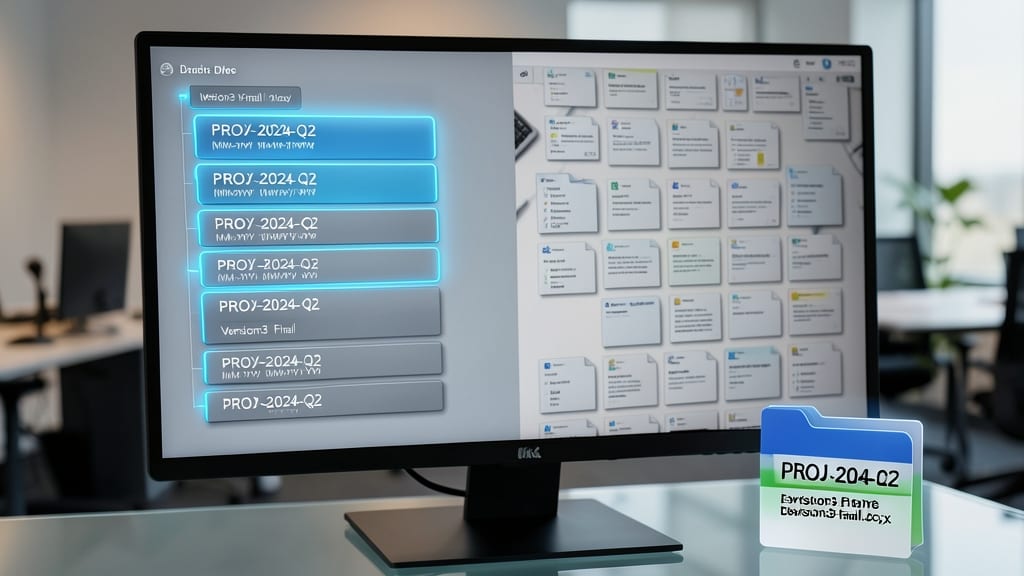
Tired of digging through shared drives to find the right version of a file? A project-based naming system turns team chaos into instant clarity. By embedding project codes, dates, and version numbers into filenames (like PROJ-2024-Q2Version3Final.docx), every team member instantly knows who owns the file, when it was last updated, and which iteration is final.
This structure works seamlessly across OneDrive and SharePoint, ensuring files auto-sort in libraries and sync without conflicts. Use three key segments: a project prefix (e.g., PROJ-2024-Q2), a descriptive suffix (e.g., Version3Final), and underscores to replace spaces. For example, MKT-2024-BrandGuidev2Approved.pptx tells your team it’s a marketing project file, version 2, and ready for review.
Perfect for cross-functional teams managing multiple projects—marketing, IT, or finance—this method cuts down on version confusion and speeds up approvals. 💻
Avoiding Special Characters in Filenames

Ever hit "Save" only to watch your script fail or search results vanish because of a sneaky @ or # in your filename? These special characters aren’t just annoying—they break automation tools, batch processing, and even Windows Search when used improperly. The fix? A simple cheat sheet of safe alternatives that keeps your workflows running smoothly.
Microsoft’s reserved characters (<, >, :, , ?, ", /, |) and symbols like !, @, or # can corrupt files, trigger errors in scripts, or make files invisible to search tools. Instead, use underscores () for spaces, hyphens (-) for readability, or camelCase (e.g., Project2024Report) for clarity. For dates, stick to YYYYMMDD (e.g., 20240515*)—no slashes or dashes needed.
Developers and power users will love this rule: avoid symbols entirely in filenames destined for PowerShell, Python scripts, or SharePoint libraries. For casual users, the key is consistency—once you replace ! with , your files will play nice across Windows Explorer, OneDrive, and even third-party apps. 💻
Automating File Naming with PowerShell
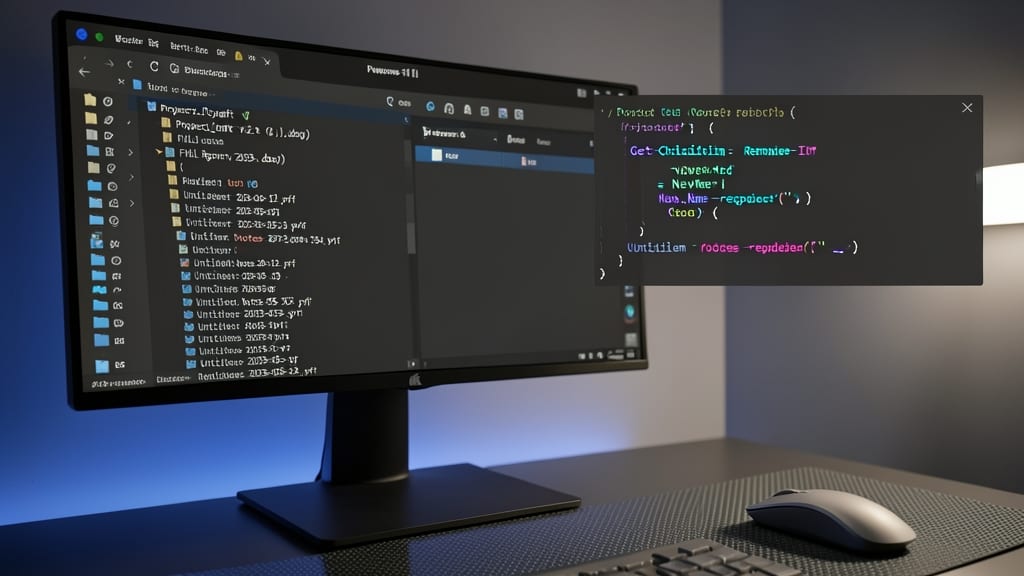
Tired of manually renaming hundreds of files to match your team’s conventions? PowerShell scripts can automate this tedious task in seconds—no third-party tools required. With just a few lines of code, you can enforce consistent naming across folders, replace forbidden characters, or even add prefixes/suffixes like project codes or dates.
Start with a basic script like Get-ChildItem | Rename-Item -NewName { $.Name -replace ' ', '' } to replace spaces with underscores. For advanced users, integrate regex patterns to standardize formats (e.g., YYYY-MM-DD_ProjectName). The Microsoft.PowerShell.Scripting module even supports recursive folder processing, so you can clean up entire directories with one command.
Perfect for IT admins, developers, or anyone managing large file libraries—PowerShell turns manual drudgery into a zero-config, repeatable process. ✨