
Software
Mastering Microsoft Word 2010 starts with understanding its core ribbon sections. These 10 essential parts of the Word 2010 window will transform how you navigate, format, and create documents efficiently—whether you're a student, professional, or casual user.
Home Tab for Basic Text Formatting
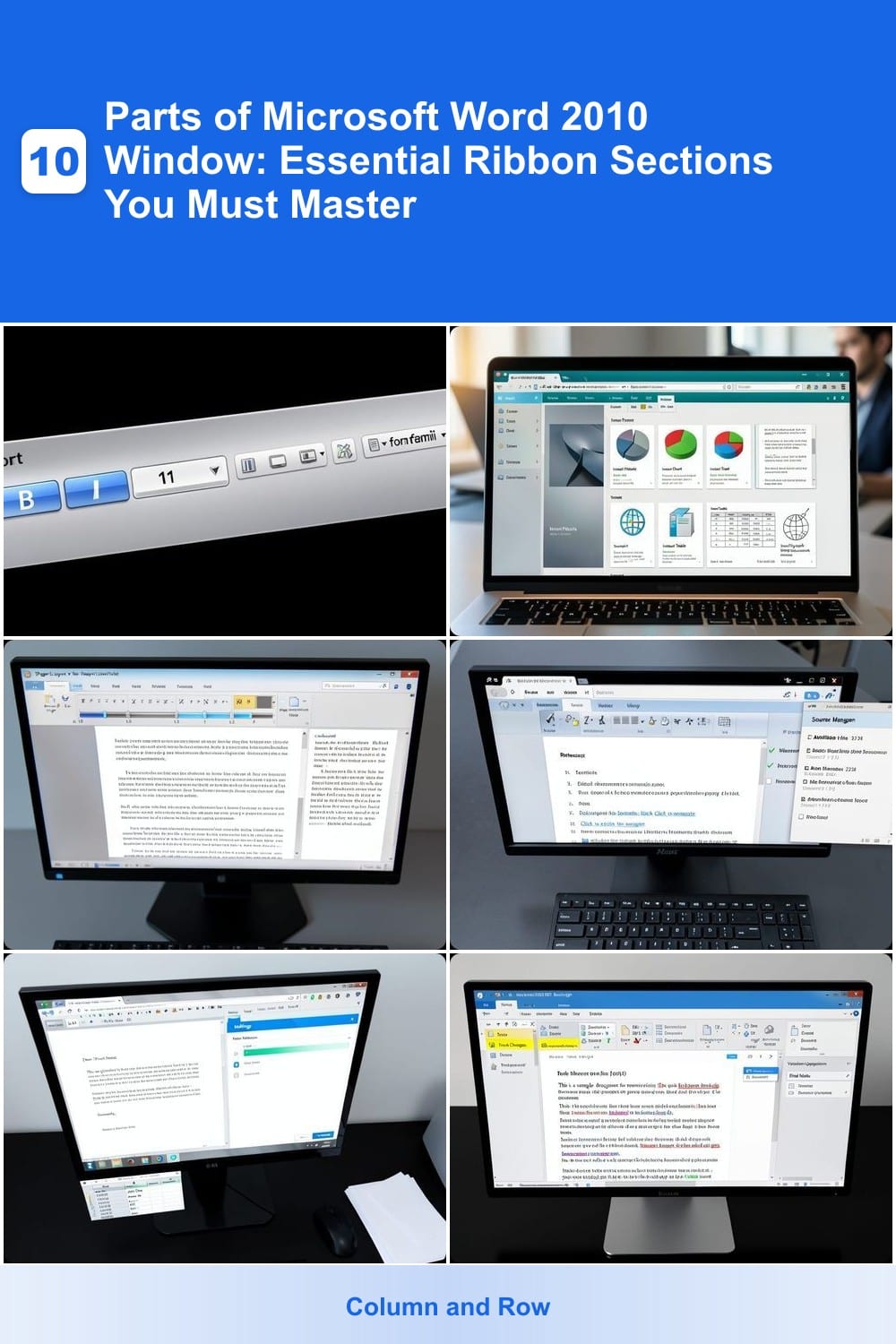
If you spend more time formatting text than writing it, the Home Tab in Microsoft Word 2010 is your productivity lifeline. This is where 90% of basic text adjustments happen—bold, italics, underline, font size, and paragraph alignment—all in one centralized location.
Here, you’ll find the Font group (for styles and effects), Paragraph group (alignment, indentation, and line spacing), and the Clipboard (cut, copy, paste) for quick edits. The Styles dropdown lets you apply pre-formatted templates, while the Bullets and Numbering tools organize lists effortlessly. Even the Find and Replace feature lives here, making it the go-to for quick fixes.
Perfect for students, professionals, and casual users, this tab is the first place to look when you need to adjust text without diving into complex menus. Master it, and you’ll save hours on repetitive formatting. 💻
Insert Tab for Adding Multimedia Elements
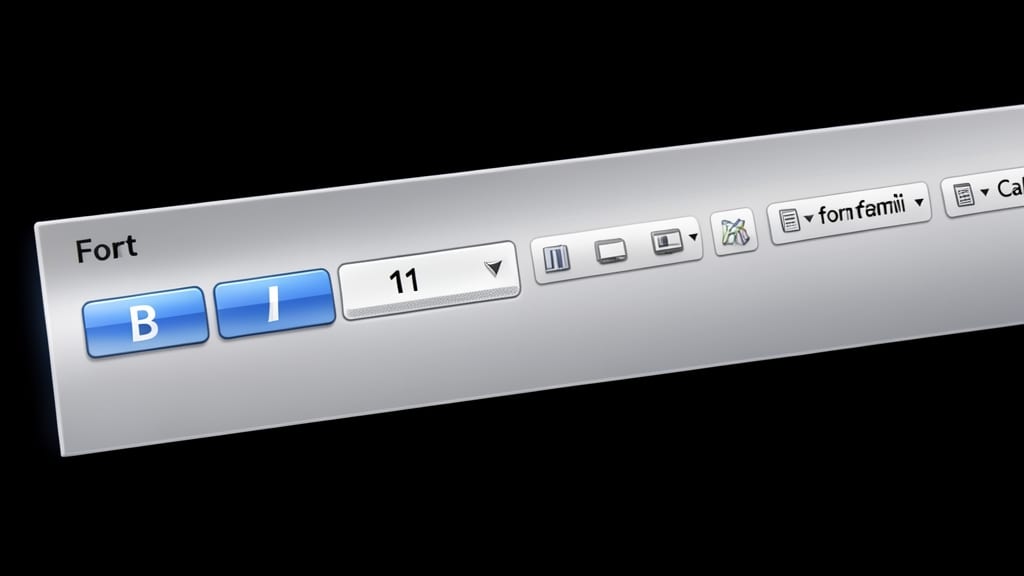
Transform static text into a dynamic presentation with the Insert Tab—your gateway to embedding images, charts, tables, and hyperlinks directly into Word 2010 documents. Whether you're designing a pitch deck, crafting a research report, or building a visually rich resume, this tab eliminates the need for external tools by offering seamless integration of multimedia elements.
From inserting Excel charts or PowerPoint slides to creating custom tables with drag-and-drop ease, the Insert Tab streamlines complex tasks. Need to link to a website or internal document? The Hyperlink tool lets you embed clickable links with a single click. For visuals, use WordArt or shapes to add flair, while the Online Pictures option pulls high-quality images straight from Bing—no manual downloads required.
Perfect for educators embedding quizzes, marketers designing flyers, or students adding citations with visuals, this tab turns Word into a multimedia powerhouse. ⚡
Page Layout Tab for Document Structure
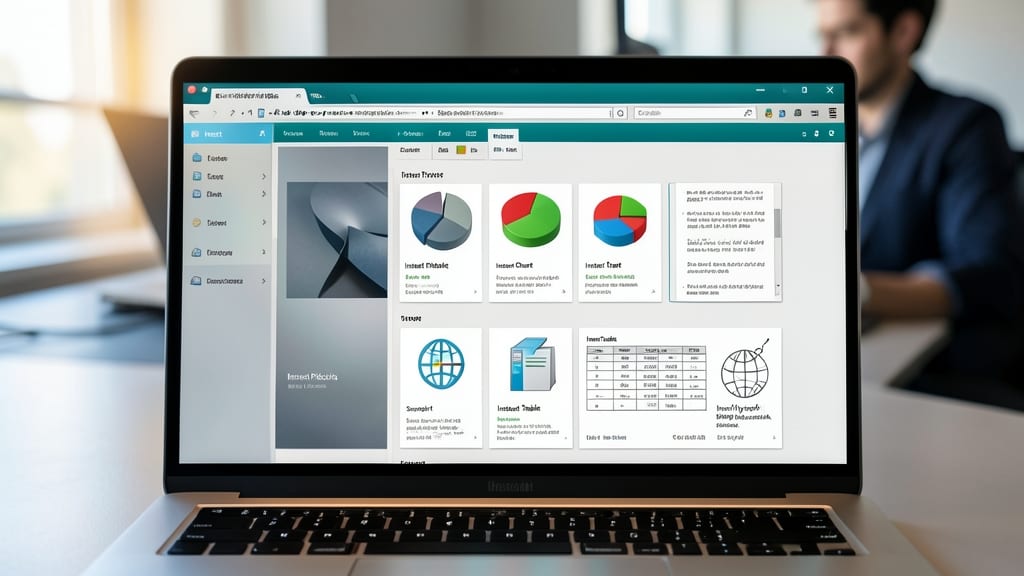
Struggling to get your academic paper or newsletter to match strict formatting guidelines? The Page Layout Tab in Word 2010 is your secret weapon for precision control over document structure.
Here, you’ll find tools to adjust margins (top, bottom, left, right), set page orientation (portrait or landscape), and define column layouts—perfect for newspapers or side-by-side comparisons. The Page Setup dialog also lets you tweak paper size, headers/footers, and line numbering for professional-grade documents.
This tab is a must-master for anyone working with formal submissions, multi-column layouts, or projects requiring exacting standards. ⚡
References Tab for Citations and Footnotes
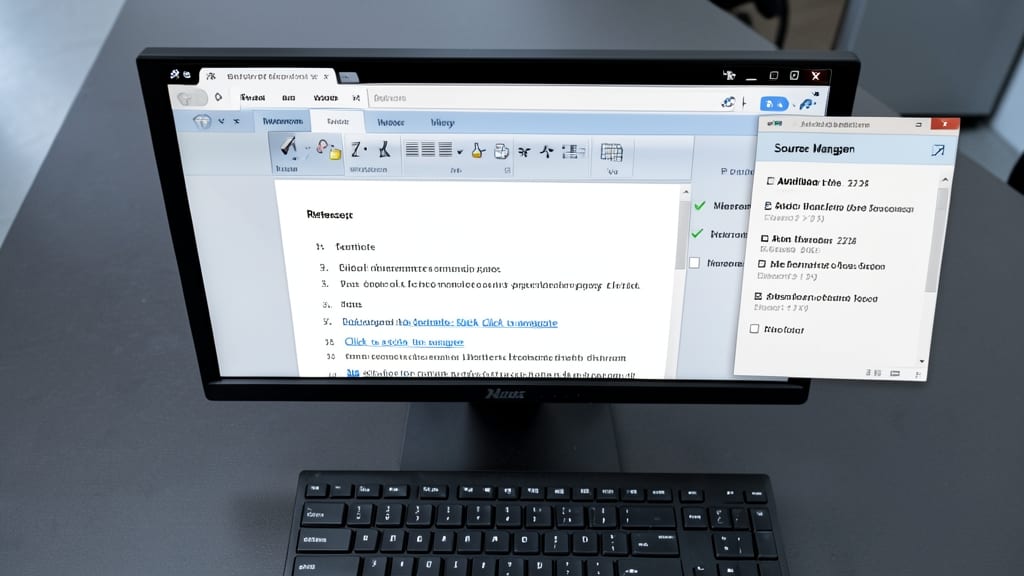
Struggling to keep track of sources in your research paper? The References tab in Microsoft Word 2010 is your secret weapon for managing citations, footnotes, and bibliographies with minimal hassle.
This tab lets you insert citations directly from your source list, generate automated footnotes with a single click, and even create a professional table of contents that updates automatically. Compatible with APA, MLA, and Chicago formats, it ensures your academic work meets strict formatting guidelines—no manual formatting required.
Perfect for students, researchers, or legal professionals, this tab saves hours of tedious work. ✨
Mailings Tab for Mail Merge Features
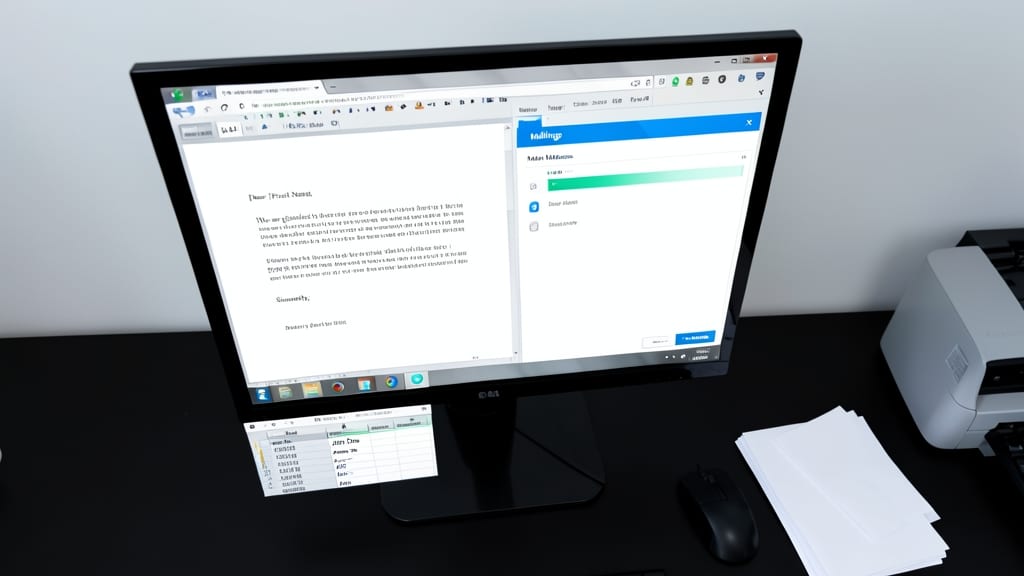
Need to send 100 personalized letters without losing your mind? The Mailings tab in Word 2010 turns bulk correspondence into a breeze with its mail merge tools. This section lets you combine a main document with a data source (like an Excel spreadsheet) to generate customized letters, labels, or envelopes—perfect for businesses, event planners, or anyone drowning in repetitive paperwork.
Start by selecting Start Mail Merge and choosing your document type (letters, labels, or envelopes). Link your data source, then insert merge fields like <
Event planners will love using this for invitations, while small businesses can automate invoices or welcome letters. It’s the secret weapon for anyone who’s ever wasted hours on repetitive typing. ✨
Review Tab for Editing and Proofreading
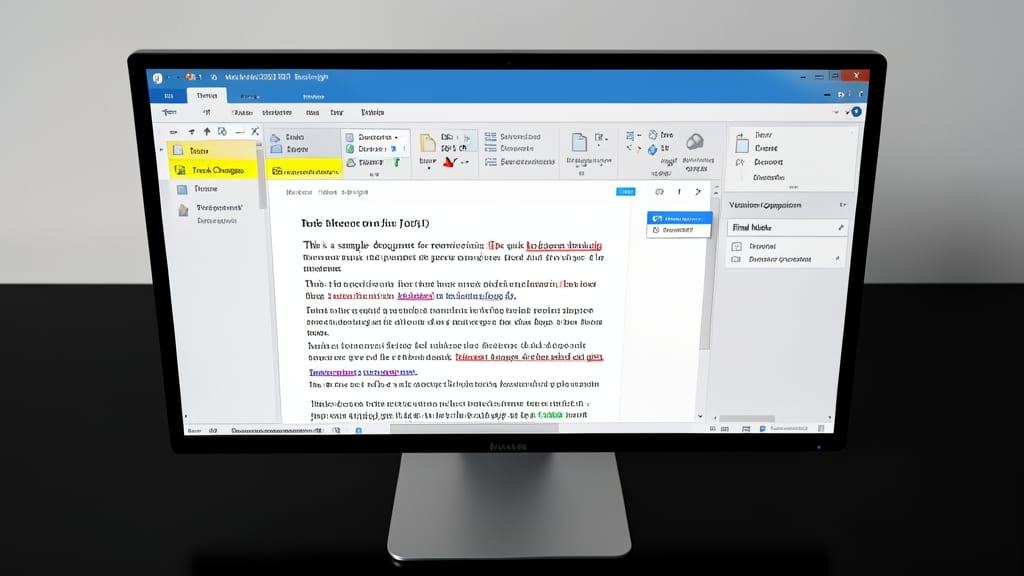
Need to ensure your document is polished before submission? The Review Tab is your secret weapon for collaboration and precision. It combines track changes (highlighting edits in real-time), spell-check (with grammar suggestions), and version comparison tools—all in one place.
With final mode to lock edits and comments for team feedback, this tab handles everything from academic papers to legal contracts. The compare documents feature even lets you merge two versions side-by-side, resolving conflicts effortlessly. Perfect for teams or solo users who refuse to submit anything less than perfect. ✨
View Tab for Document Navigation Modes
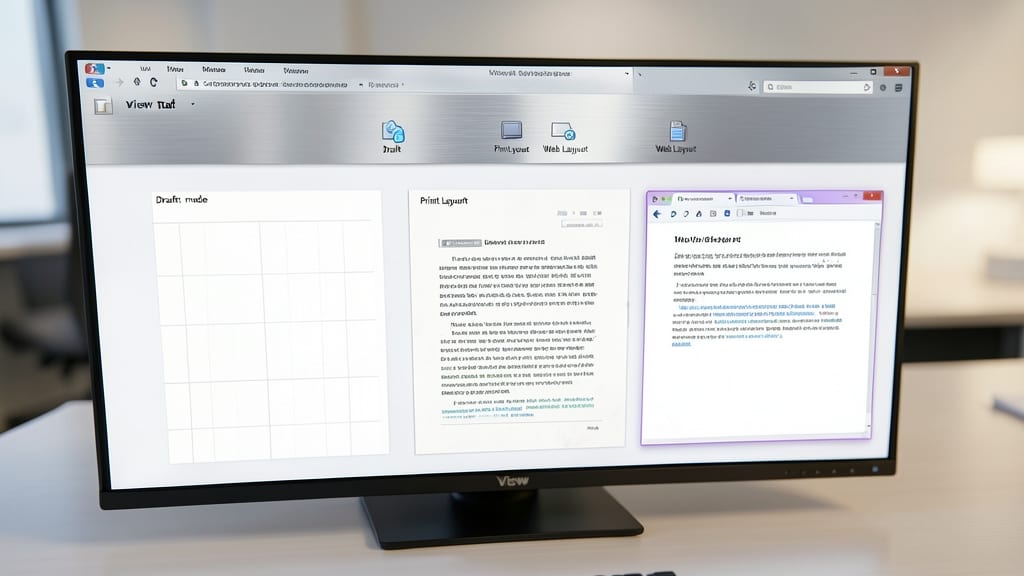
Ever struggled to visualize how your document will look when printed or published online? The View Tab in Microsoft Word 2010 solves this with its three distinct document navigation modes—Draft, Print Layout, and Web Layout—so you can preview and perfect your work before finalizing it.
Switch between Draft view (clean, distraction-free typing), Print Layout (accurate page breaks and margins), and Web Layout (continuous scrolling like a webpage) with a single click. You’ll also find the Navigation Pane here for quick jumps to headings, pages, or results, plus zoom controls to adjust readability. This tab ensures your document looks polished in every format.
Perfect for academic writers checking page counts, web designers testing layouts, or professionals verifying print-ready documents—all without guessing how it’ll appear. ✨
Add-Ins Tab for Extending Functionality
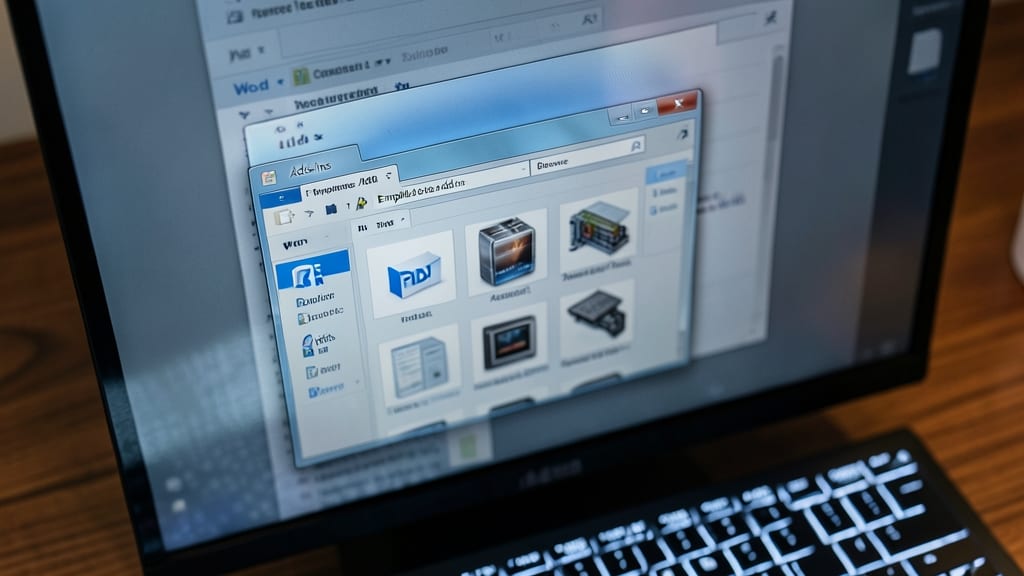
Ready to supercharge your Word 2010 workflow? The Add-Ins tab unlocks hidden potential by connecting third-party tools—think PDF converters, advanced templates, or specialized utilities—that turn Word into a powerhouse for niche tasks.
Here, you’ll find options to enable or disable add-ins, browse the Microsoft Office Add-ins center, and even manage COM add-ins for deeper integration. Need to convert documents to PDF without extra software? Or perhaps access premium templates for resumes or legal docs? This tab bridges the gap between Word’s native features and external tools, giving you customizable functionality without leaving the application.
Perfect for freelancers, researchers, or developers who rely on specialized workflows, this tab transforms Word from a standard tool into a versatile workspace. ⚡
Quick Access Toolbar for Custom Shortcuts
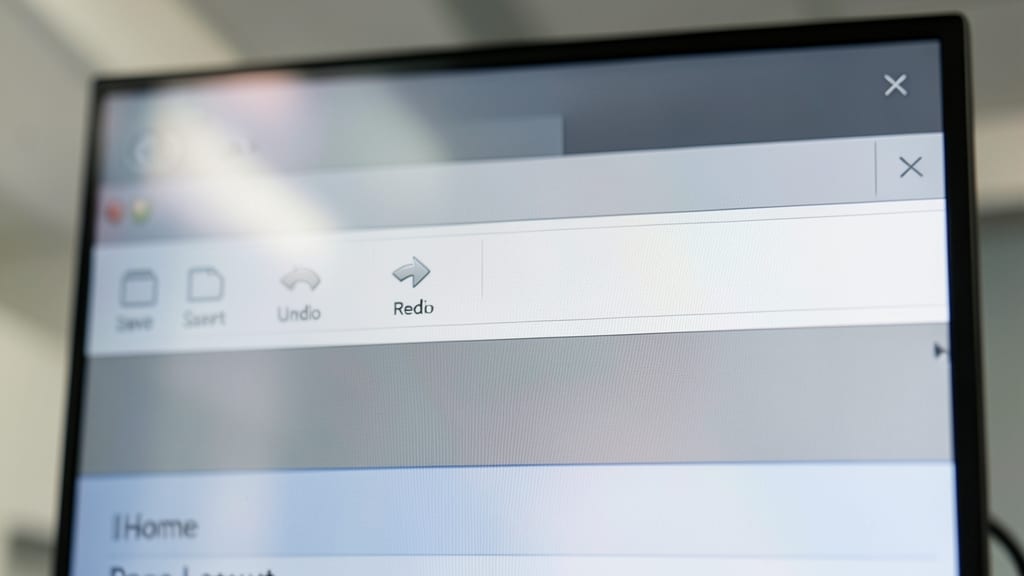
Tired of hunting through menus for the same commands every time? The Quick Access Toolbar in Word 2010 lets you pin your most-used actions—like Save, Undo, or Redo—right where you need them, just above the ribbon.
By default, it includes Save, Undo, and Redo, but you can add any command from any tab with a right-click. Need Quick Print or Track Changes faster? Drag them over. It even syncs across documents, so your shortcuts follow you—no setup required.
Perfect for busy professionals, students, or anyone who hates wasted clicks, this toolbar turns repetitive tasks into one-tap actions. ⚡
Status Bar for Document Information
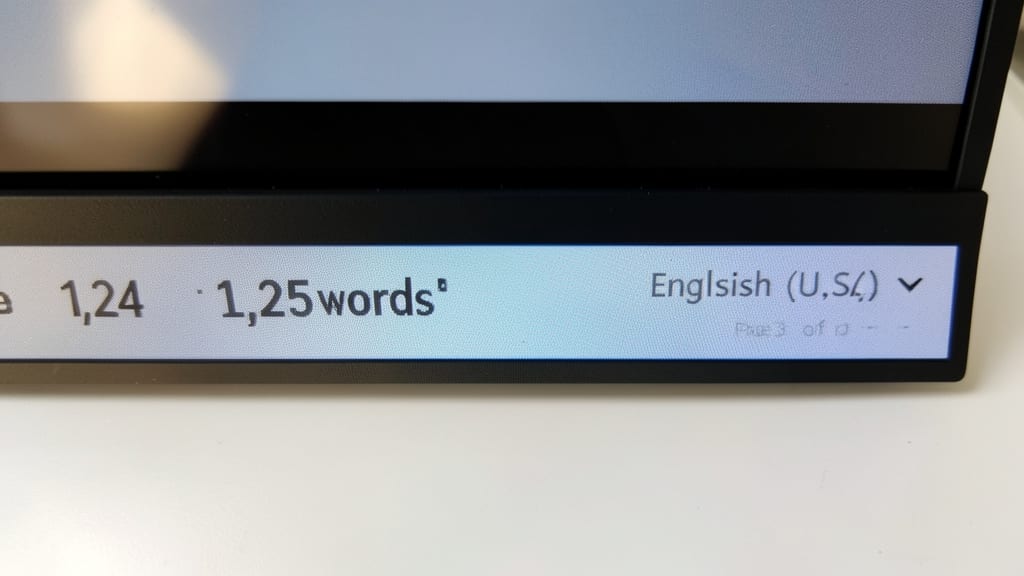
Need to meet a strict word count for your thesis or track progress on a 50-page report? The Status Bar in Word 2010 is your real-time document dashboard, displaying word count, page numbers, and language settings at a glance.
Located at the bottom of the window, it shows live updates as you type, including character count (helpful for social media posts) and proofing language (useful for multilingual documents). Right-click to customize which metrics appear—perfect for students, editors, or anyone who needs to stay on top of formatting requirements.
This subtle but powerful feature saves time by eliminating the need to manually count words or pages. Whether you're drafting a memo or polishing a manuscript, the Status Bar keeps you informed without interrupting your workflow. ✨