
Coding
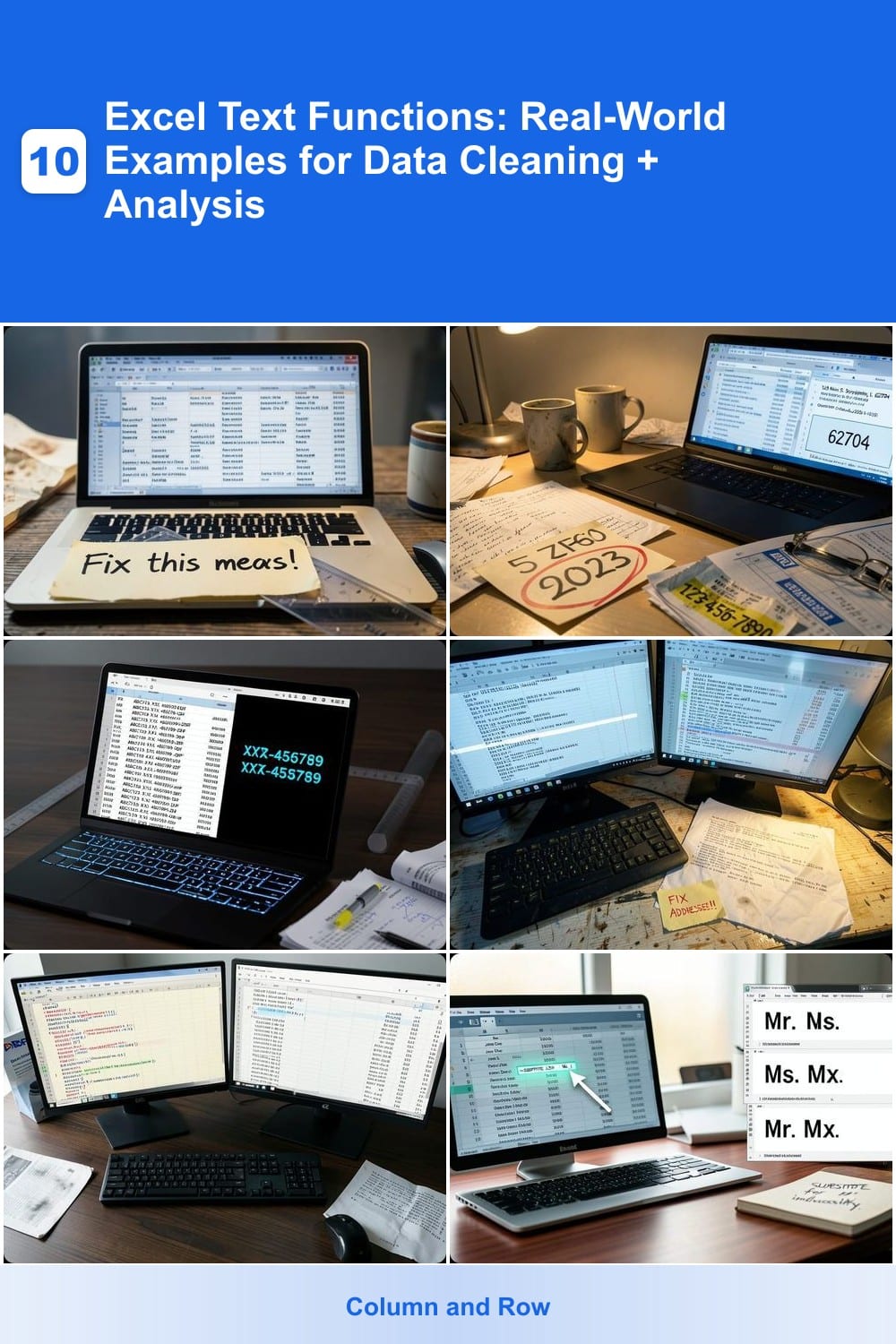
Struggling to clean messy text data in Excel? These 10 essential text functions transform raw data into actionable insights—from extracting emails to standardizing formats—with practical examples that work in any spreadsheet scenario.
Concatenate Function for Combining Text Fields

Frustrated by split names or product details scattered across multiple cells? The CONCATENATE function merges text seamlessly—whether combining first/last names, product codes, or survey responses—while giving you control over separators like spaces, commas, or hyphens.
Use =CONCATENATE(A2, " ", B2) to join text with a space (e.g., "John" + "Doe" → "John Doe"), or =CONCATENATE(A2, "-", B2) for product codes (e.g., "SKU" + "123" → "SKU-123"). For modern Excel (2019/365), & operator offers a shortcut (e.g., =A2 & " " & B2), but CONCATENATE handles more complex separators and is clearer for teams. Pro tip: Combine with TRIM to clean up extra spaces automatically.
Perfect for HR databases, e-commerce product listings, or customer data—this function turns fragmented data into clean, actionable records in seconds. ⚡
LEFT and RIGHT Functions for Extracting Partial Text

Struggling with messy address books, product lists, or phone numbers where you only need specific parts? The LEFT and RIGHT functions are your precision tools for extracting partial text—whether you're isolating a 5-digit ZIP code from a full address, pulling a 4-digit year from a timestamp, or grabbing a phone prefix from a number.
Use LEFT(text, numchars) to pull characters from the start (e.g., =LEFT(A2, 5) extracts "90210" from "Los Angeles, CA 90210") or RIGHT(text, numchars) for the end (e.g., =RIGHT(A2, 4) grabs "2024" from "Order-2024-123"). For variable-length text, combine with LEN or FIND—like =RIGHT(A2, LEN(A2)-FIND(" ", A2, 1)) to extract the last word from a sentence. Always wrap in IFERROR to handle short strings gracefully (e.g., =IFERROR(LEFT(A2, 5), "N/A")).
Perfect for logistics teams standardizing shipping labels, customer support pulling order numbers, or data analysts cleaning phone directories—these functions turn inconsistent text into structured data in seconds. ⚡
MID Function for Extracting Middle Text Segments

Tired of manually copying parts of serial numbers or invoice codes? The MID function lets you extract specific text segments from anywhere in a string—no matter where they appear. Unlike LEFT or RIGHT, which only pull from the edges, MID pinpoints exact character positions, making it perfect for parsing dynamic data like timestamps ("2024-05-15") or product codes ("SKU-1234-XYZ").
Use =MID(text, startnum, numchars) to specify the exact starting position and length of the text you need. For example, to extract "INV-2024" from "Order#INV-2024-12345," you’d use =MID(A1, 7, 7)—where 7 is the starting position and 7 is the number of characters to pull. Combine it with FIND for dynamic extractions (e.g., =MID(A1, FIND("-", A1)+1, 4) to grab "2024" from a date string).
This is your go-to for inventory tracking, financial reports, or log analysis where data isn’t neatly formatted. Once mastered, you’ll save hours of manual copying! ✨
TRIM Function for Removing Extra Spaces

Ever spent hours manually cleaning up customer address lists or CSV imports where extra spaces, tabs, and line breaks turn data into a jumbled mess? The TRIM function is your secret weapon—it removes all unnecessary whitespace in one click, saving you from tedious manual edits.
With just =TRIM(A2), you’ll instantly fix issues like " John Doe " becoming "John Doe", or "Product123 " turning into clean "Product123". It even handles non-breaking spaces and tabs that other functions miss. Combine it with SUBSTITUTE to tackle line breaks too—perfect for merging messy data into a polished dataset.
This function is a must-know for anyone dealing with imported databases, survey responses, or legacy data. Try it on your next messy dataset and watch hours of work disappear in seconds. ⚡
CLEAN Function for Removing Non-Printable Characters
Ever opened an Excel file where formulas refuse to work—only to discover invisible characters lurking in your data? The CLEAN function is your secret weapon against these silent saboteurs, removing non-printable characters like ASCII codes 0-31 that corrupt scans, PDF exports, or manual imports.
Simply type =CLEAN(A1) to strip out hidden characters from cell A1, instantly fixing issues like misaligned text or broken formulas. It’s especially useful for data pulled from OCR scans or legacy systems where formatting gets mangled. Combine it with TRIM for a one-two punch against messy text.
Accountants reconciling scanned receipts and data analysts cleaning imported datasets will see the biggest time savings. ⚡
SUBSTITUTE Function for Replacing Text Patterns

Tired of outdated titles like "Mr." lingering in your dataset? The SUBSTITUTE function is your Swiss Army knife for text updates—whether you're modernizing gender-neutral language, standardizing product codes, or fixing typos across thousands of rows.
With SUBSTITUTE(text, oldtext, newtext), you can replace exact matches or use wildcards (* or ?) for flexible cleaning. Need to swap "New York" with "NYC" in 5,000 records? Or update "Version 1.0" to "V1.0" across a documentation set? This function handles it all—even nested replacements by chaining formulas. For example, =SUBSTITUTE(SUBSTITUTE(A1, "Old", "New"), "Outdated", "Current") tackles two fixes in one step.
Perfect for HR teams updating employee titles, e-commerce managers standardizing SKUs, or anyone maintaining legacy datasets. Your data will feel fresh in seconds—no manual edits required. ✨
TEXTJOIN Function for Combining Text with Delimiters

Tired of dealing with messy lists where empty cells break your formulas? The TEXTJOIN function is your game-changer—it combines text from multiple cells into one while ignoring empty cells automatically, unlike the older CONCAT function.
With TEXTJOIN, you can merge survey responses, create comma-separated lists, or concatenate product descriptions with a custom delimiter (like commas, semicolons, or even line breaks). For example, =TEXTJOIN(", ", TRUE, A2:C2) combines cells A2, B2, and C2 into a single string with commas—without errors if any cell is blank. It’s available in Excel 2019 and 365, making it perfect for modern workflows.
This function is ideal for data analysts, marketers, or anyone managing lists—whether you’re compiling customer feedback or generating reports. ⚡
FIND and SEARCH Functions for Locating Text

Need to validate emails, verify product codes, or debug inconsistent data? The FIND and SEARCH functions are your precision tools for locating text with surgical accuracy. While both hunt for substrings, FIND is case-sensitive (perfect for exact matches like "Order#123") and returns the position number, while SEARCH ignores case and handles wildcards—ideal for flexible checks like finding "@" in email fields.
Use FIND to validate formats: =IF(ISNUMBER(FIND("@", A2)), "Valid", "Invalid") flags missing email symbols instantly. Pair it with ISNUMBER to handle errors gracefully when text isn’t found. For partial matches, SEARCH shines—=SEARCH("NY", A2) locates "NY" anywhere in a city name, even if it’s "New York" or "Buffalo, NY." Both return #VALUE! if text isn’t found, so wrap them in IFERROR for bulletproof formulas.
Data analysts and quality control teams rely on these to automate validation—think email lists, inventory codes, or log files. For anyone tired of manual checks, these functions turn spreadsheets into self-auditing tools. ✨
UPPER, LOWER, and PROPER Functions for Text Formatting

Tired of inconsistent names, titles, or product listings ruining your reports? The UPPER, LOWER, and PROPER functions instantly standardize text—no manual edits required.
Use UPPER("john doe") to convert all text to uppercase (e.g., for codes or acronyms), LOWER("JOHN DOE") for lowercase consistency, and PROPER("john doe") to capitalize only the first letter of each word. Combine them with CONCATENATE or TEXTJOIN to format full names or product descriptions uniformly.
Perfect for HR databases, customer lists, or inventory reports where formatting matters. These functions work silently in the background to keep your data professional. ✨
TEXT Function for Number-to-Text Conversion

When your numbers refuse to display as text—like dates that turn into serial numbers or percentages that show as decimals—TEXT() is your lifesaver. Unlike formatting tricks that break when shared, this function forces Excel to treat numbers as custom text strings, ensuring consistency across reports and exports.
Use it to convert 0.75 to "75%", 44567 to "01/01/2023", or even 1.23456 to "$1.23" with precise formatting codes like "0.00%" or "mm/dd/yyyy". The real magic? It works even when cell formatting is lost—critical for financial models or labels where appearances matter more than raw values.
Accountants, marketers, and anyone exporting data will love this for bulletproof formatting that survives sharing or printing. ✨