
Outlook
Mastering Microsoft Outlook can transform your email workflow from chaotic to seamless. These 10 Outlook email tips and tricks for 2023 will help you manage inboxes, automate tasks, and reclaim hours each week—whether you're a busy professional or a casual user.
Quick Steps for Instant Email Actions
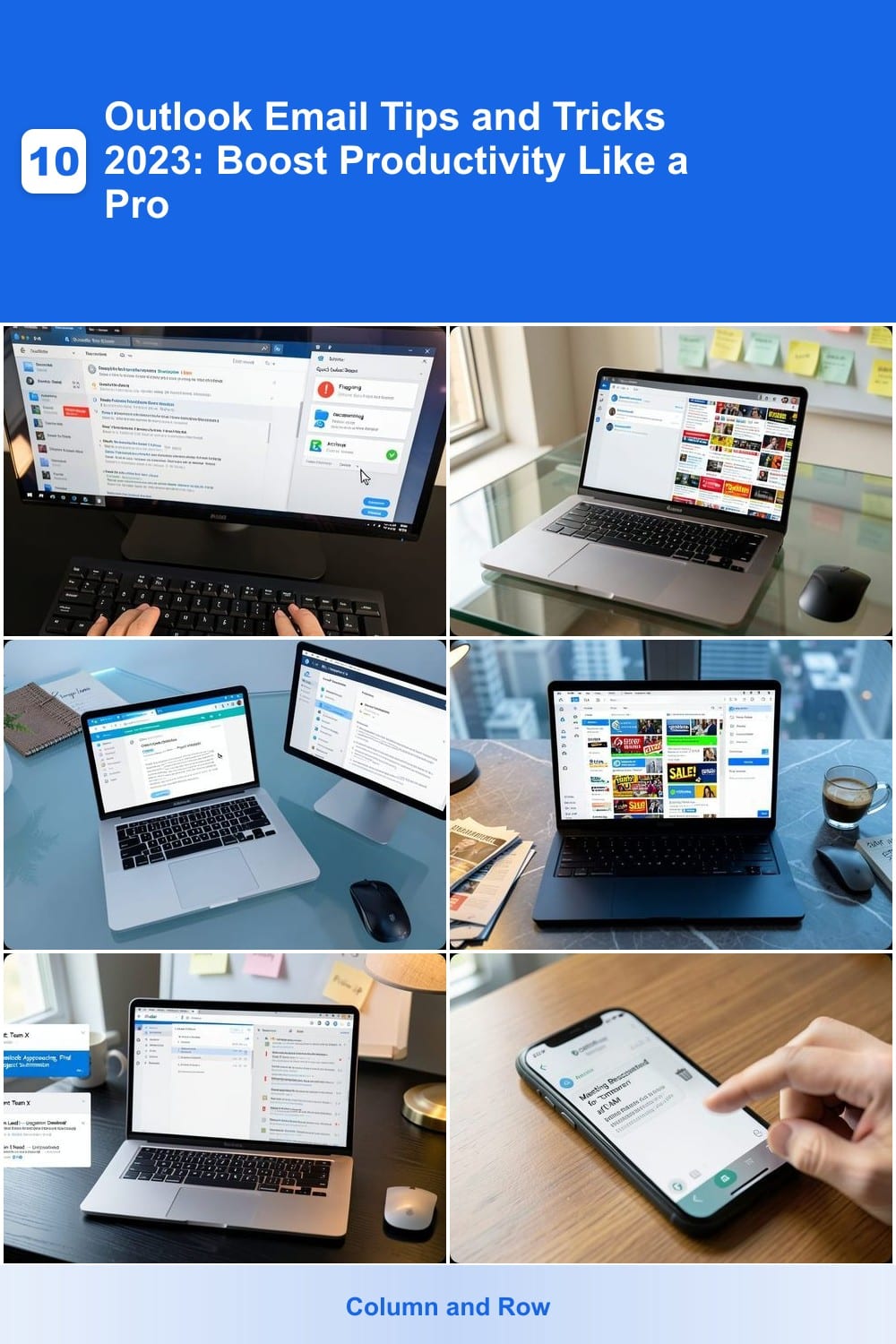
Ever waste minutes clicking through menus to flag, categorize, and move emails one by one? Outlook’s Quick Steps lets you bundle those actions into a single click—think of it as email automation on steroids. With just a few clicks, you can create a shortcut that flags an email as high priority, moves it to your "Client Follow-Ups" folder, and even adds a custom category—all without lifting your finger off the keyboard.
To set it up, go to the Home tab, click Quick Steps, and choose Create New Quick Step. Name it (like "Flag & Archive" or "Client Priority"), then select actions such as flagging, moving, categorizing, or marking as unread. Pro tip: Use Ctrl+Shift+Q to run your Quick Step instantly. You can even assign a custom keyboard shortcut to make it even faster. For power users, Quick Steps work in both desktop and web versions of Outlook, syncing across devices.
This is a game-changer for sales teams, project managers, or anyone drowning in repetitive email tasks. Spend less time clicking and more time focusing on what truly matters. ⚡
Focused Inbox for Priority Management
Drowning in promotional emails, newsletters, and low-priority messages while critical work emails get buried? Outlook’s Focused Inbox uses AI-powered filtering to automatically separate high-priority messages from the noise—so you only see what truly matters first.
Enable it by clicking the Focused Inbox icon in your navigation pane, then toggle "Focused Inbox on" to let Outlook analyze your reading habits and surface important emails. You can also manually move emails between the Focused Inbox and main inbox with a drag-and-drop, or mark specific senders as "Always Focused" or "Never Focused" to refine the filter. The best part? It syncs across desktop, web, and mobile versions of Outlook, ensuring your priority emails follow you everywhere.
Perfect for executives, project managers, or anyone juggling multiple priorities, this feature turns email overload into a streamlined, distraction-free experience. ⚡
Email Templates for Repeated Responses
Tired of typing the same responses over and over? Outlook’s email templates let you save time by storing pre-written replies—whether it’s client confirmations, meeting requests, or automated follow-ups. With just a few clicks, you can insert a polished, error-free message every time, ensuring consistency across your communications.
To get started, open a new email, compose your response, and click File > Save As > Outlook Template. Name it something clear (like "Client Onboarding" or "Meeting Follow-Up"), and it’ll appear in your Templates folder. Need to update it later? Simply reopen the template, make edits, and save it again—your changes will apply to all future uses. Outlook also supports placeholders (like [Client Name]) for dynamic content.
This trick is a game-changer for customer support teams, sales professionals, or anyone drowning in repetitive emails. Spend less time typing and more time focusing on what matters. ✨
Rules to Auto-Organize Your Inbox
Tired of drowning in promotional newsletters and spam that clog your inbox? Outlook’s Rules feature lets you create automated filters that handle sorting, flagging, or even deleting emails based on your exact preferences—no manual effort required.
Set up rules to automatically move emails from specific senders (like subscription updates) to a designated folder, flag high-priority messages from your boss with a red flag, or delete bulk emails over 5MB to free up storage. You can even create rules that forward urgent messages to your phone or apply categories based on keywords like "meeting" or "invoice."
This is a game-changer for busy professionals, small business owners, or anyone overwhelmed by email volume. Spend less time organizing and more time focusing on what truly matters. ✨
Search Folders for Custom Filters
Tired of digging through hundreds of emails to find that one urgent message? Search Folders in Outlook act like a personal email detective—scanning your inbox in real-time to surface only what you need.
Create a Search Folder for unread emails from a specific team, flagged messages, or even emails containing keywords like "invoice" or "meeting notes." These folders update automatically, so you’ll always see the latest matches without manual sorting. You can even nest them under custom categories in your navigation pane for instant access.
Perfect for project managers tracking client communications or small business owners juggling multiple priorities, Search Folders turn clutter into clarity with zero extra effort. ✨
Swipe Actions for Mobile Efficiency

Tired of tapping through menus to manage emails on your phone? The Outlook Mobile app turns your smartphone into a productivity powerhouse with swipe gestures that handle archiving, deleting, and flagging in seconds.
With a simple left or right swipe, you can archive emails (swipe right) or delete them (swipe left) without lifting a finger—ideal for clearing out clutter during commutes or between meetings. Need to flag an important message? Swipe up to mark it as a priority, or swipe down to snooze notifications for later. These gestures work seamlessly across Android and iOS, and the app even syncs your actions across devices.
Perfect for sales professionals, executives, or anyone juggling emails on the go, this trick cuts down on manual taps by up to 40%, letting you focus on what matters most. ⚡
Clean Up Conversation Threads
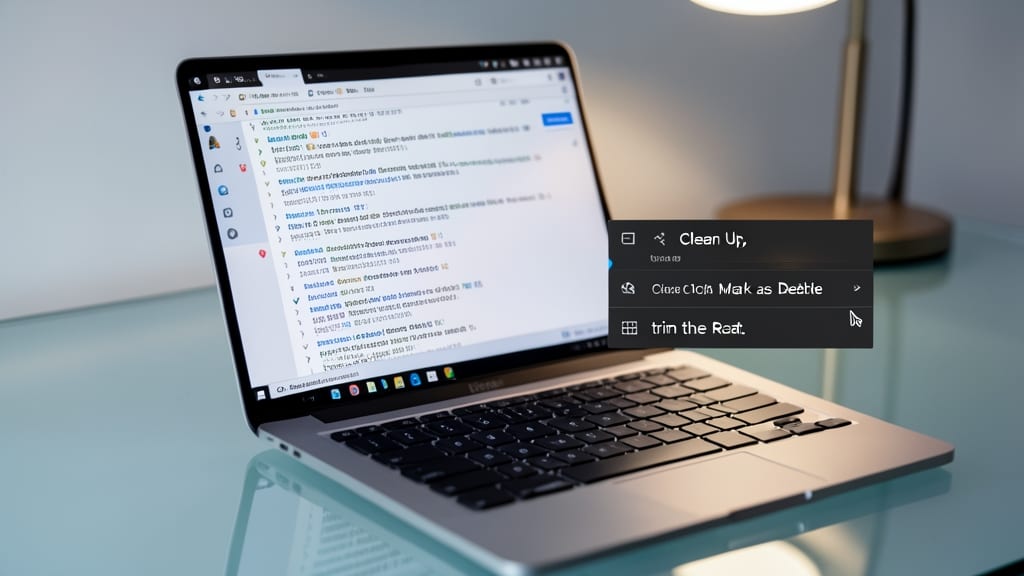
Drowning in email threads that stretch back for months? Outlook’s thread cleanup tools let you trim the fat without losing context. With just a few clicks, you can hide unnecessary replies, keeping only the key messages visible—no more scrolling through outdated chatter.
Right-click any email in a thread, then select Show Conversation Actions to reveal options like Collapse All or Hide Replies. For deeper control, use the View tab to toggle Show Message Header Only or Show Message Header and Preview Pane. This works seamlessly in both desktop and web versions, so you can declutter whether you’re at your desk or checking emails on the go.
Perfect for professionals juggling client communications or team discussions, this trick keeps threads manageable while preserving the full context when needed. ⚡
Keyboard Shortcuts for Speed

Tired of mouse-clicking your way through Outlook’s endless menus? Mastering 10 keyboard shortcuts can cut your email time in half—no training wheels required. These power moves turn repetitive tasks into one-handed operations, letting you focus on what matters.
Start with the basics: Ctrl+N (new email), Ctrl+Shift+A (mark all as read), and Ctrl+Y (jump to next unread email). For power users, Ctrl+Shift+M opens the Mail app, Ctrl+Shift+K flags an email, and Ctrl+Shift+I instantly jumps to your inbox. Pro tip: F6 cycles through Outlook’s ribbon tabs, while Alt+Enter opens an email in a new window for side-by-side reading. Memorize these, and you’ll navigate Outlook like a seasoned pilot. ⚡
Focused Inbox with Categories
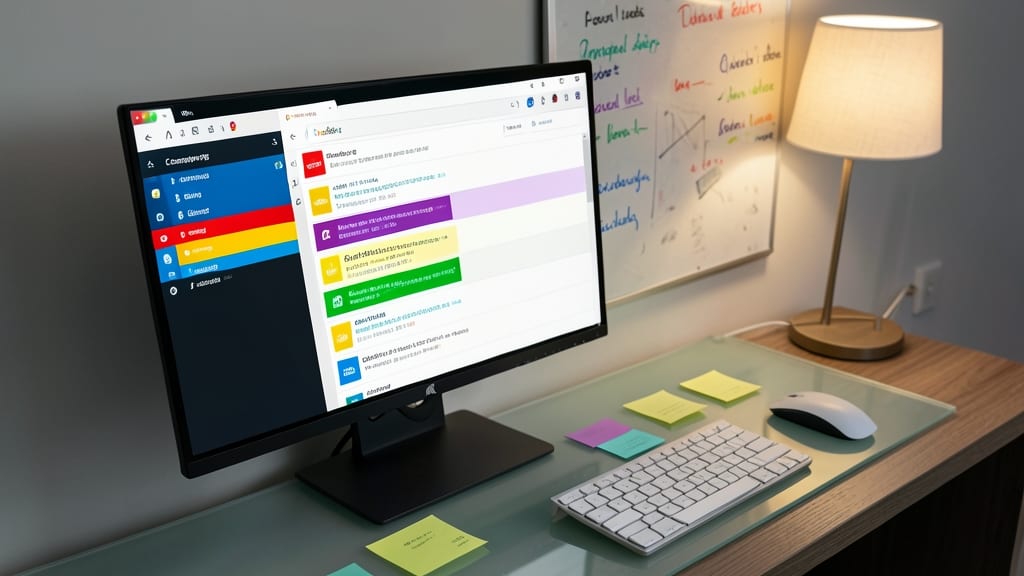
If you’re the type of person who remembers tasks better when they’re color-coded (think sticky notes or a whiteboard), Outlook’s Categories feature is your secret weapon. Unlike simple flags or folders, this tool lets you assign up to 10 custom colors—like red for urgent or blue for client follow-ups—directly to emails, turning your inbox into a visual command center.
To get started, right-click any email, select Categorize, and pick a color. Outlook then groups all emails with that category in one view, making it easy to spot patterns or prioritize tasks. You can even sync these categories across devices, so your color-coded system stays consistent whether you’re at your desk or checking emails on your phone. For visual learners, this method cuts down on mental clutter by letting your brain process priorities at a glance.
Perfect for freelancers juggling multiple clients, project managers tracking deadlines, or anyone who thrives on visual organization, this trick turns email management from a chore into a streamlined, color-coded workflow. ✨
Outlook Add-Ins for Extra Features
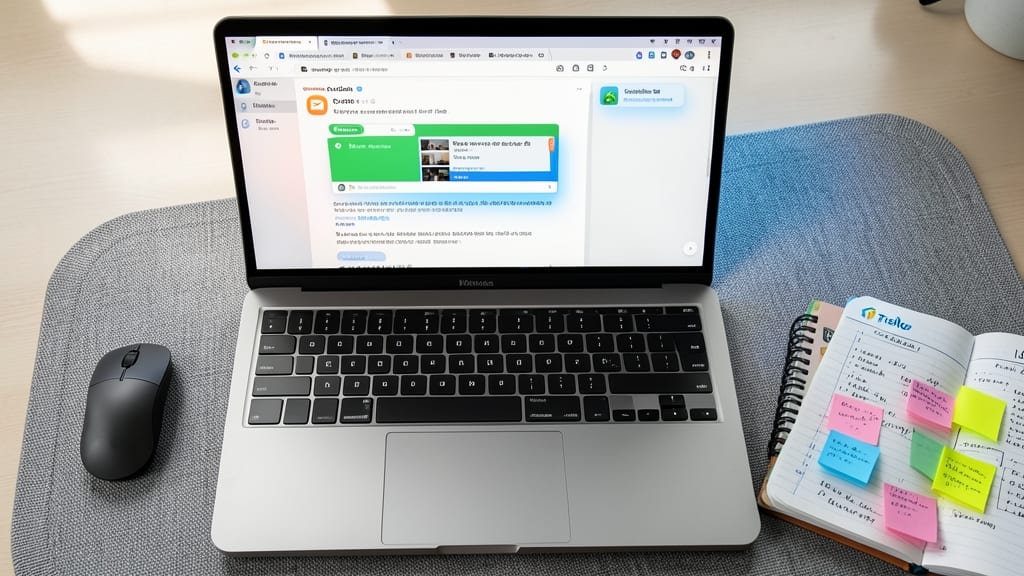
Why settle for basic email functionality when you can supercharge Outlook with third-party add-ins that turn it into a productivity powerhouse? Tools like Boomerang let you schedule sends or set reminders, while Trello integrates project cards directly into emails—no tab-switching required.
Installing add-ins is simple: Navigate to Outlook’s "Get Add-ins" menu, browse the Microsoft AppSource, and enable tools like Xero for invoicing or Slack for instant messaging. Most sync seamlessly with your existing workflows, adding features without clutter. For example, Boomerang’s "Read Receipts" reveals when your email was opened—ideal for follow-ups.
Perfect for professionals juggling multiple tools, these add-ins eliminate context-switching. Try one today and watch your email game level up! ✨