
Tip & Trick
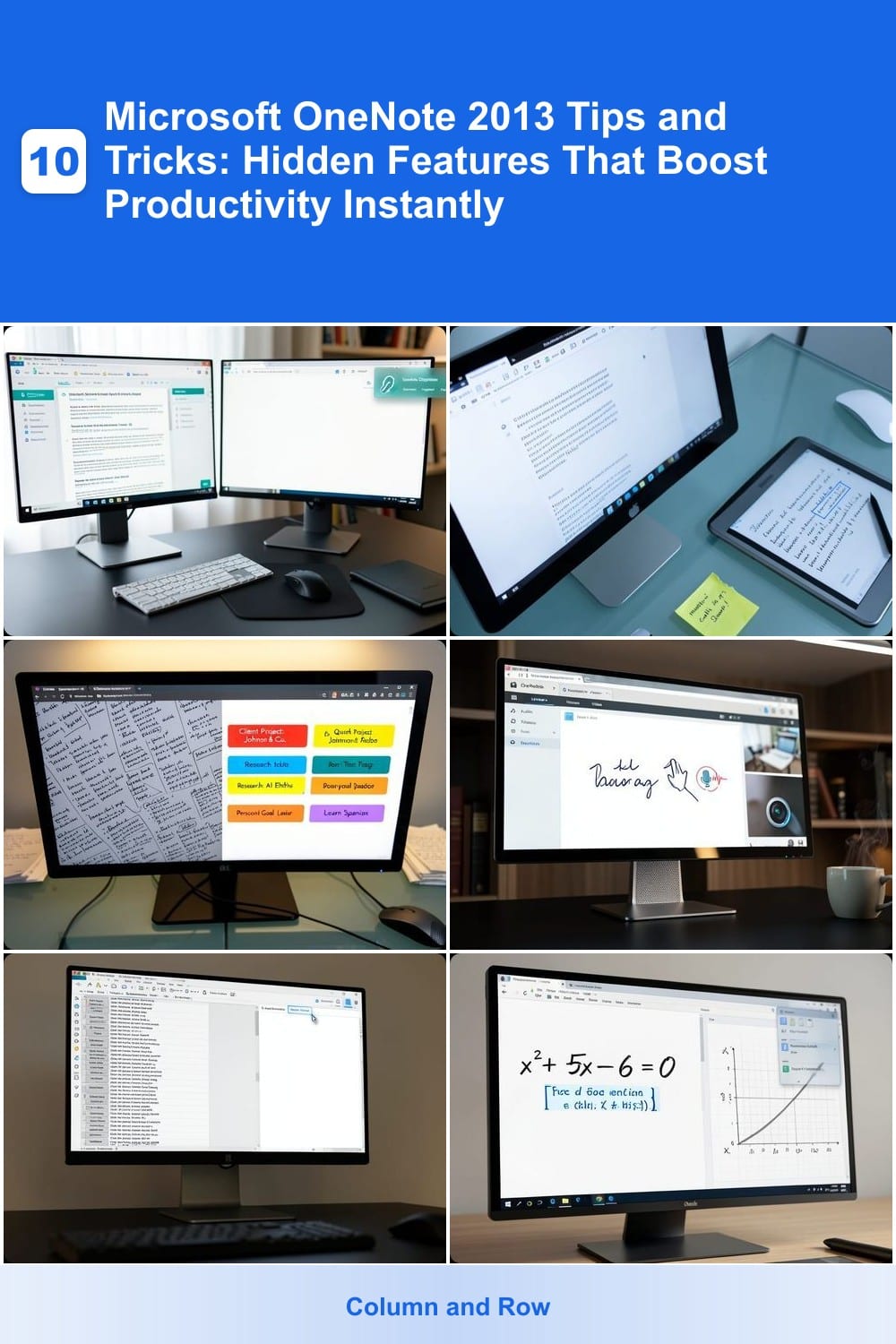
Microsoft OneNote 2013 is a powerhouse for organization, yet many users miss its hidden productivity boosters. These 10 underrated tips and tricks will transform how you capture, organize, and retrieve information—saving you hours weekly.
Quick Capture with OneNote’s Clipper Extension
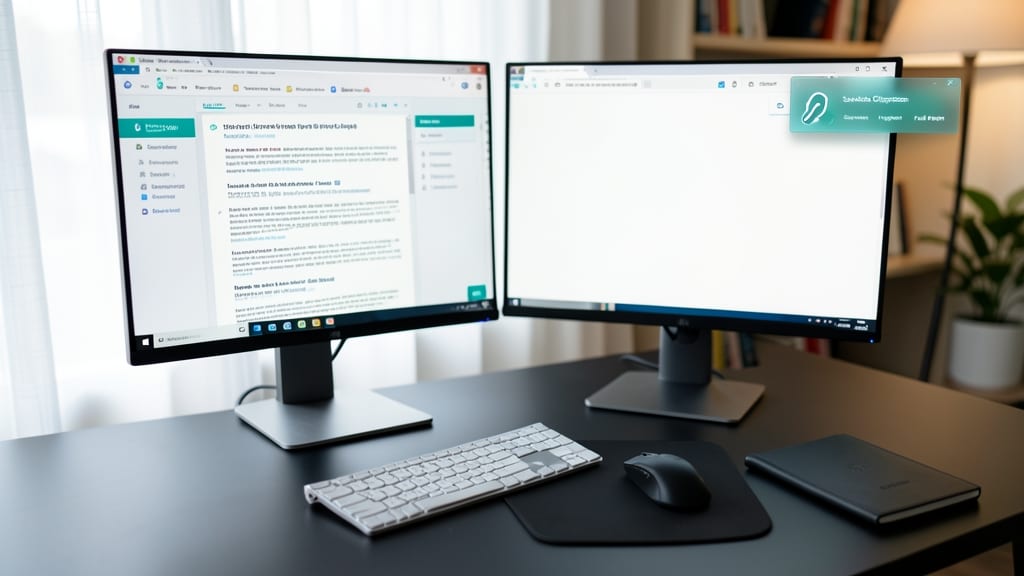
Tired of switching between browsers and OneNote to save research or meeting notes? The OneNote Clipper Extension turns your browser into a direct capture hub—no copy-pasting, no extra clicks. Install it from the Microsoft Store, and you’ll gain a floating toolbar that lets you save entire web pages, screenshots, or even email threads straight to your notebook with a single click.
This browser extension works with Chrome, Firefox, and Edge, and lets you choose which notebook, section, and page to save to before committing. Need to archive a 10-page research article or a client email chain? Just highlight the content, click the Clipper icon, and OneNote handles the rest—formatting, images, and all. The extension even captures PDFs and images from websites, preserving them as searchable text.
Perfect for journalists, researchers, or sales teams who spend hours a day curating digital content, the Clipper Extension eliminates the friction of manual transfers. Try it next time you’re deep in a rabbit hole of online research—your future self will thank you for the time saved. ⚡
Handwriting to Text Conversion for Notes
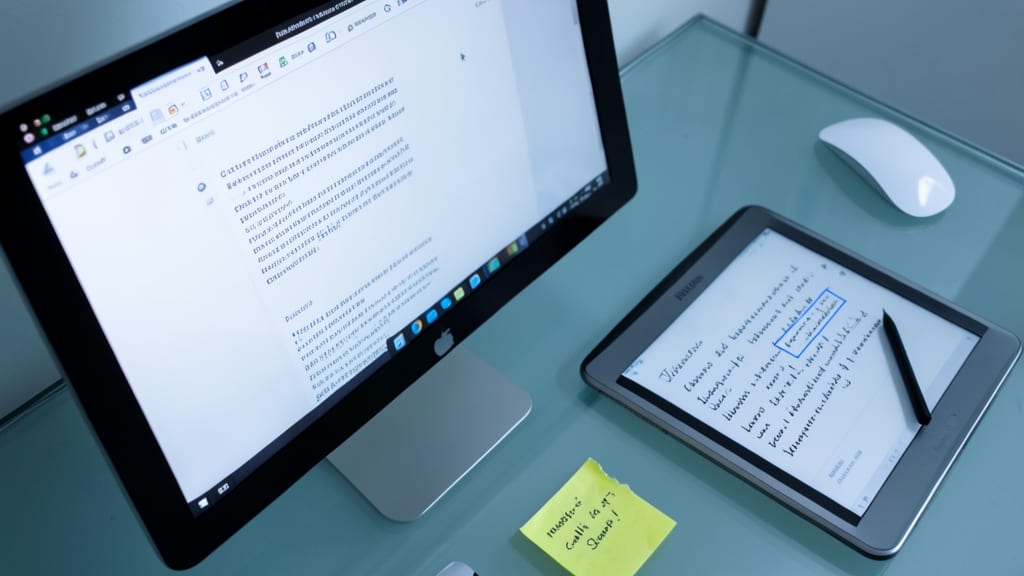
Ever scribbled a brilliant idea on a sticky note or tablet, only to realize later that you can’t search or edit it? OneNote 2013’s built-in OCR (Optical Character Recognition) solves this by converting your handwritten notes into searchable, editable text—no third-party apps required.
Just write your notes as usual, then select the text and choose Draw > Ink to Text. OneNote instantly converts your handwriting into clean, digital text while preserving your original ink annotations. The accuracy is surprisingly high, even for messy or cursive writing. You can also use Draw > Convert to Text to turn printed text from images or PDFs into editable content.
This trick is a game-changer for students transcribing lecture notes, meeting attendees capturing action items, or anyone who scribbles faster than they type. No more retyping—just convert and edit instantly. ✨
Tagging and Searching with Quick Tags
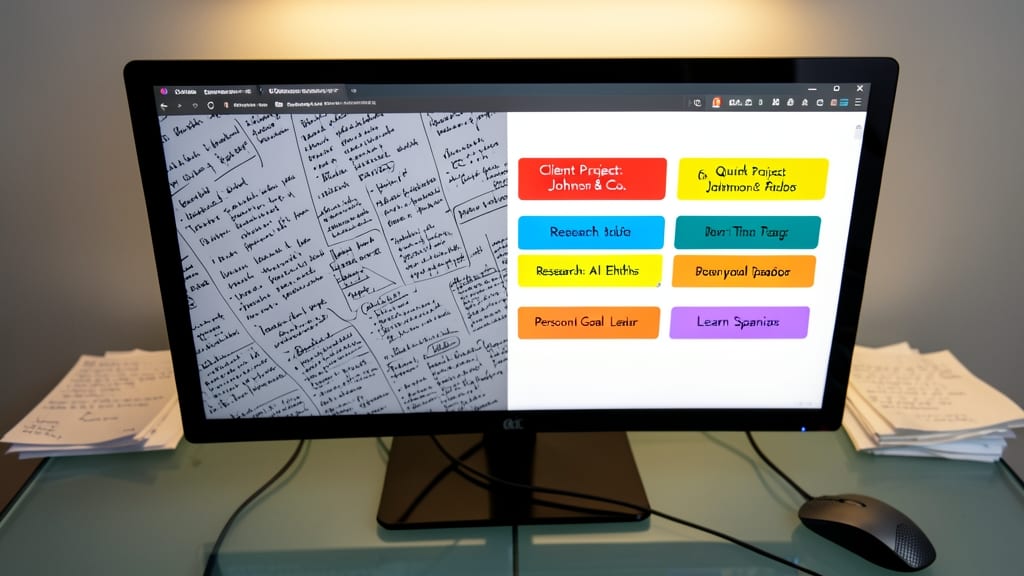
Drowning in a sea of notes without a clear system? Quick Tags in OneNote 2013 lets you assign color-coded labels to any text, making organization effortless. Whether you're tracking client projects, research topics, or personal goals, these visual tags turn chaos into clarity with just a few clicks.
Simply highlight text, pick a color from the Quick Tags palette (12 options, including red for urgent tasks or blue for reference material), and OneNote instantly indexes it. Search later using the Find bar—type keywords and filter by tag color to pinpoint exactly what you need in seconds. Teams love this for shared notebooks, where everyone can instantly see who’s handling what.
Perfect for project managers, researchers, or anyone juggling multiple categories—this feature turns OneNote into a dynamic, searchable database. ⚡
Embedding Audio and Video Directly
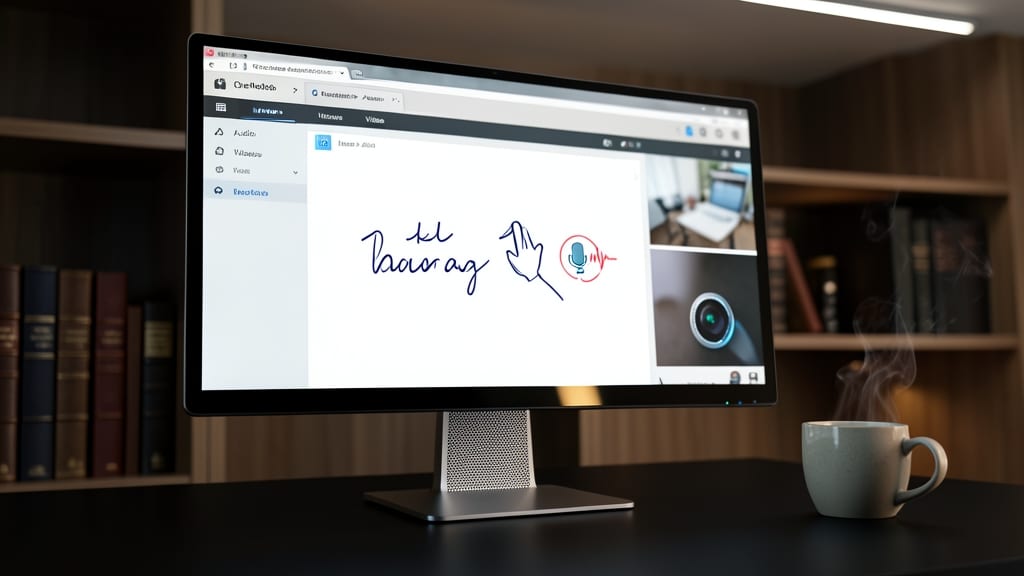
Need to capture verbal insights but don’t want to juggle separate apps? OneNote 2013 lets you embed audio recordings and video clips directly into your notes—no third-party tools required. Just hit Insert > Audio or Video, and your microphone or webcam springs to life, preserving context exactly as it happened.
Record voice memos during brainstorming sessions, embed lecture clips for later review, or attach customer feedback from video calls—all while keeping everything organized in one place. The embedded media plays natively within OneNote, so you can annotate timestamps or add notes alongside the recording. Perfect for journalists, educators, or anyone who relies on spoken details.
This feature shines brightest for professionals who need verbal context without losing the written structure of their notes. Try it next time you’re in a meeting or workshop—your future self will thank you. ✨
Section Groups for Hierarchical Organization
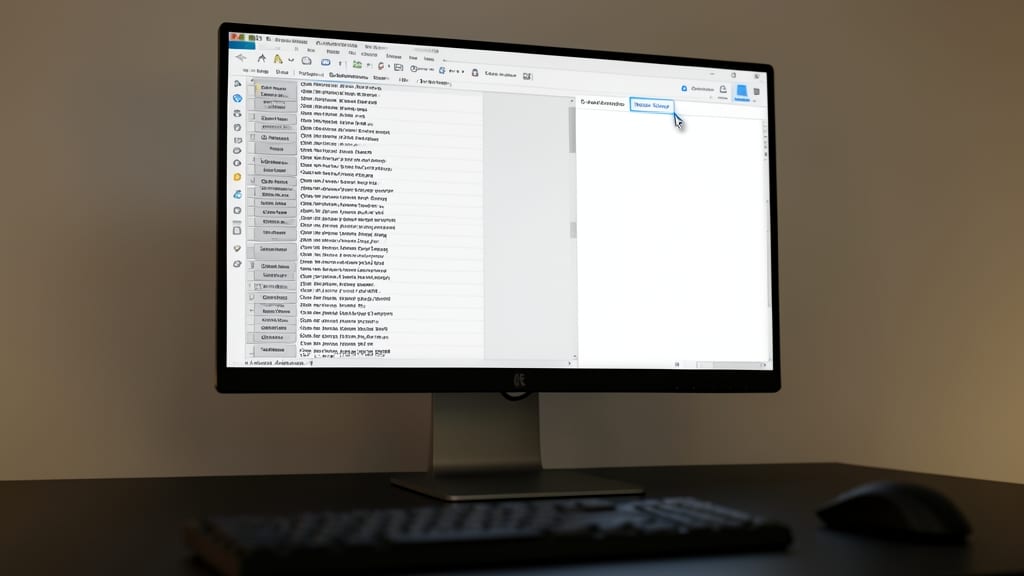
Tired of drowning in a sea of endless scrolls in your OneNote 2013 notebooks? Section Groups let you organize chaos into collapsible folders—think of it as your digital filing cabinet with instant toggle access.
Right-click any section to create a new section group, then drag related sections inside. Need to switch between client projects or research topics? Just collapse everything else and focus on what matters. The nested hierarchy mirrors Windows Explorer, so you’ll feel right at home if you’ve used file folders before.
This trick is a lifesaver for project managers, researchers, or anyone juggling multiple topics. With a few clicks, you’ll reclaim screen real estate and mental clarity. ✨
Math and Equation Tools for Problem-Solving
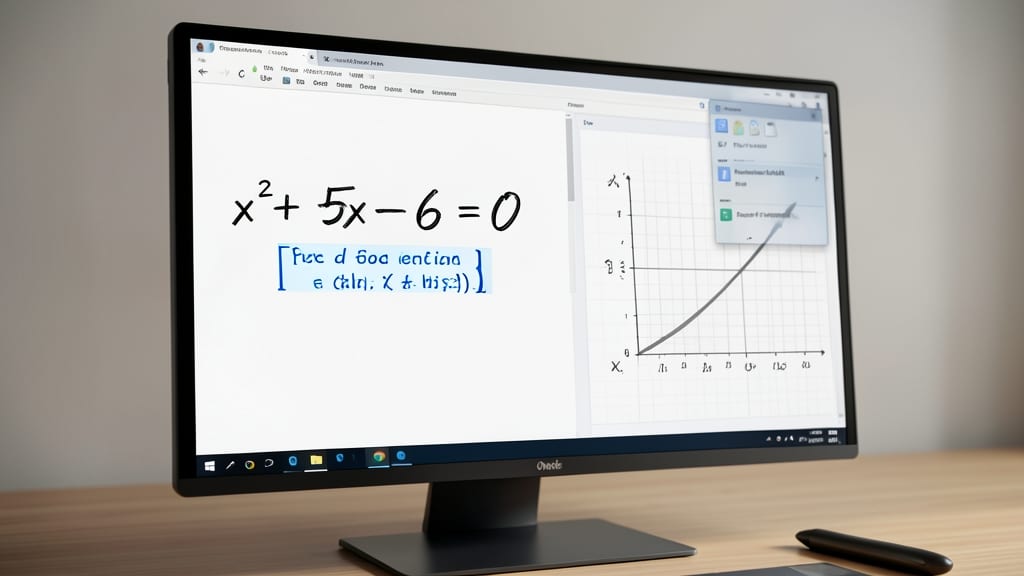
Tired of bouncing between apps just to sketch a graph or solve an equation? OneNote 2013’s built-in math tools turn your notebook into a full-fledged problem-solving workspace. With Ink Math Input, you can write equations by hand, and OneNote instantly converts them into editable digital formats—no extra software needed.
Use the Equation tool to insert precise symbols, or sketch 2D/3D graphs directly on your page. The scientific calculator integrates seamlessly, so you can verify results without leaving your notes. Perfect for engineers drafting schematics or students working through calculus problems, this feature keeps your workflow streamlined and distraction-free. ✨
Linking Notes Across Notebooks
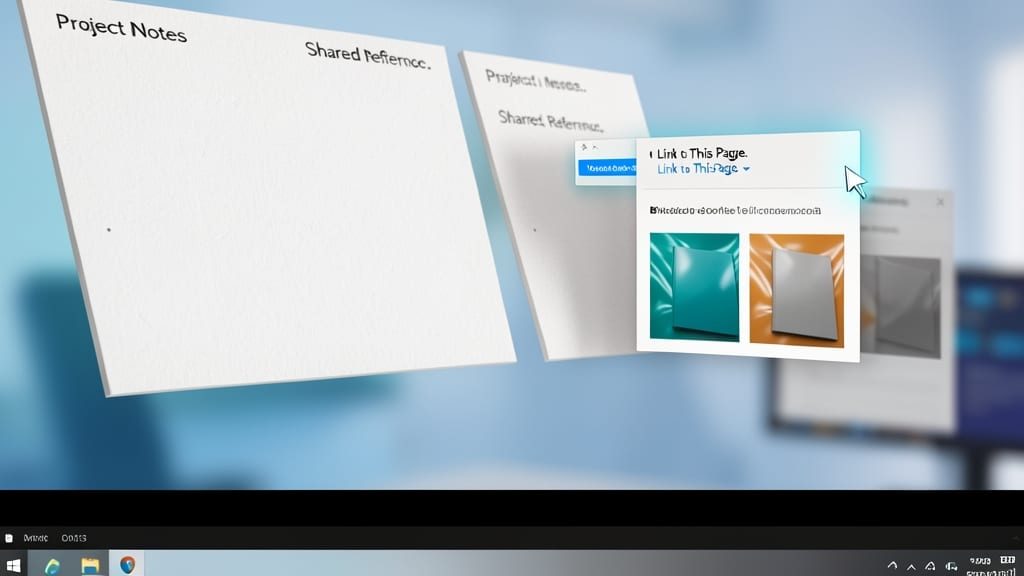
Tired of copying and pasting the same information across notebooks? OneNote 2013’s cross-notebook linking feature lets you create live hyperlinks between notes—no duplication required. Simply right-click a word or section, select "Link to This Page," and choose the target notebook from your list.
This trick is a game-changer for researchers, project managers, or anyone juggling multiple notebooks. The link updates automatically if the source changes, and you can even link to specific sections within other notebooks. Best of all, it works seamlessly with OneDrive-sync’d notebooks, so your connections stay intact across devices.
Perfect for connecting related ideas, meeting notes, or reference materials without cluttering a single notebook. Try it next time you’re cross-referencing—your future self will thank you! ✨
Password-Protecting Sensitive Notebooks

If client confidentiality or proprietary research keeps you up at night, OneNote 2013’s password-protected notebooks are your digital vault. Unlike shared notebooks that rely on permissions, this feature encrypts entire notebooks with a 128-bit AES password, ensuring only authorized users can access sensitive content—even if someone gains physical access to your device.
To enable it, right-click your notebook in the File Explorer, select Properties, then check Encrypt contents to secure data. You’ll be prompted to set a password—remember, this isn’t just for peace of mind. It’s a HIPAA-compliant safeguard for healthcare pros, a financial audit shield for accountants, or a trade secret lock for engineers. The encryption works seamlessly across devices, so your notes stay secure whether you’re on a Windows 7 PC or a surface tablet.
This trick is non-negotiable for professionals handling regulated data—think legal contracts, medical records, or R&D blueprints. No extra plugins or third-party tools required. ⚡
Customizing Quick Notes for Speed
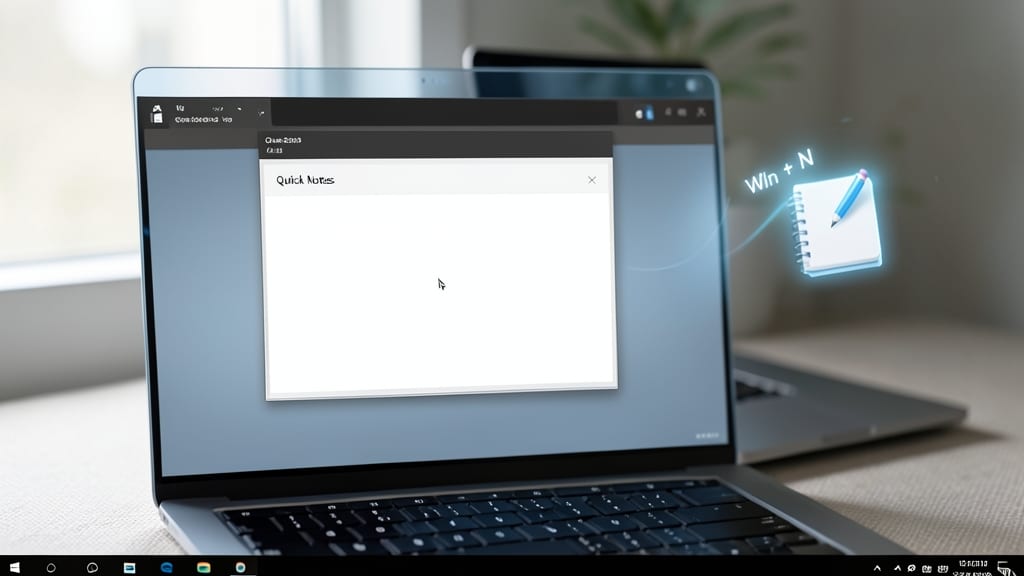
Tired of digging through menus to jot down quick thoughts? OneNote 2013’s Quick Notes feature lets you create a dedicated section that opens in under 2 seconds with a keyboard shortcut or desktop shortcut—no navigation required.
Start by creating a new section and naming it "Quick Notes." Then, assign a hotkey (like Ctrl+Shift+Q) in OneNote’s File > Options > Advanced settings. For even faster access, pin the section to your favorites bar—now you can dump meeting notes, grocery lists, or random ideas instantly. The best part? It syncs automatically with your other notebooks.
This trick is a game-changer for developers debugging on the fly, students capturing lecture highlights, or managers logging action items during calls. ⚡
Syncing with OneDrive for Offline Access

Ever found yourself stranded without internet access, only to realize you really needed those meeting notes? OneNote 2013’s OneDrive offline sync solves that—letting you work seamlessly on flights, construction sites, or rural areas where Wi-Fi is a myth. Just enable it in the File > Info > Sync Settings menu, and your notebooks become locally available while silently syncing when you reconnect.
The magic happens with automatic background sync (configurable per notebook) and conflict resolution that keeps your edits intact. You’ll love how OneNote prioritizes your most recent changes—no more losing work because of a dropped connection. Plus, the offline mode works on up to five devices simultaneously, so your tablet and laptop stay in perfect sync.
This trick is a lifesaver for field researchers, traveling consultants, or anyone who’s ever cursed at a dead zone. No more emailing yourself files or printing notes—just open, edit, and save like always. ✨