
Tip & Trick
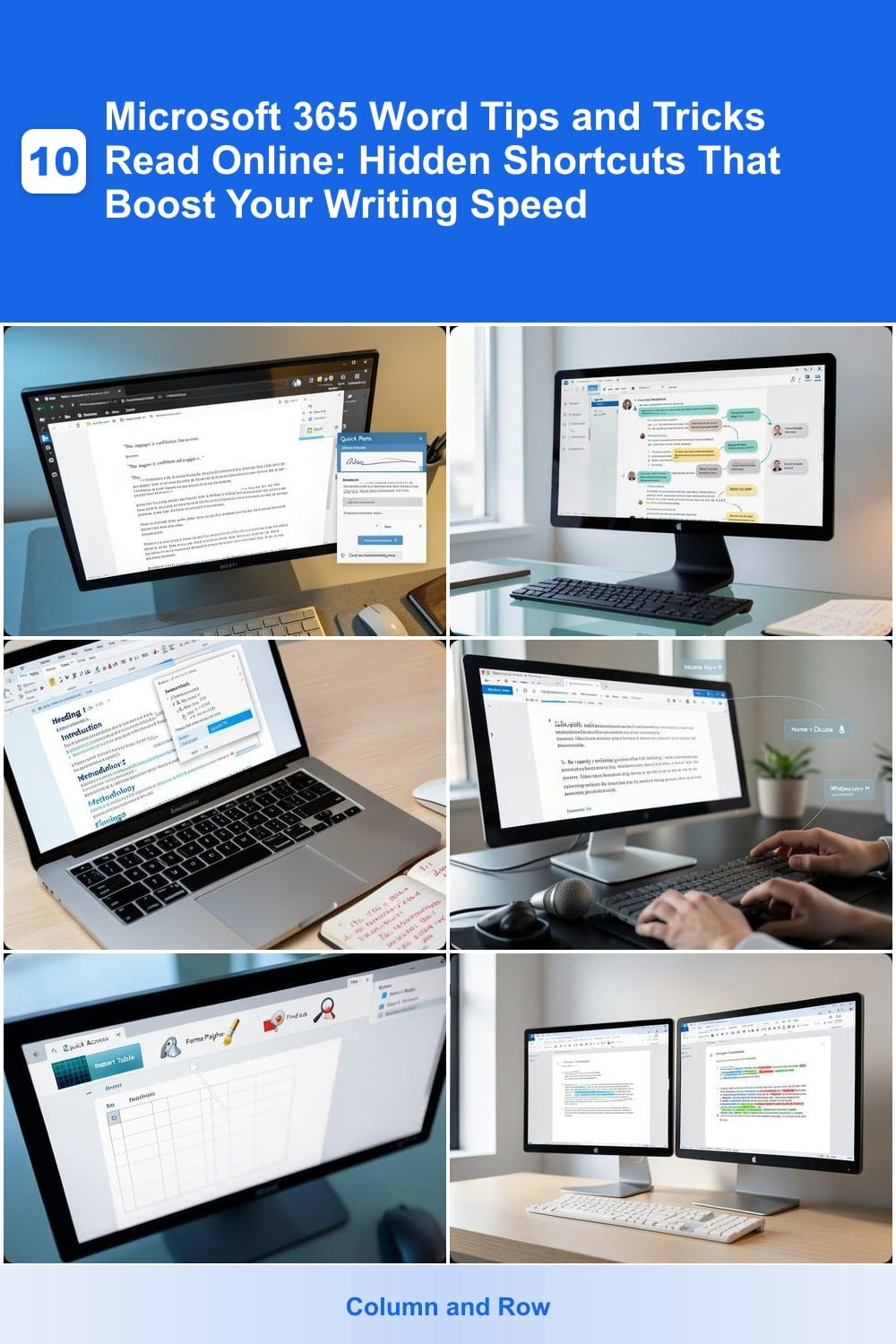
Microsoft Word remains the gold standard for document creation, but most users only scratch the surface of its capabilities. These seven hidden Microsoft 365 Word tips and tricks will transform your workflow, cutting writing time by half while adding professional polish to every document you create.
Quick Parts Gallery for Repeated Text Elements
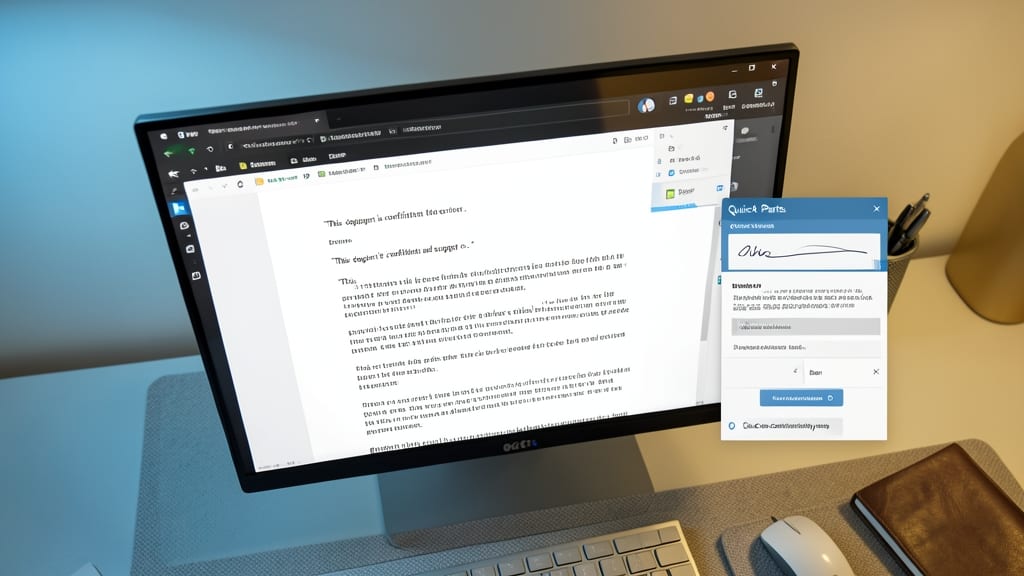
Ever waste time retyping the same disclaimers, signatures, or legal clauses in every document? Microsoft Word’s Quick Parts Gallery lets you store and reuse text snippets with a single click—no copy-pasting required. This hidden feature acts like a personal text library, perfect for boilerplate content like email signatures, contract terms, or research citations.
To set it up, type your reusable text, highlight it, and click Insert > Quick Parts > Save Selection to Quick Parts Gallery. Your snippet now appears in the dropdown menu for instant insertion. Pro tip: Organize entries into categories (e.g., "Legal," "Business") by adding them to custom galleries. For advanced users, combine it with fields (like dates or page numbers) to create dynamic templates—ideal for invoices or reports.
This trick is a game-changer for legal teams, marketers, and academics who juggle repetitive text. Spend less time typing and more time refining your message. ⚡
Track Changes with Comments for Collaborative Editing

Tired of track changes that leave no room for discussion? Microsoft 365 Word’s Track Changes with Comments feature lets you embed threaded conversations directly into edits—turning every revision into a collaborative discussion. Instead of just seeing what changed, you’ll also see why it changed, with comments tied to specific edits.
To use it, enable Track Changes (Review tab), then right-click any edit to Add a Comment. These comments appear as balloons alongside the changes, creating a visual thread of feedback. You can even reply to comments, turning your document into an interactive workspace. The Review tab’s Comments pane lets you sort by status (new, replied, unresolved) for organized feedback loops—ideal for legal teams, marketing agencies, or client review cycles.
This is the ultimate tool for team projects or client feedback, where context matters as much as the edits themselves. No more back-and-forth emails—just a single, organized document where every change tells a story. 💡
One-Click Table of Contents with Auto-Updating Headings
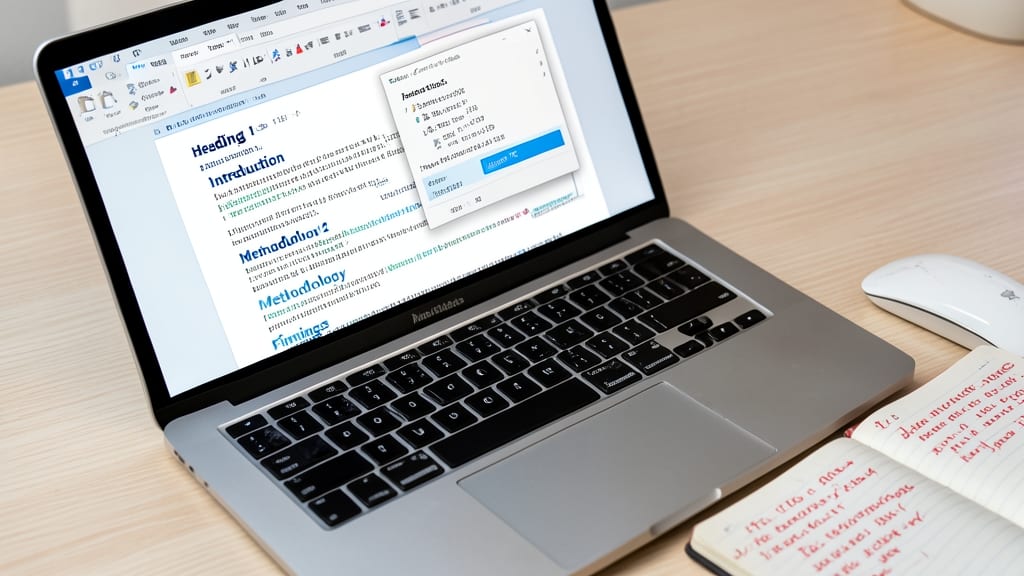
Struggling to manually update your table of contents after every edit? Microsoft Word’s auto-generated TOC solves this with just two clicks—no more copy-pasting or formatting headaches. Simply apply Heading 1, Heading 2, and Heading 3 styles to your document, then insert the TOC via the References tab. It updates instantly when you modify headings, ensuring your outline always matches your content.
The magic happens with Word’s built-in styles: Ctrl+Alt+1 (Windows) or Cmd+Option+1 (Mac) applies Heading 1, while the TOC automatically reflects hierarchy changes. For long documents like theses or whitepapers, this feature saves hours of manual work—plus, you can customize TOC appearance with page numbers, hyperlinks, and tab stops for a polished look.
This trick is a game-changer for researchers, marketers, and educators who juggle lengthy documents. ⚡
Dictation Mode for Hands-Free Writing
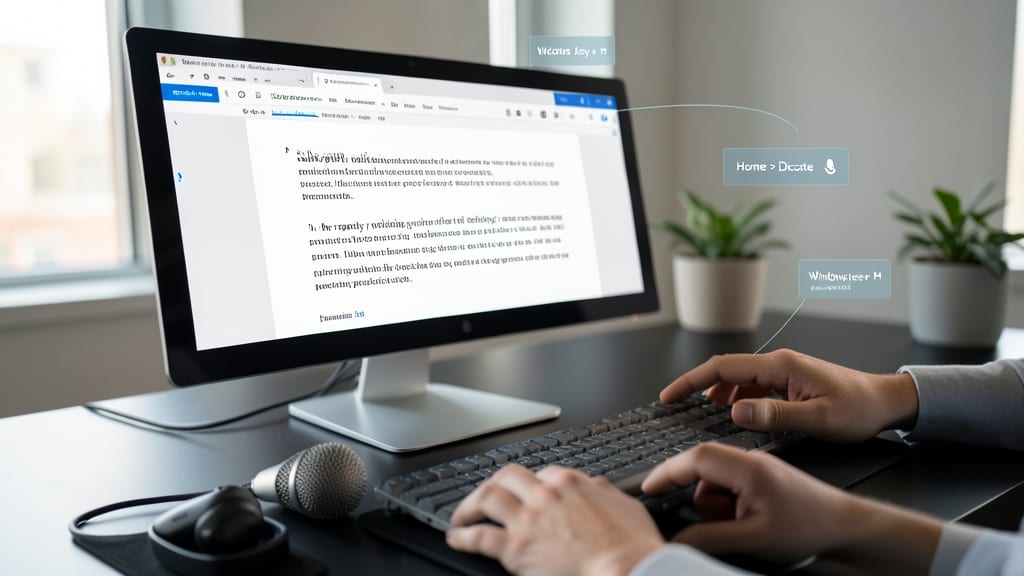
Struggling to keep up with your thoughts while typing? Microsoft 365 Word’s Dictation Mode turns your voice into text in real-time, letting you draft entire documents hands-free—no keyboard required. Simply press Home > Dictate (or use the Windows key + H shortcut) to activate the microphone, and start speaking naturally.
The feature handles punctuation commands like "comma," "period," or "new paragraph" seamlessly, and even recognizes formatting cues such as "bold" or "italic." With support for over 100 languages, it’s perfect for brainstorming, transcribing interviews, or accommodating accessibility needs. The accuracy improves with context, making it a game-changer for writers who prefer speaking over typing.
Ideal for journalists, students, or anyone with repetitive strain injuries, Dictation Mode works best when used in a quiet environment for optimal clarity. Give it a try—your wrists will thank you! ✨
Customizable Quick Access Toolbar Shortcuts
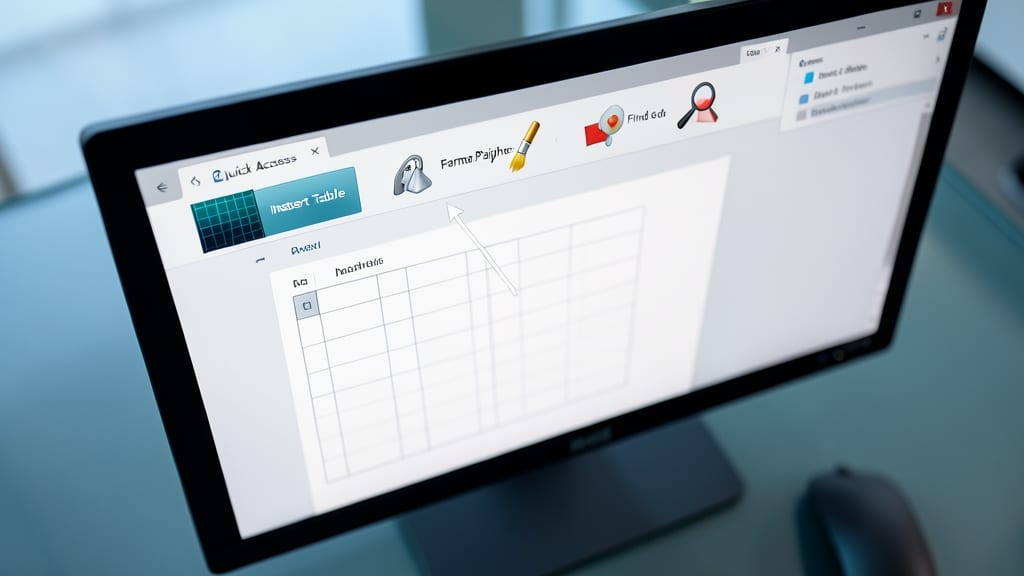
Tired of fumbling through menus to insert tables or apply formatting? The Quick Access Toolbar lets you drag-and-drop your most-used commands—like Insert Table, Format Painter, or Find & Replace—right to the top of your screen for instant access.
With just a few clicks, you can customize shortcuts (e.g., assign Ctrl+Shift+T to "Insert Table") and even sync them across devices. This is a game-changer for power users who spend hours formatting documents, as it eliminates repetitive clicks and speeds up repetitive tasks.
Perfect for legal teams, academics, or anyone drowning in formatting work—this tweak turns Word into a true productivity powerhouse. ⚡
Compare Documents Side-by-Side for Edits
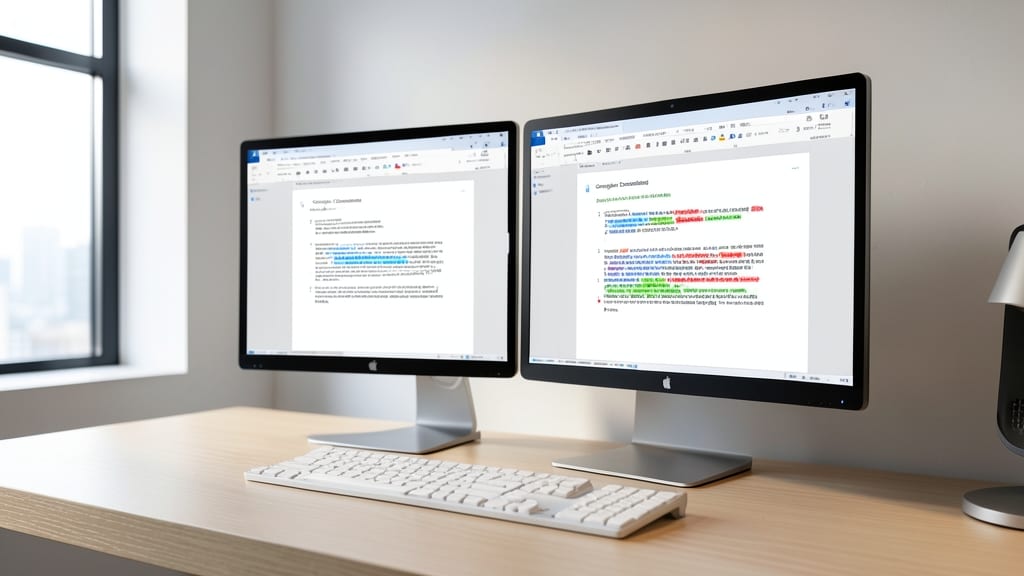
Ever wrestled with two versions of the same document—one with your edits and another with the original—and wished you could see both at once? Microsoft 365 Word’s Compare Documents feature lets you merge files into a split-screen view, highlighting every change in real time. No more flipping between tabs or squinting at side-by-side windows on separate monitors.
Open the Review tab, click Compare, and select your original and revised files. Word instantly syncs scrolling, colors additions/deletions, and even shows formatting changes. The View Side by Side option further streamlines legal reviews, manuscript edits, or version control by keeping both documents visible simultaneously. For extra clarity, enable Final Showing Markup to see only the final version with changes tracked.
This trick is a lifesaver for editors, lawyers, and project managers juggling multiple drafts. Spend less time cross-referencing and more time refining your content. ✨
Mail Merge with Excel Data for Bulk Letters
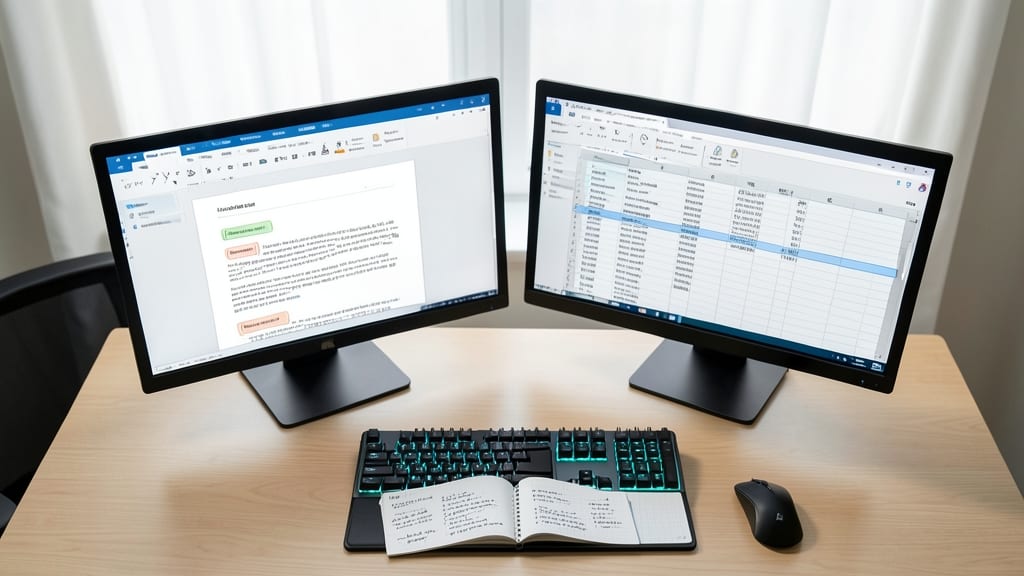
Tired of manually typing the same details into dozens of letters or labels? Mail Merge in Microsoft 365 Word automates this tedious task by pulling data from an Excel spreadsheet to create personalized documents in seconds.
Start by preparing your data in Excel (e.g., names, addresses, or custom fields), then use Word’s Mail Merge wizard to link it to your template. You can generate letters, labels, or even envelopes—all with dynamic placeholders like <<FirstName>> that auto-fill. For extra polish, use IF statements in Excel to tailor content (e.g., "Dear Mr./Ms.") or merge with Word’s built-in rules for conditional formatting.
This trick is a game-changer for HR departments sending welcome packets, marketing teams blasting personalized promotions, or small businesses printing bulk invoices. Say goodbye to repetitive typing and hello to effortless customization. ✨