
PowerPoint
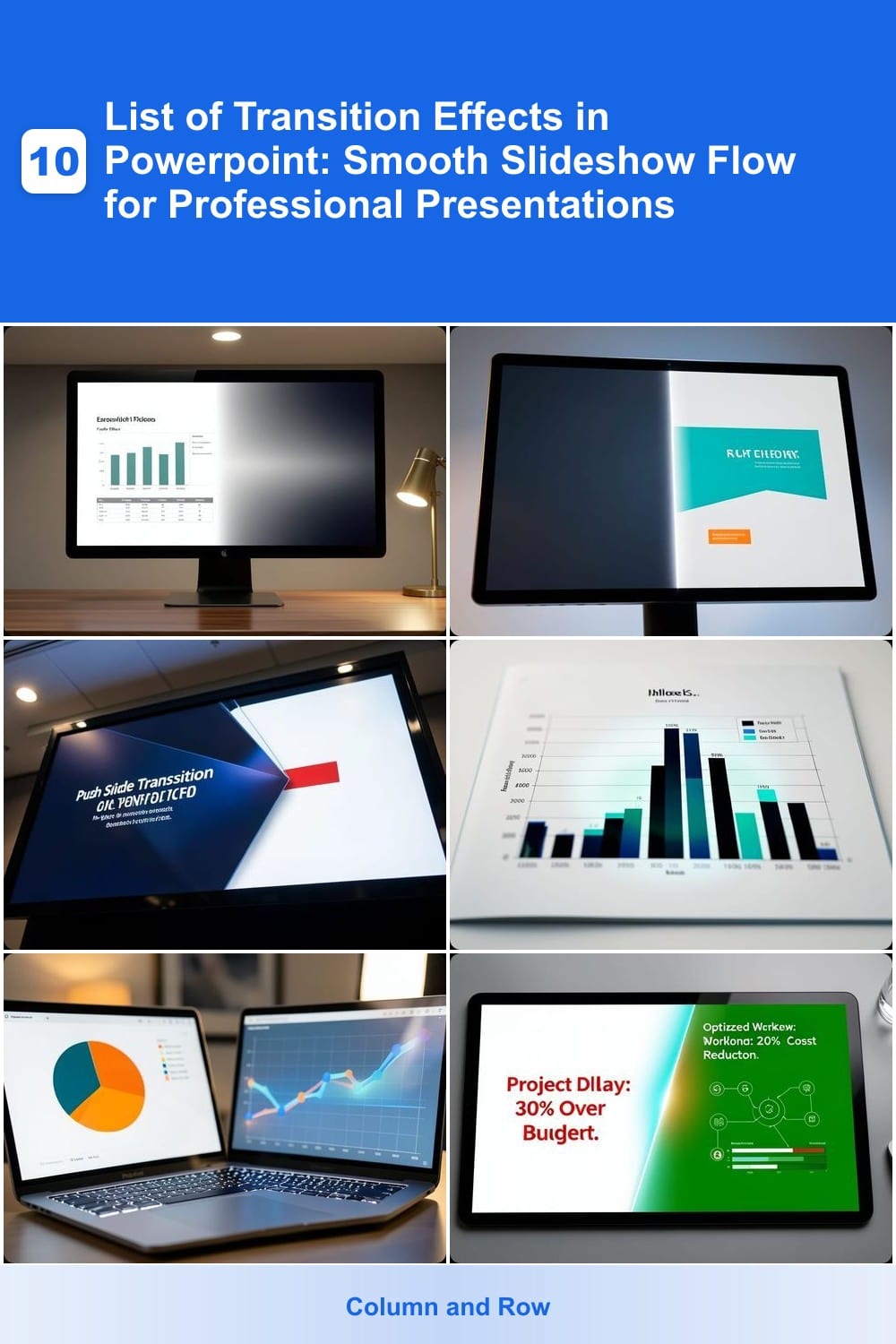
PowerPoint transitions can transform a basic slideshow into a polished, professional presentation—but choosing the right ones matters. These seven transition effects help maintain flow, emphasize key points, and keep your audience engaged without distracting from your content.
Fade Slide Transition for Elegant Professionalism
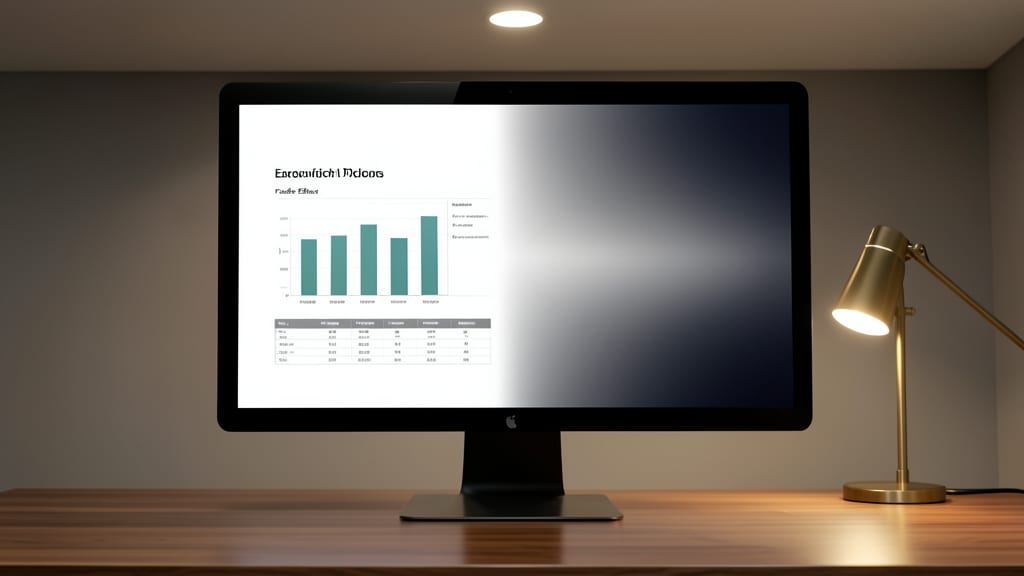
When your presentation demands polished professionalism—like financial reports or executive pitches—the Fade transition is your go-to. Unlike flashy effects, it smoothly dissolves one slide into the next, maintaining focus on your content while adding a touch of sophistication.
This transition works with any slide layout and pairs well with subtle animations or minimalist designs. Adjust the speed to slow (3.0s) for dramatic pauses or medium (1.5s) for a balanced flow. Avoid overusing it—stick to key slides to keep the presentation refined.
Perfect for corporate settings, this transition ensures your audience stays engaged without visual distractions. ⚡
Slide Vertical Wipe for Dynamic Storytelling
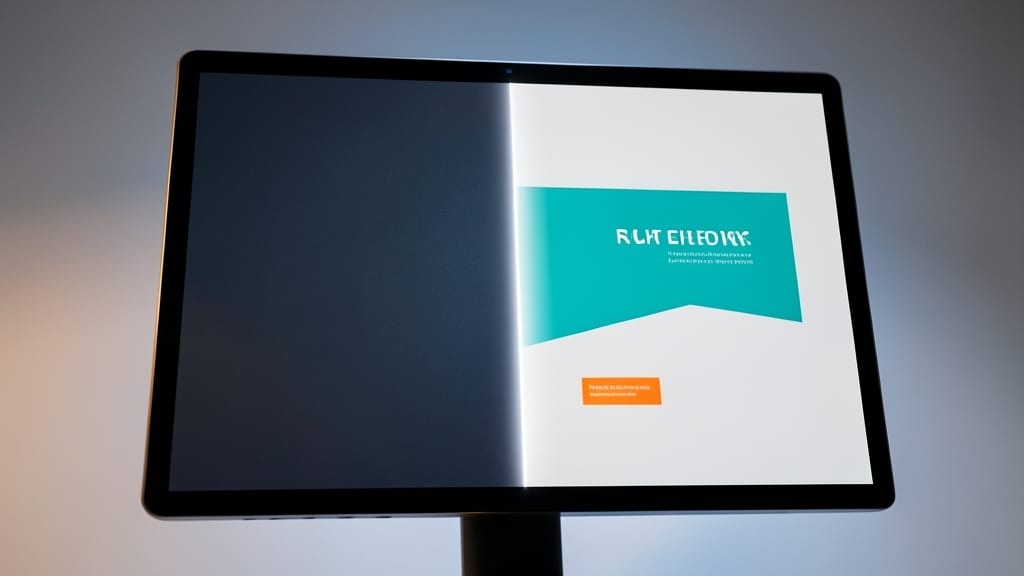
Need to craft a presentation that unfolds like a story? The vertical wipe transition in PowerPoint is your secret weapon—it moves content upward or downward in a single, fluid motion, creating a natural progression that feels cinematic.
This transition works by revealing slides along a vertical axis, which subtly signals directionality (e.g., "moving forward" or "building momentum"). Unlike fades, it adds visual momentum without overwhelming your audience. Pair it with a timeline-based narrative or chronological data to reinforce your flow effortlessly.
Marketers, educators, and creatives will love this effect for its ability to guide attention while keeping the focus on your message. Just avoid overusing it—save it for key story beats where pacing matters most. ✨
Push Slide Transition for High-Impact Reveals
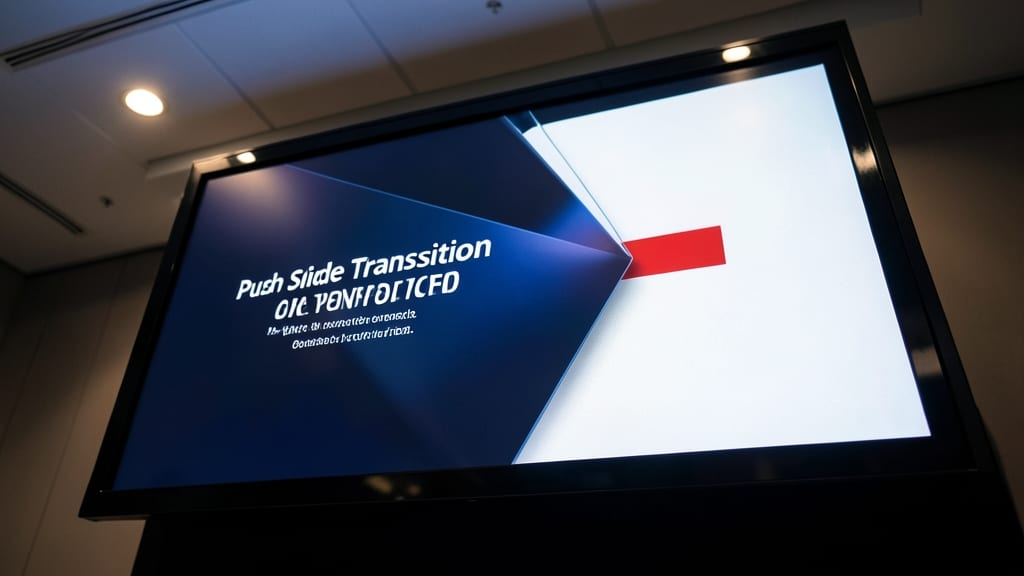
Need to make a specific slide pop during your presentation? The Push Slide Transition delivers a bold, directional reveal that commands attention—literally. Unlike passive fades or wipes, this effect physically pushes the current slide out (left, right, up, or down) while the next glides into place, creating a dynamic "unveiling" motion perfect for product demos or keynote moments.
PowerPoint offers four directional variants (left, right, up, down), each with adjustable speed for dramatic flair. The exciting speed setting adds a cinematic punch, while the subtle option keeps it professional. Pro tip: Pair this with a sound effect (like a subtle "whoosh") to amplify the reveal—ideal for unveiling logos, pricing models, or breakthrough announcements.
This transition shines in high-stakes presentations where you want to emphasize a single slide’s impact—think investor pitches or product launches. Just avoid overusing it; one well-placed push per deck keeps the focus where it belongs. 💪
Zoom Slide Transition for Emphasis on Details
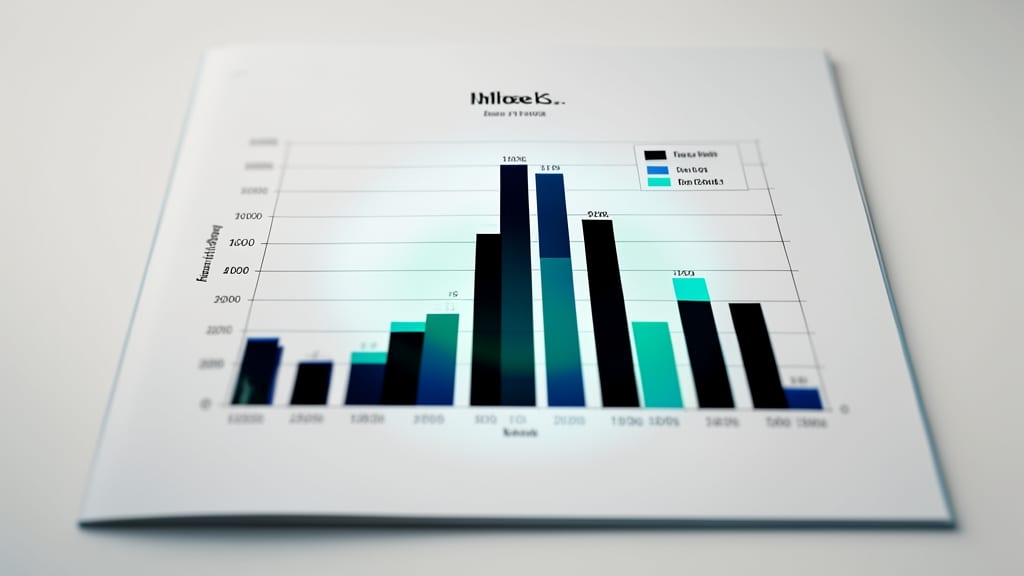
Need to make a complex chart or key data point truly stand out? The Zoom Slide Transition does exactly that by dynamically zooming into focus—perfect for data-heavy slides where details deserve spotlight time. Unlike other transitions that fade or wipe, this one physically draws attention to your content, making it ideal for financial reports, technical deep dives, or any presentation where precision matters.
You can customize the zoom effect (from subtle to dramatic) and pair it with a directional focus (zooming in from any corner). For example, a financial dashboard can zoom into a specific metric, or a comparison chart can highlight the most critical data point. The transition is smooth and professional, ensuring your audience’s eyes land exactly where you want them—without the distraction of flashy animations.
This transition shines in analytical or technical presentations where clarity is key. Use it sparingly—once or twice per deck—to emphasize pivotal moments without overwhelming your audience. ✨
Morph Transition for Seamless Data Visualizations

Stuck explaining how your Q3 sales data suddenly became a year-over-year trend analysis>? The Morph transition in PowerPoint is your secret weapon. Unlike static slides, it fluidly animates one chart into another—turning a pie chart into a line graph or adjusting bar heights in real time—while keeping your audience focused on the insights, not the transition itself.
This transition works best with object animations> (like charts or shapes) and supports smooth scaling, repositioning, and color shifts>. For example, morph a 2023 revenue bar chart> into a 2024 forecast projection without losing context. It’s built into PowerPoint 2016 and later, so no plugins are needed—just select your objects, choose "Morph," and let the magic happen.
Data analysts and marketers will love this for live dashboards**> or comparative slides. Just avoid overusing it—save it for moments where the visual evolution matters to your story. ✨
Split Transition for Creative Divides
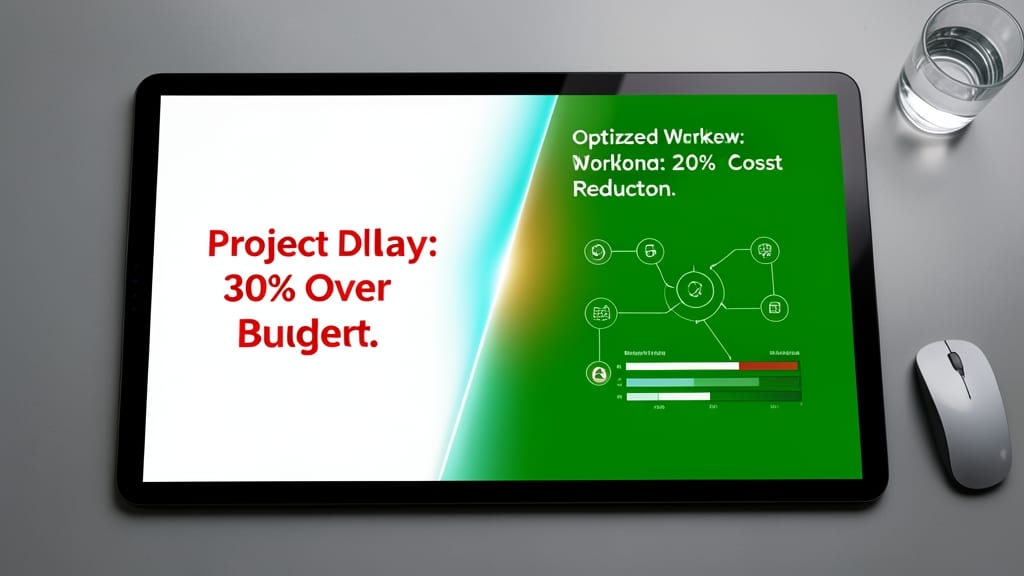
Need to compare two ideas side by side or highlight a problem/solution split? The Split Transition in PowerPoint delivers exactly that with a clean, directional divide. Unlike other transitions that focus on movement or fading, this one literally splits your screen—either horizontally or vertically—to create a striking visual separation.
You can customize the split direction and speed, plus pair it with sound effects for extra impact. It’s perfect for before/after comparisons (like design mockups) or dual-panel layouts (such as pros/cons lists). The transition is subtle enough to avoid overwhelming your content but bold enough to make your key sections stand out.
Designers, educators, and marketers will love this for its clarity and versatility. Whether you’re showcasing a redesign or contrasting data points, it keeps your audience focused on the right halves of your slides. ✨
Random Bars Transition for Playful Energy
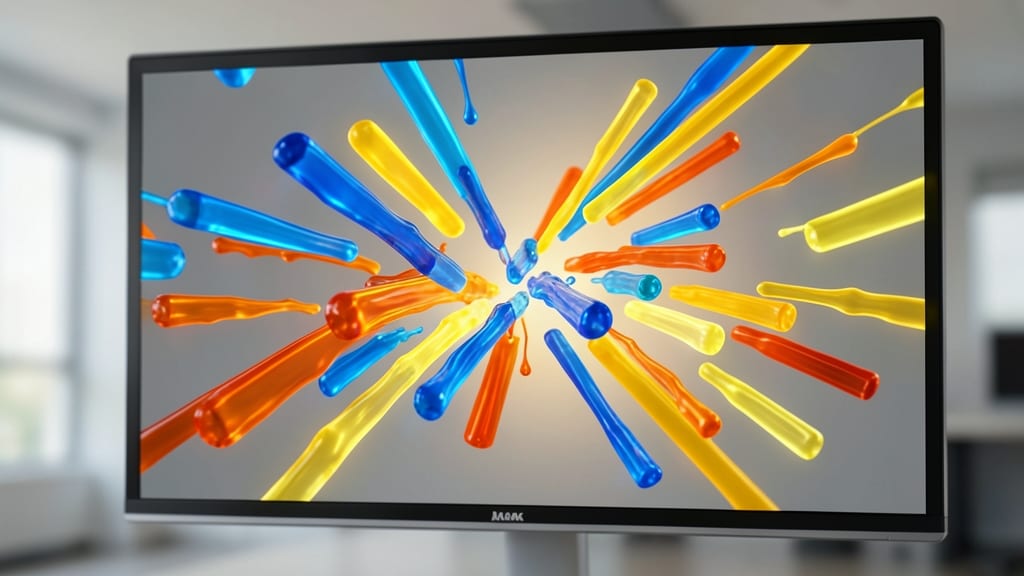
Tired of the same old slide transitions? The Random Bars effect injects playful energy into your presentations with its dynamic, unpredictable bar animations that dissolve between slides.
This transition features colorful, animated bars that appear to scatter and reform, creating a lively visual break between content. Unlike sleek fades or structured wipes, it’s designed to grab attention without overwhelming your message—ideal for motivational talks, creative pitches, or team brainstorming sessions. Pair it with a fast speed setting for maximum impact, or slow it down for a more controlled reveal.
Perfect for trainers, coaches, or anyone delivering high-energy content where you want to keep the audience’s focus sharp and engaged. Just don’t overuse it—save this one for moments when you want to spark excitement! ✨