
Software
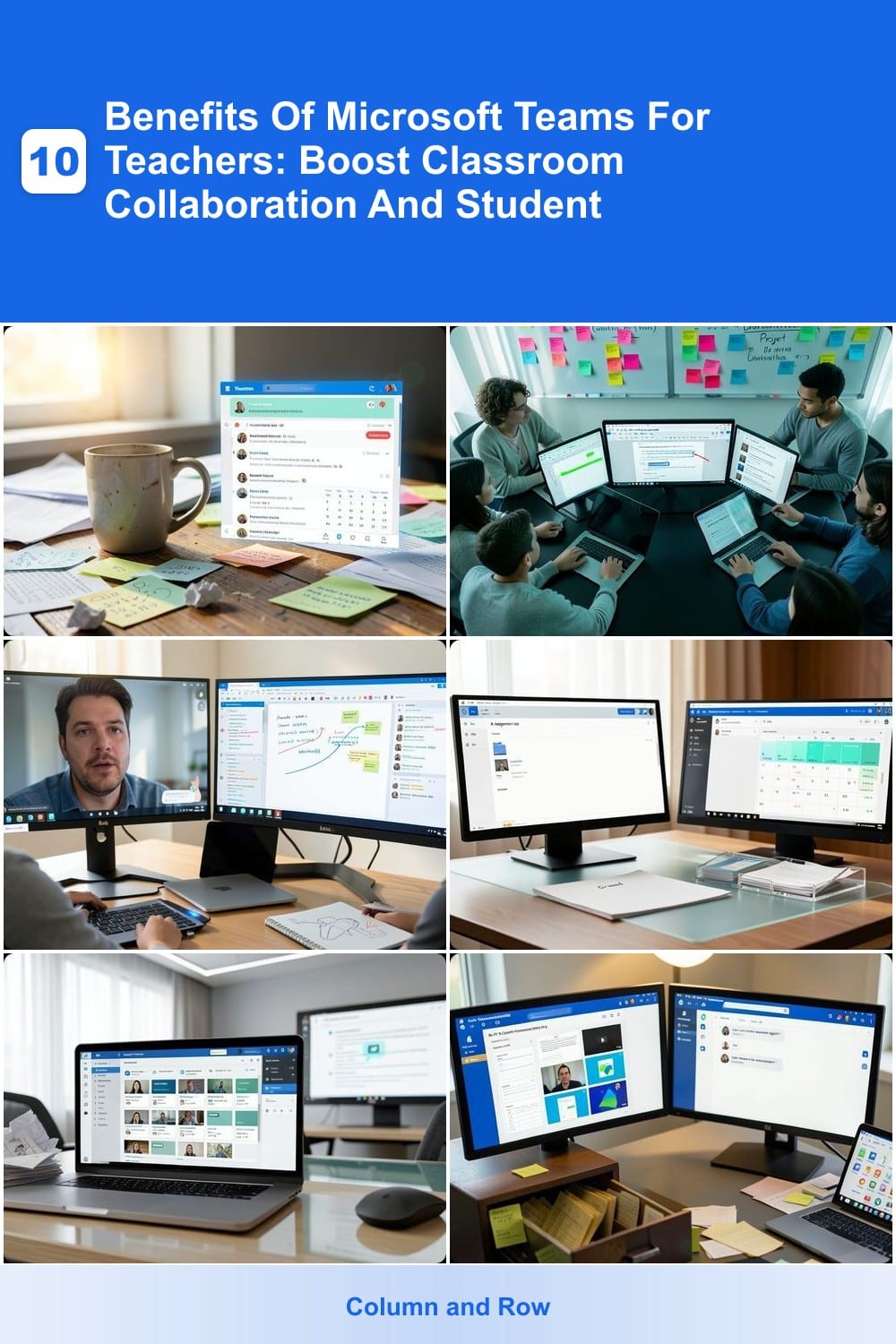
Microsoft Teams is revolutionizing modern classrooms by streamlining communication, boosting collaboration, and enhancing student engagement. Discover how this powerful tool can transform your teaching experience and create a more connected learning environment for both you and your students.
Seamless Classroom Communication Hub
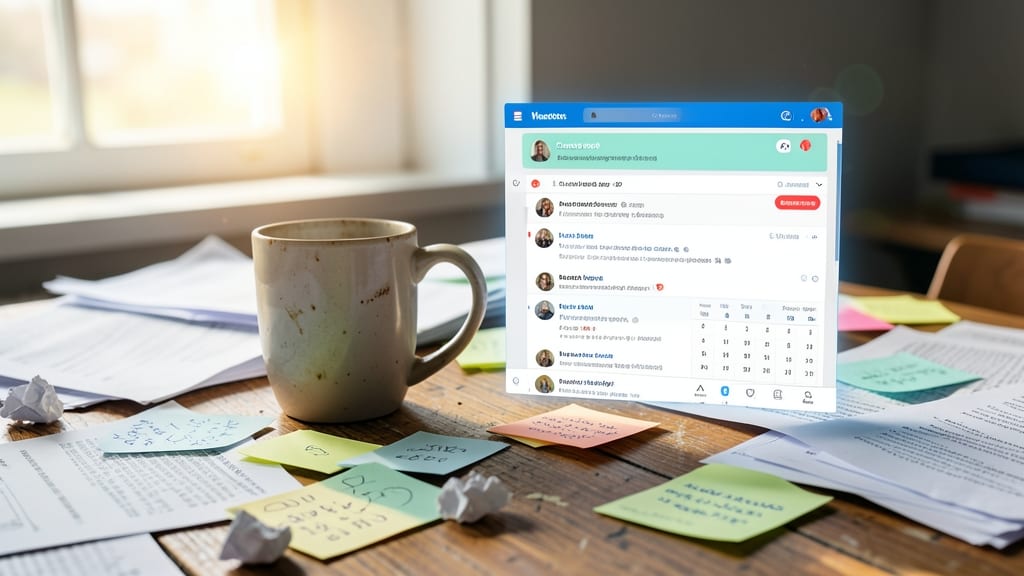
Tired of drowning in email chains and missed student announcements? Microsoft Teams’ Classroom Communication Hub replaces the chaos with a single, organized space where every message, update, and reminder stays visible—and secure. No more hunting through inboxes for that one important email about a field trip or deadline.
Create dedicated channels for announcements, Q&A, and parent updates, all with read receipts to confirm students have seen critical info. The @mentions feature ensures students respond to specific questions without sifting through unrelated chats. Plus, post scheduling lets you plan announcements in advance, so urgent updates (like snow day alerts) go out automatically—even when you’re offline.
This is the ideal solution for teachers juggling multiple classes or hybrid schedules, where clarity and consistency matter most. Say goodbye to the "I didn’t see it" excuse—Teams keeps everyone on the same page. 💡
Real-Time Classroom Collaboration Tools

Turn group projects from chaotic to collaborative with Microsoft Teams’ real-time co-authoring tools, where students can edit documents, spreadsheets, and presentations together—no more emailing drafts back and forth. The platform supports simultaneous editing in Word, Excel, and PowerPoint, with live cursors showing who’s working on what, so every student’s contribution is visible and valued.
For brainstorming sessions, the Whiteboard tool lets students sketch ideas, solve math problems, or map out story plots in real time—perfect for visual learners. Teachers can even lock sections to guide discussions or use the comments feature to provide instant feedback without disrupting the flow. With version history, you’ll never lose a student’s progress, and the @mentions feature keeps everyone accountable.
This is ideal for project-based learning, STEM collaborations, or literature discussions, where teamwork is key. Whether your students are in the same room or spread across time zones, Teams makes group work feel seamless and engaging. 💻
Interactive Virtual Classrooms
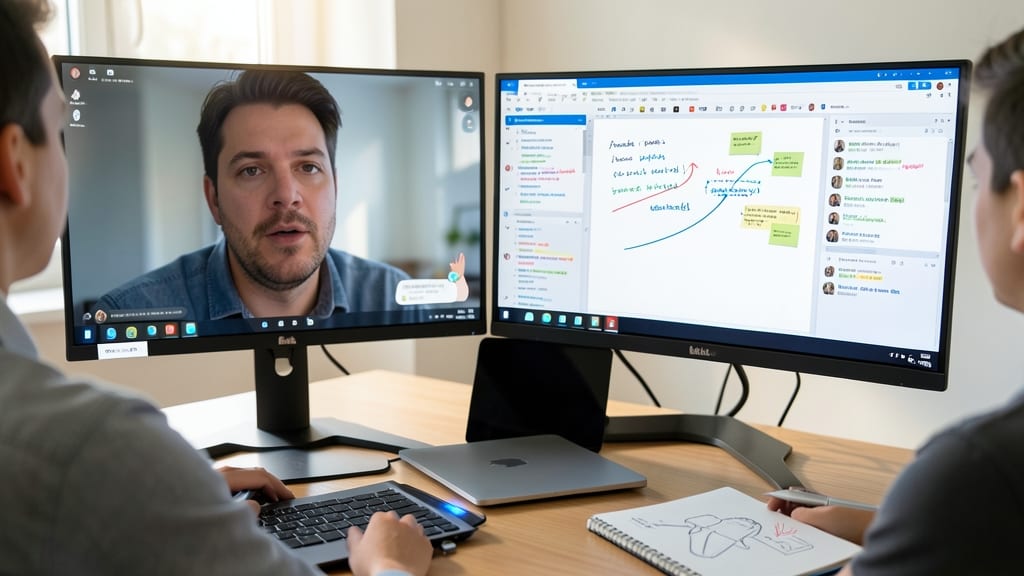
Tired of remote learning feeling like a one-way lecture? Microsoft Teams transforms virtual classrooms into dynamic spaces where students actively participate—just like in-person classes. The live video lectures feature lets you share your screen, annotate documents, and even use a virtual whiteboard, while interactive polls keep students engaged mid-lesson.
With breakout rooms for group discussions and real-time translation for multilingual classrooms, Teams bridges gaps in hybrid settings. The whiteboard tool lets students draw, sketch, or solve math problems together, while live captions ensure accessibility for all learners. Plus, recording sessions automatically saves to OneDrive, so students can revisit lessons anytime.
Perfect for teachers balancing in-person and remote students, Teams makes hybrid teaching effortless. Whether you're leading a flipped classroom or supporting students at home, this tool keeps everyone connected and interactive. ✨
Organized Assignment Management
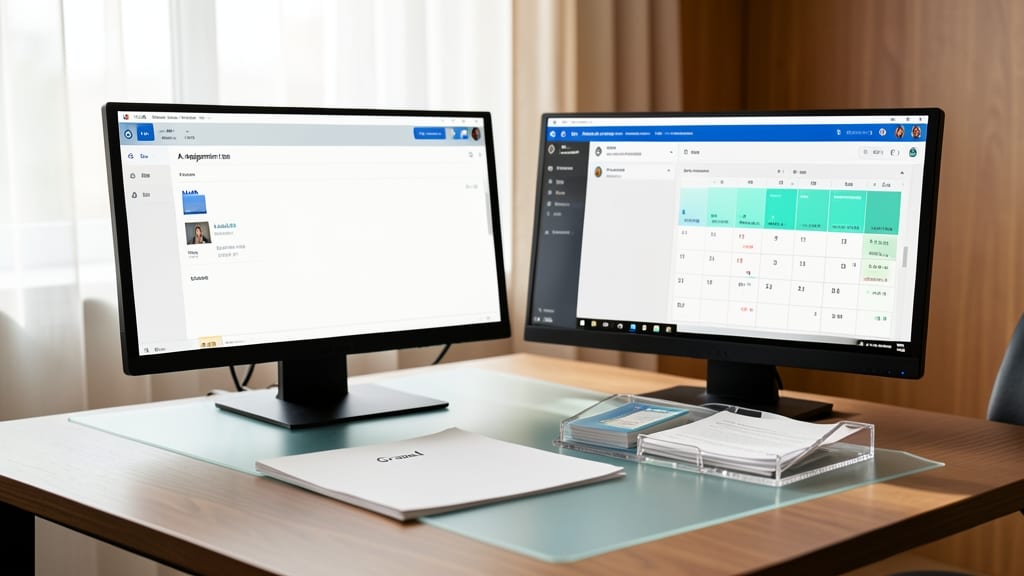
Say goodbye to lost assignments and last-minute grading marathons—Microsoft Teams’ Assignment tab turns chaos into clarity. Create structured folders for each subject, set deadlines with automated reminders, and track submissions in real-time, all without digging through emails or physical papers.
The system lets you grade directly in the app using built-in rubrics, and students see their progress with clear status updates. With OneDrive integration, files stay secure while version history prevents lost work. Plus, the analytics dashboard shows class-wide trends, helping you identify common struggles before they become problems.
Perfect for teachers juggling multiple classes, this feature cuts administrative time by up to 40%—freeing you to focus on what matters most: teaching. ✨
Parent-Teacher Communication Bridge
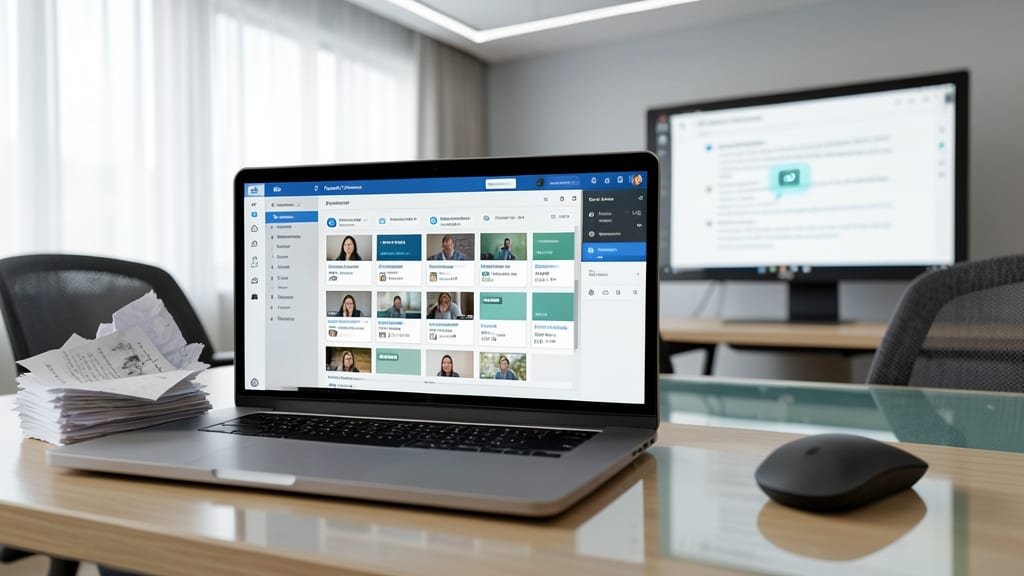
Say goodbye to scattered emails and missed parent-teacher conference notes. Microsoft Teams creates dedicated parent channels where you can share real-time updates, progress reports, and even video feedback—all in one secure, organized space.
With customizable permissions, parents can access only what’s relevant to their child, whether it’s weekly progress snapshots, upcoming events, or shared classroom resources. The integrated file-sharing feature lets you attach documents like report cards or permission slips directly to conversations, ensuring everyone stays on the same page. Plus, translation tools break language barriers, making communication seamless for multilingual families.
This feature is a game-changer for teachers who want to build trust and transparency without the chaos of email threads. It’s perfect for those who value clear, consistent, and collaborative home-school partnerships. ✨
Built-In Classroom Resources Library
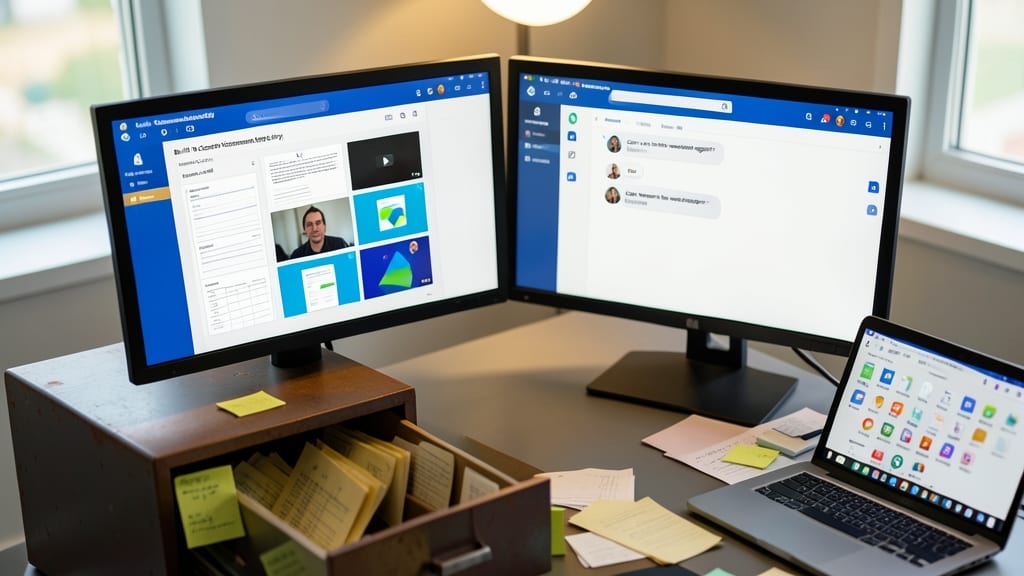
Say goodbye to digging through email attachments or physical filing cabinets—Microsoft Teams’ Built-In Classroom Resources Library keeps all your lesson plans, worksheets, and multimedia in one organized hub. Whether it’s a PDF worksheet, a recorded lecture, or a PowerPoint presentation, everything stays in one place, searchable and ready to share with a click.
Teachers can upload materials once and grant access to students instantly, while students can revisit lessons anytime—no more lost USB drives or forgotten downloads. The library also integrates with OneDrive, ensuring files are always backed up and accessible across devices. Plus, you can categorize resources by subject or unit for quick navigation.
This feature is a game-changer for substitute teachers, hybrid classrooms, and educators who want to reduce prep time. No more last-minute scrambling for materials—just a seamless, centralized resource hub. ✨
Student Engagement Through Polls
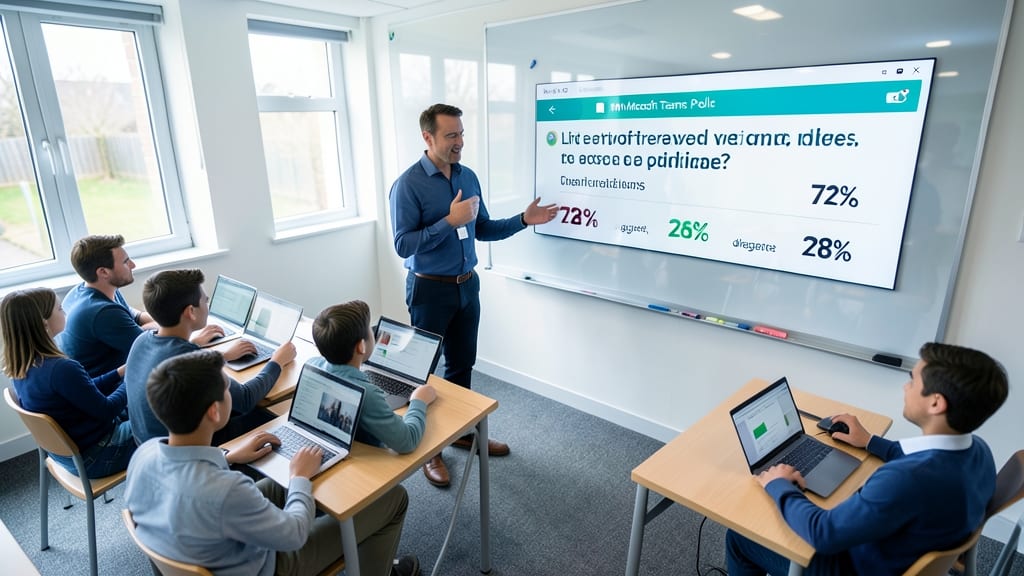
Turn passive listeners into active participants with Microsoft Teams' live polls, quizzes, and surveys—tools that transform lectures into interactive discussions. These features let you embed real-time questions directly into lessons, from quick multiple-choice checks to open-ended reflections, all while tracking responses instantly on your screen.
With customizable question types (including word clouds and ranking scales) and anonymous response options, you can tailor engagement to any subject. The insight dashboard reveals participation trends, helping you adjust pacing or clarify concepts mid-lesson. For shy students, polls provide a low-pressure way to contribute ideas.
Perfect for hybrid classrooms or large groups where raising hands isn’t practical, these tools keep energy high and ensure no one gets left behind. ⚡
Secure File Sharing And Storage
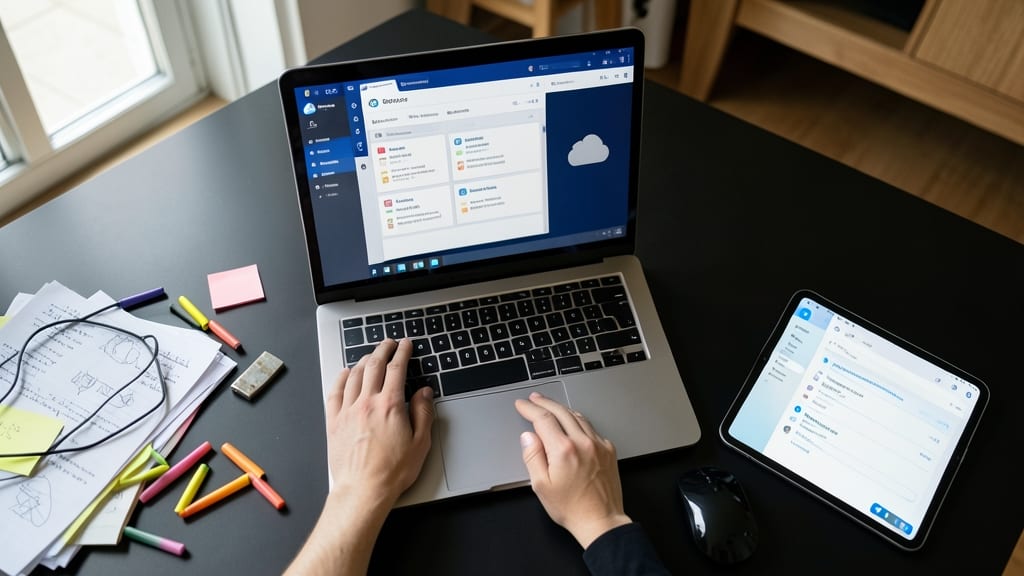
Say goodbye to lost flash drives and frantic searches for misplaced paperwork—Microsoft Teams integrates seamlessly with OneDrive, giving you a secure, centralized hub for all class materials. Whether it's lesson plans, student assignments, or multimedia resources, everything stays organized, searchable, and backed up in the cloud.
The version history feature ensures you can restore previous drafts of documents with just a few clicks, while file permissions let you control who can view or edit materials. Need to share a large presentation? Teams handles it with 2GB file upload limits and direct links that work across devices. Plus, students can submit work and access materials anytime, anywhere.
This is a game-changer for teachers juggling multiple classes and deadlines—no more "I saved it on my desktop" excuses. Perfect for educators who want peace of mind and a battle-tested setup. ✨
Customizable Classroom Notifications

Drowning in a sea of notifications? Microsoft Teams lets you curate alerts so students only see what matters—like assignment deadlines or urgent announcements—while filtering out the noise. No more missed deadlines due to ignored alerts or overwhelming students with unnecessary pings.
Teachers can set custom notification rules per channel (e.g., email alerts for late submissions but silent reminders for routine updates). The system even lets students prioritize alerts by type (e.g., push notifications for tests, email-only for general updates), cutting down on notification fatigue—a common productivity killer in digital classrooms.
This feature is a game-changer for busy educators juggling multiple classes or students with varying tech comfort levels. It ensures critical updates land where they’ll be seen—without the chaos. ✨
Integration With Microsoft Office Suite
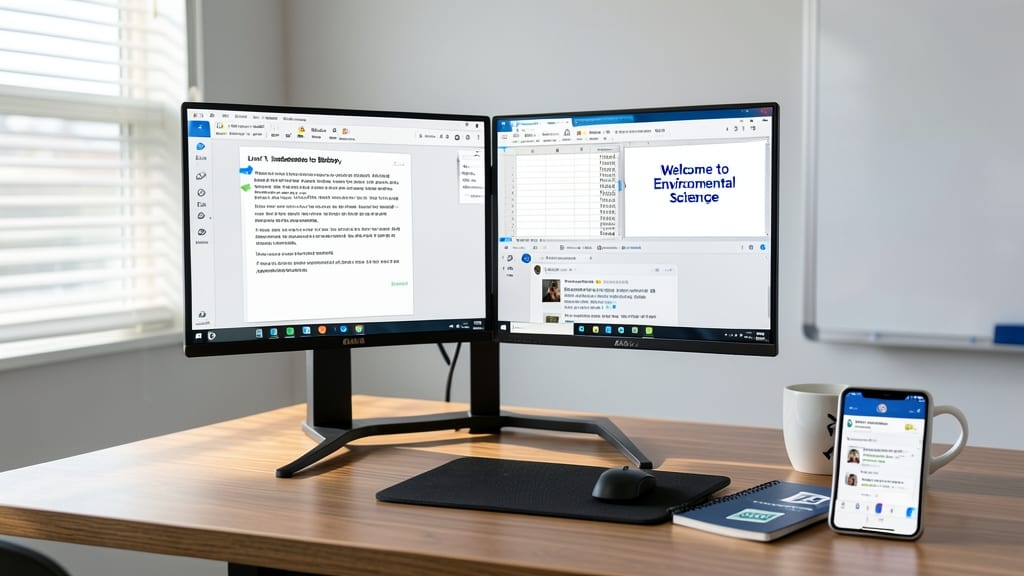
Say goodbye to bouncing between apps—Microsoft Teams’ deep integration with Word, Excel, and PowerPoint lets you draft lesson plans, grade assignments, and present lectures without ever leaving the platform.
With one-click access to Office Suite files, you can co-author documents in real time, embed spreadsheets directly into chats, or share PowerPoint decks with students—all while tracking edits and comments in the same space. The automatic sync ensures every version stays current, so you’re always working with the latest material.
Perfect for teachers juggling lesson prep, grading, and presentations, this seamless workflow saves hours and keeps everything organized in one place. ✨