Software
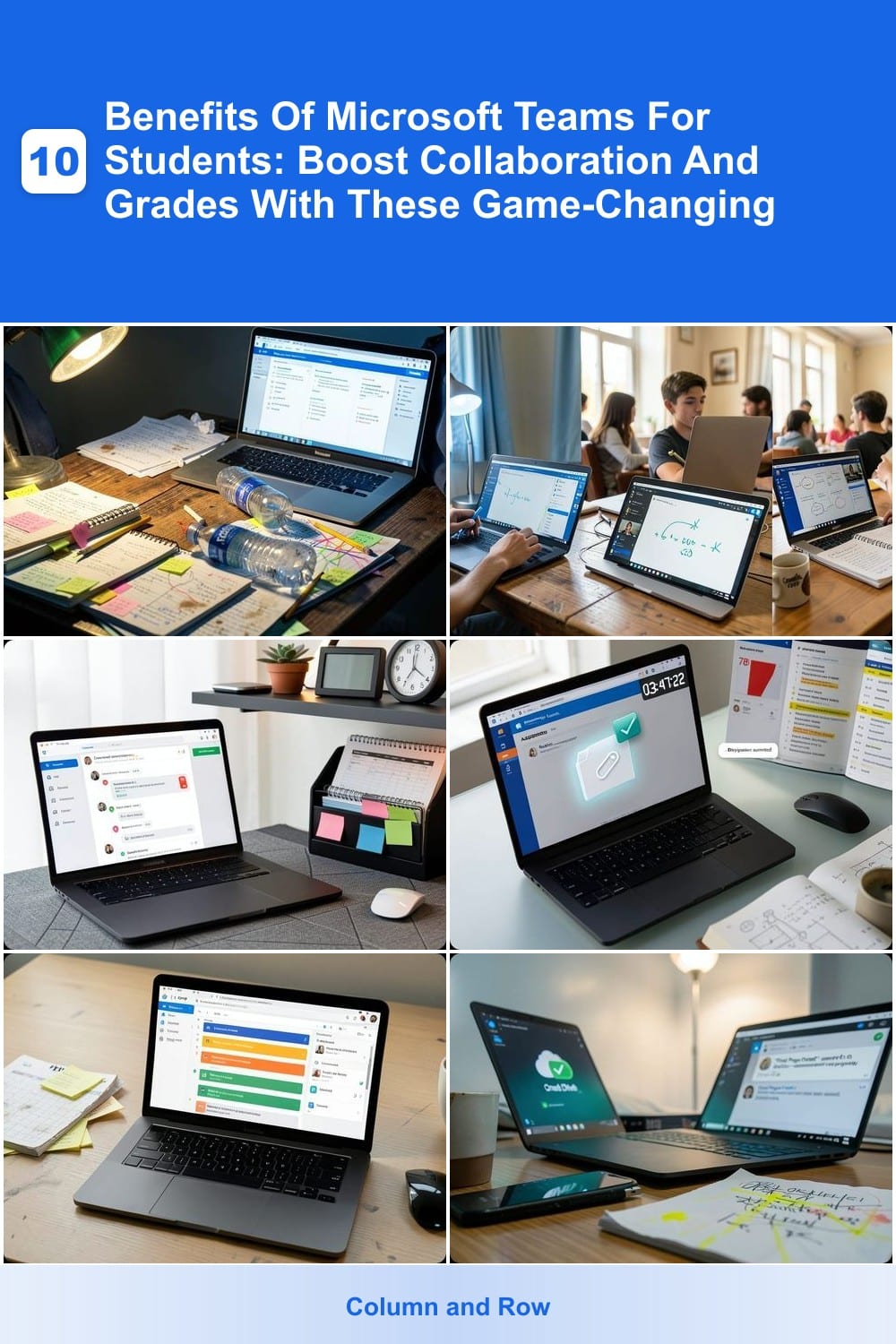
Microsoft Teams isn’t just for businesses—it’s a powerful tool that can transform how students study, collaborate, and submit assignments. From virtual study groups to seamless teacher communication, these 10 benefits prove why every student should leverage Teams to streamline productivity and improve academic performance.
Real-Time Classroom Collaboration With Class Notebook

Drowning in loose papers and messy notebooks? Microsoft Teams’ Class Notebook integrates with OneNote to create a single, searchable digital workspace where every student’s notes, assignments, and progress are neatly organized—no more lost homework or frantic last-minute searches.
The split-view interface lets you take notes during lectures while keeping teacher feedback visible, and the auto-save feature ensures no work is lost. Teachers can share resources, track participation, and even assign sections of a notebook for group projects—all while students submit assignments directly from their digital workspace.
Perfect for high schoolers juggling multiple subjects or college students balancing research papers, this tool turns chaotic study sessions into a streamlined, stress-free experience. 💻
Virtual Study Groups With Screen Sharing
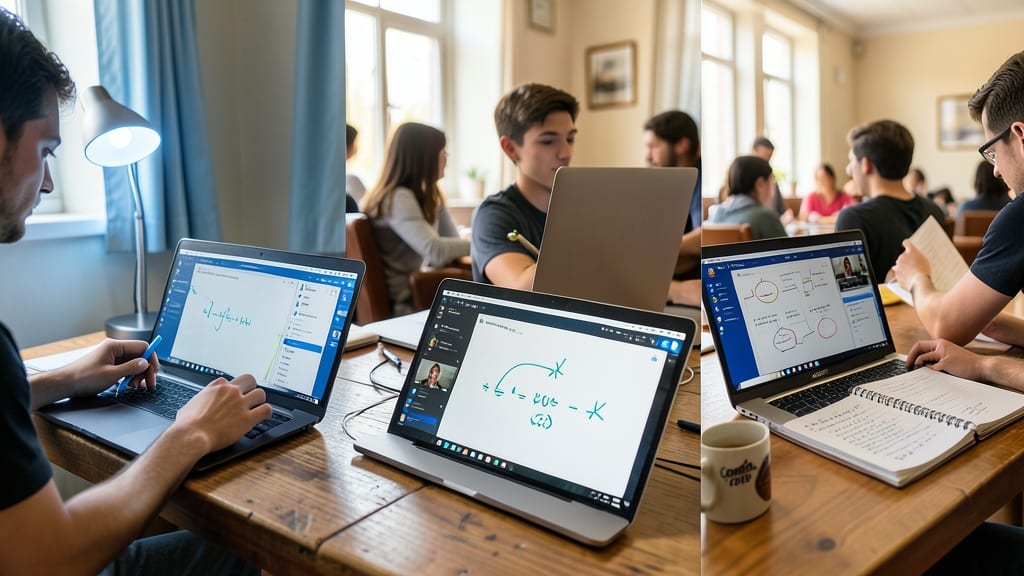
Need to tackle a group project but your team is spread across campus—or even different time zones? Microsoft Teams’ screen sharing and virtual whiteboard tools turn your laptop into a collaborative workspace, letting you annotate documents, solve equations together, or brainstorm ideas in real time, just like you would in person.
With 4K screen sharing and low-latency video, you can seamlessly switch between presenting slides, editing shared Word docs, or sketching diagrams on the whiteboard—all while discussing strategies in the chat. The co-authoring feature lets multiple students edit the same file simultaneously, so no one’s stuck waiting for turns. Plus, breakout rooms let subgroups work independently before reconvening, making complex projects feel manageable.
Perfect for engineering teams debugging code, art students refining designs, or med students reviewing anatomy diagrams—this is the digital equivalent of a study session at the library, but with fewer coffee spills and more flexibility. 💻
Seamless Teacher-Student Communication Channels
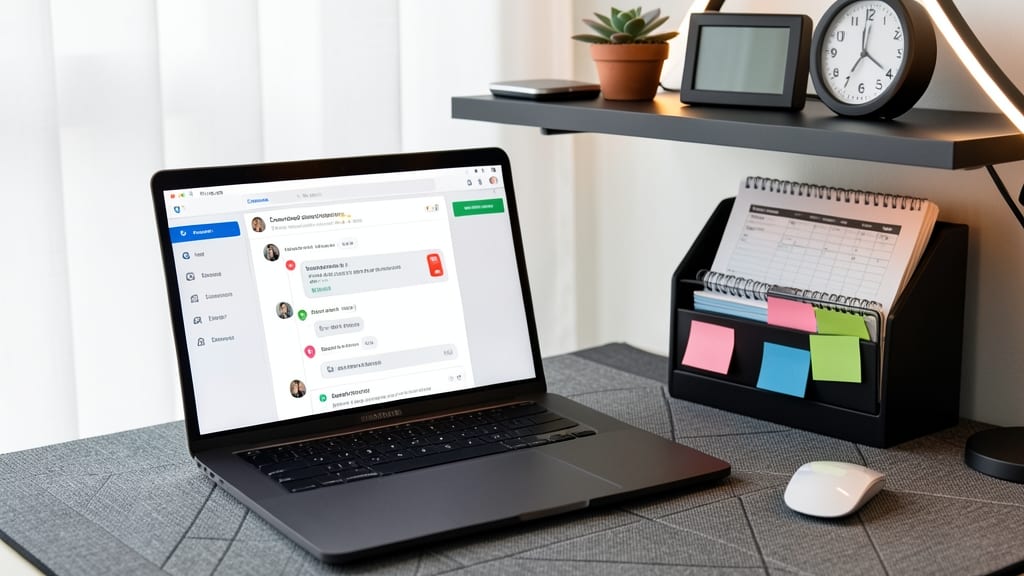
Tired of digging through cluttered inboxes for class updates? Microsoft Teams creates dedicated channels for each course, so every announcement, assignment reminder, and discussion stays neatly organized in one place.
With pinned announcements and threaded replies, teachers can share critical updates while students ask questions directly in the channel—no more lost emails or delayed responses. The @mention feature ensures your professor sees your question instantly, and file attachments let you share resources without switching apps. Plus, mobile notifications keep you updated even when you’re not at your desk.
This is a game-changer for online and hybrid students, especially those juggling multiple classes. No more sifting through spam—just clear, focused communication tailored to your coursework. ✨
Assignment Submission And Grade Tracking
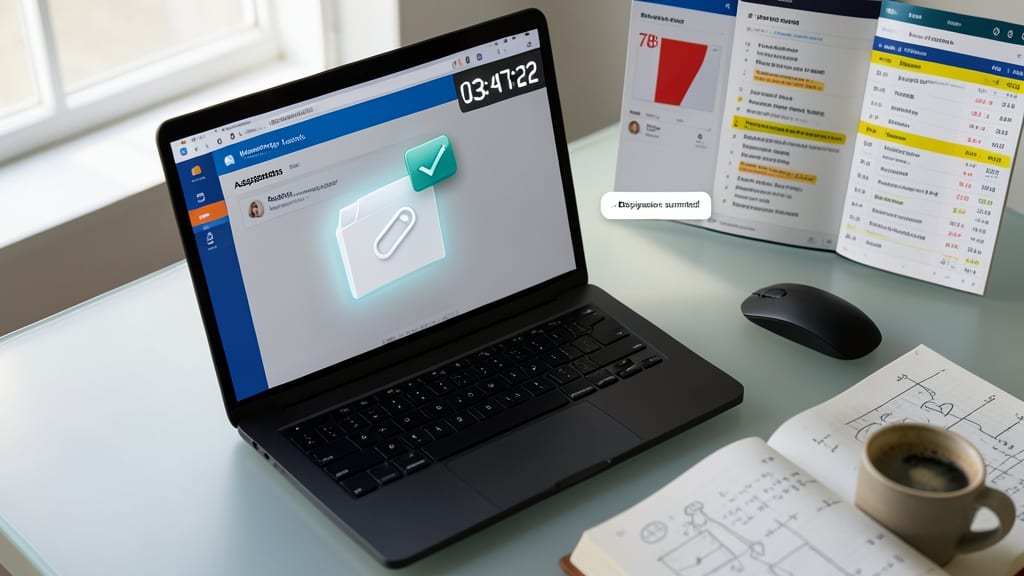
Forget the stress of lost assignments or frantic last-minute emails—Microsoft Teams turns homework submission into a zero-friction process. The Assignments tab lets students upload files, track deadlines, and even receive digital stamps of completion, all while teachers grade directly in the platform.
With real-time submission status updates, you’ll never wonder if your paper was received (or lost in transit). Teachers can attach detailed feedback—highlighting corrections, suggesting improvements, or even adding voice notes—right alongside your grade. The Grades dashboard gives students a clear view of progress across all classes, so you can spot trends and stay motivated.
Perfect for high schoolers juggling multiple classes or college students balancing group projects, this feature cuts down on administrative headaches and keeps everyone accountable. 💻
Integrated Calendar For Deadlines And Events
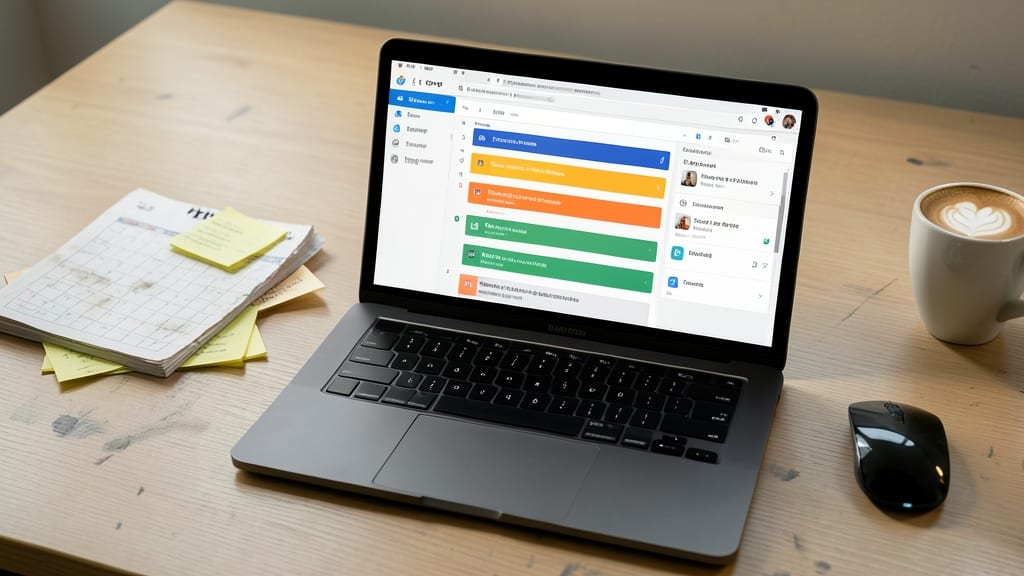
Forget juggling sticky notes and scattered reminders—Microsoft Teams’ integrated calendar merges your academic life into one seamless view. Syncing directly with Outlook, it pulls in class deadlines, exam dates, and even club meetings, so nothing slips through the cracks.
Color-coded labels let you spot high-priority assignments at a glance, while reminders pop up before deadlines hit. The drag-and-drop scheduling makes it easy to block out study time or reschedule conflicts—no more last-minute scrambles. Plus, it auto-updates when professors adjust due dates.
This is the ultimate tool for busy students balancing classes, sports, and part-time jobs. Say goodbye to missed deadlines and hello to stress-free planning. ✨
Cloud-Based File Storage And Sharing

Ever frantically search for a lost USB drive or scrambled notes the night before a deadline? With OneDrive integration in Teams, your files are automatically backed up, synced, and accessible from any device—no more frantic searches or "I saved it somewhere" panic.
Every document, presentation, or note you create or upload in Teams gets stored in OneDrive with 1TB of free cloud storage (for students). Need to edit your group project from your phone during lunch? Done. Forgot your laptop at home? Access files from a school computer. The version history feature even lets you restore previous drafts if you accidentally overwrite work—because we’ve all been there.
This is the ultimate safety net for procrastinators and last-minute revisers. Whether you're working on a group presentation or solo essay, your files stay safe, organized, and just a click away—no matter where life takes you. ✨
Live Polls And Quizzes For Engagement
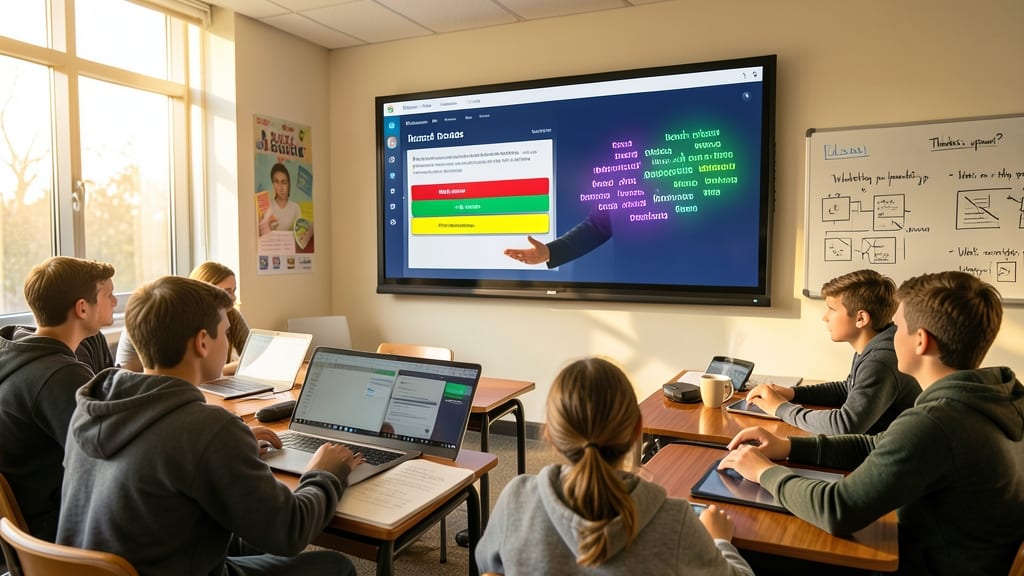
Turn passive lectures into dynamic discussions with Microsoft Teams' live polls and quizzes—a game-changer for real-time engagement. Teachers can instantly gauge class understanding by creating multiple-choice questions, word clouds, or quick feedback surveys during lessons, ensuring no one gets left behind.
With zero setup required, you can launch a poll in seconds—whether it’s checking vocabulary retention in Spanish class or voting on group project ideas. The results appear instantly, letting students see their progress and teachers adjust pacing. For shy students, this removes the pressure of raising hands while still encouraging participation.
Perfect for hybrid or remote learners, these tools bridge the gap between in-person and virtual classrooms. Whether you're reviewing historical events or brainstorming creative solutions, live polls turn every class into an interactive experience. ✨
Recording Lectures For Offline Review
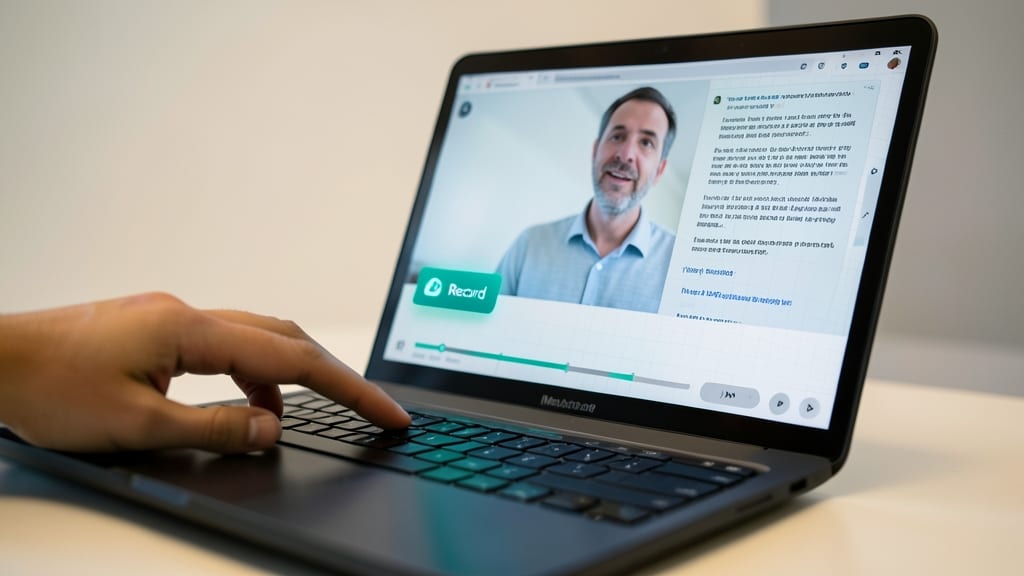
Forget scribbling notes during every lecture—Microsoft Teams lets you record classes with one click and replay them anytime. Whether you missed a key detail or need to revisit a complex concept, this feature turns passive listening into an active learning tool.
With high-quality audio and video recording, you can pause, rewind, or fast-forward through lectures to focus on what matters most. The recordings sync automatically to your OneDrive, so you access them from any device—perfect for late-night study sessions or commutes. No more frantic note-taking or relying on classmates’ summaries.
This is a game-changer for nursing students reviewing anatomy lectures, engineering majors replaying lab demos, or anyone juggling multiple courses. ⚡
Secure And Private Group Chats
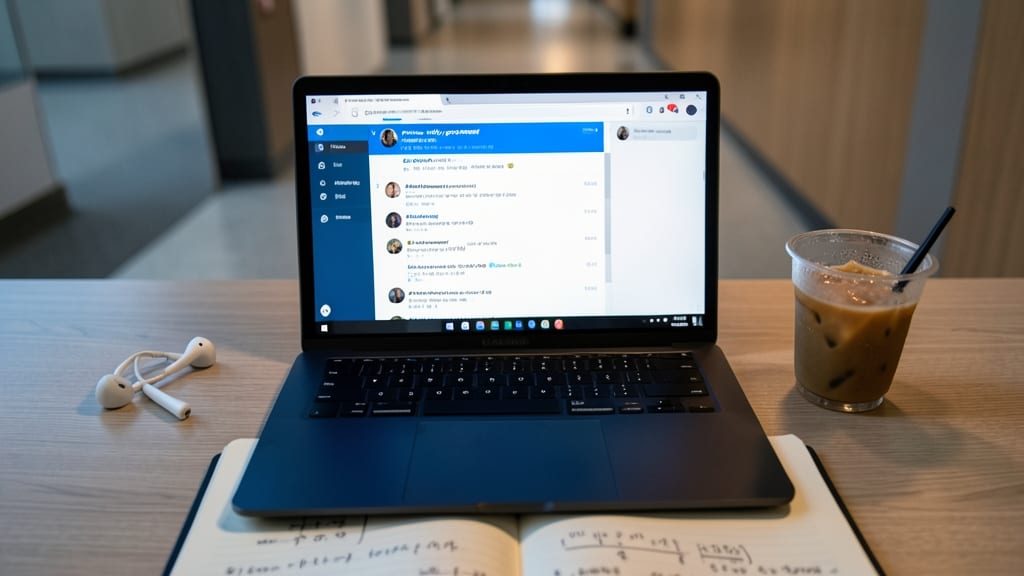
Tired of group chats derailing into off-topic drama? Microsoft Teams lets you create private study groups with end-to-end encryption—so your discussions stay focused on calculus, not weekend plans.
Set up a dedicated team for your class or study squad, then organize conversations into private channels (e.g., "AP Bio Study Group" or "History Project"). The searchable history keeps past discussions accessible, while file sharing lets you attach notes or assignments directly to chats—no more lost emails. Plus, @mentions ensure everyone stays on track without endless "did anyone see this?" replies.
Perfect for students balancing multiple projects or those who hate cluttered group chats. 💡
Accessibility Features For All Learners
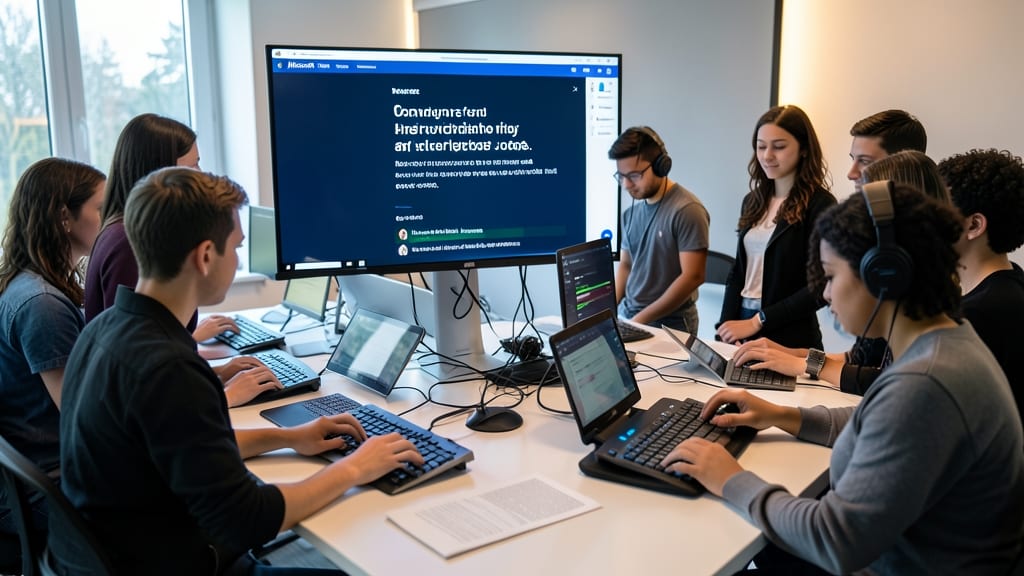
Not every student learns the same way—but Microsoft Teams makes sure no one gets left behind. With built-in accessibility tools, it adapts to your needs, whether you're deaf, visually impaired, or simply need extra time to process information.
The platform offers live captions for audio and video calls (with support for up to 10 languages), screen readers that narrate everything from chats to assignments, and adjustable text sizes (up to 200% zoom). For those with motor challenges, keyboard shortcuts and high-contrast themes simplify navigation, while immersive reader mode strips away distractions for focused learning.
Perfect for students with disabilities, neurodivergent learners, or anyone who benefits from customizable interfaces—Teams ensures education stays inclusive and stress-free. ✨