
Software
Microsoft Teams isn’t just for businesses—educators are leveraging its powerful tools to transform classrooms into dynamic collaboration hubs. Discover how schools use Teams to enhance engagement, streamline communication, and prepare students for the digital future.
Seamless Classroom Communication Platform
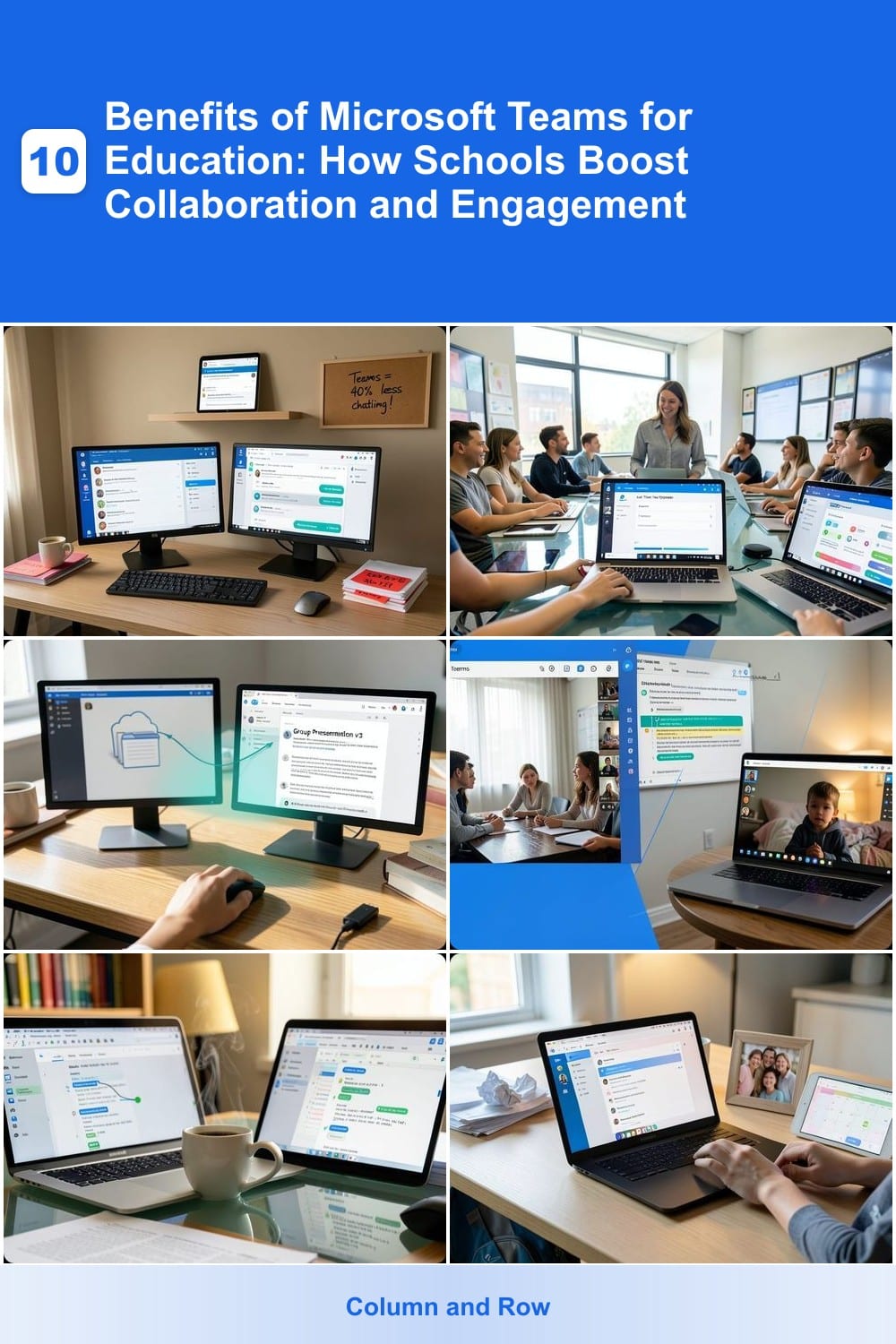
Tired of chasing down students with missing assignments or digging through email threads to track updates? Microsoft Teams consolidates all classroom communication—announcements, reminders, and messages—into one searchable, organized hub, slashing teacher workload by 40%+ while keeping everyone connected.
The platform replaces scattered tools with dedicated channels for each class, where teachers post updates, share deadlines, and even conduct live Q&A sessions—all visible to students in one place. Features like @mentions ensure critical messages stand out, while reminders automatically pop up in students’ calendars. With read receipts, you’ll never wonder if your assignment was seen, and the file preview lets students check documents without downloading them.
Perfect for schools juggling in-person and remote learners, this tool keeps parents, teachers, and students aligned—no more lost papers or forgotten emails. ⚡
Interactive Classroom Discussions with Polls
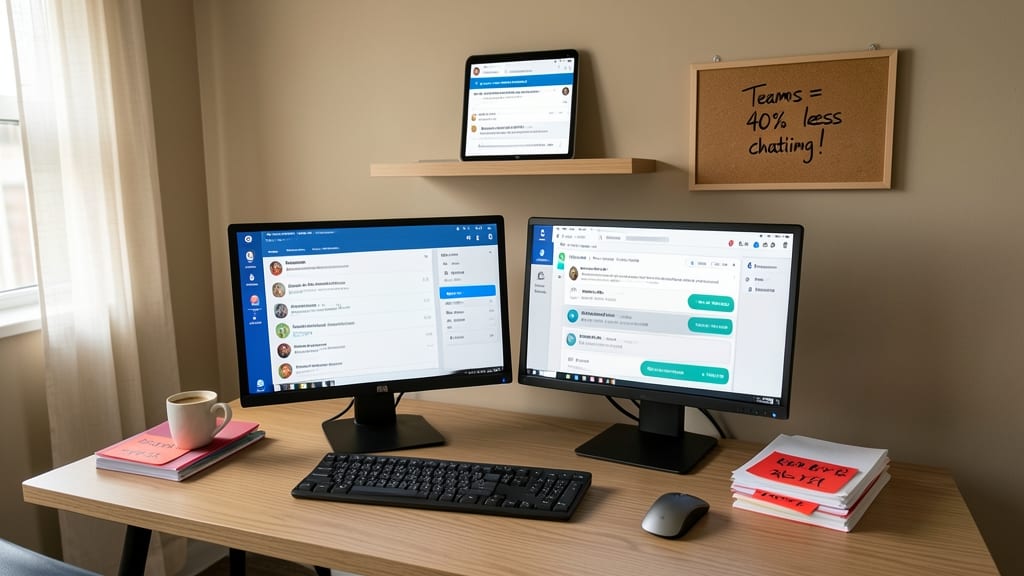
Turn passive lectures into dynamic discussions with Microsoft Teams’ real-time polling tools, designed to keep every student engaged—no more crickets when you ask, "Does this make sense?" The Forms integration lets you create instant quizzes, exit tickets, or quick knowledge checks with just a few clicks, displaying live results on-screen for the whole class to see.
With multiple-choice, true/false, and short-answer options, polls adapt to any subject—whether it’s math problems, vocabulary quizzes, or open-ended debate questions. The anonymous response feature encourages shy students to participate, while follow-up questions let you dig deeper into misconceptions. Best of all, these polls sync with your Office 365 account, so results auto-save for later review or grading.
Perfect for flipped classrooms, hybrid learning, or large lecture halls, this tool turns guesswork into data-driven teaching. Watch as participation soars and lessons become more interactive—without adding a single extra app to your workflow. 💡
Secure File Sharing and Collaboration
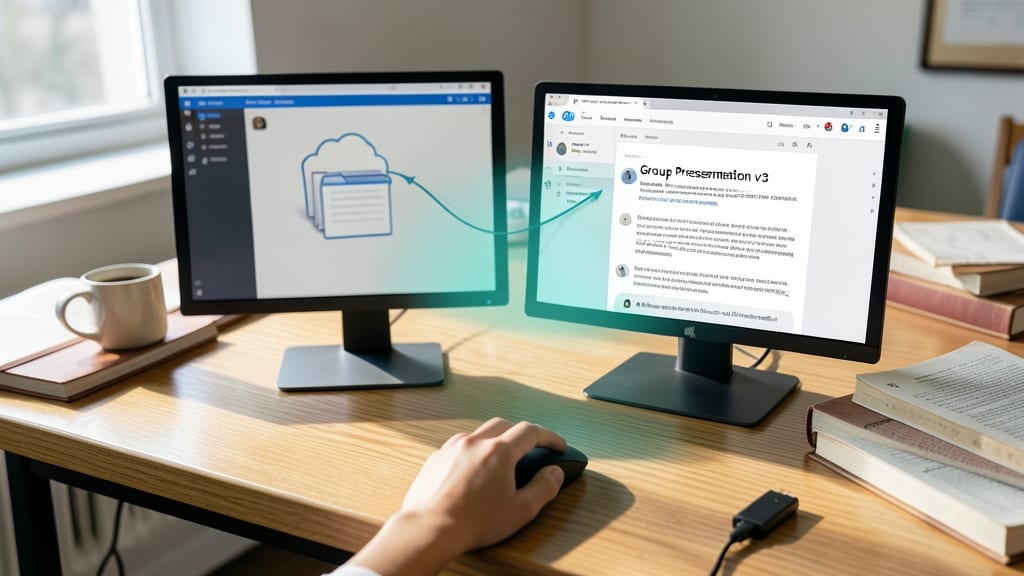
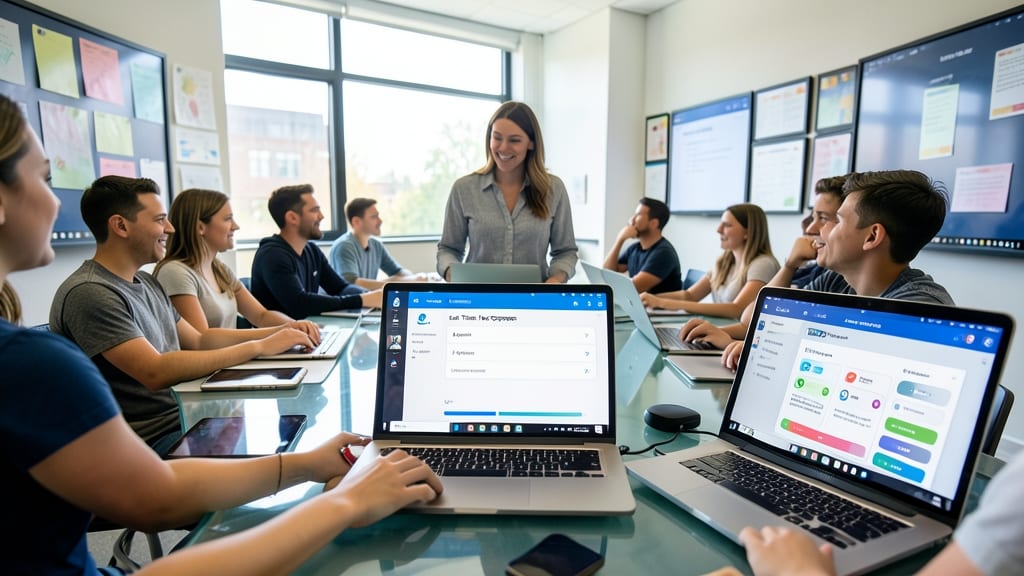
Say goodbye to "I left my USB drive at home" excuses—Microsoft Teams’ cloud-based file storage keeps every assignment, presentation, and worksheet synced and accessible across devices. No more lost drafts or outdated versions cluttering desktops; students and teachers always pull from the same, real-time updated source.
The OneDrive integration lets users upload, edit, and share files with permission controls (view-only, edit, or comment), so sensitive documents stay secure while still being collaborative. Features like version history and file recovery mean accidental deletions or overwrites are a thing of the past—just restore the correct version in seconds. Plus, co-authoring in Word or PowerPoint lets multiple students edit the same document simultaneously, just like professionals do in the workplace.
Ideal for group projects, research papers, or even peer feedback sessions, this tool ensures every student submits the latest work—no more "I didn’t get the updated file" crises. ✨
Virtual Classrooms for Hybrid Learning
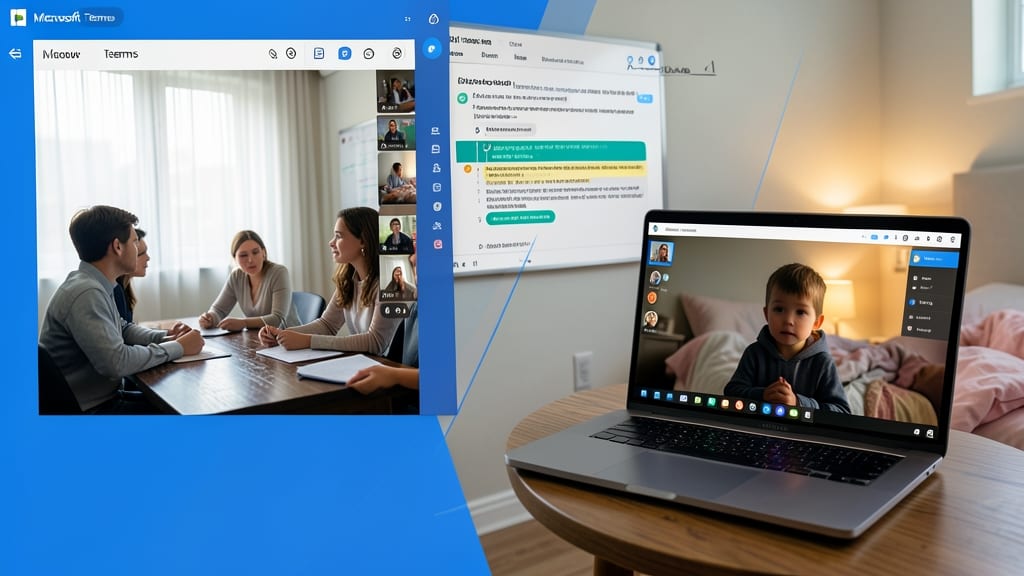
Forget the one-size-fits-all approach—Microsoft Teams’ virtual classrooms seamlessly blend in-person, remote, and hybrid learning into a single, flexible experience. Whether students are in the classroom or logging in from home, the platform keeps everyone connected with crystal-clear video conferencing, live screen sharing, and interactive whiteboards that mirror traditional lessons.
The real magic happens with breakout rooms, where teachers can split students into small groups for discussions, peer teaching, or collaborative projects—all without leaving the main session. With 100+ participants supported in a single call, large classes stay engaged, and features like live captions ensure accessibility for all learners. Plus, recording tools let absent students catch up later, so no one falls behind.
Ideal for schools balancing on-campus and remote students, this feature ensures consistency in learning—no matter where students log in from. 🌟
Integration with Office 365 Tools

Imagine grading papers while sipping coffee—no more jumping between apps or lost files. Microsoft Teams seamlessly integrates with Office 365 tools, letting teachers create, share, and grade assignments directly within Word, Excel, PowerPoint, and OneNote.
With real-time co-authoring in Word and PowerPoint, multiple students can collaborate on projects simultaneously. Teachers can insert comments and feedback directly in documents, track changes, and even assign grades without leaving Teams. The integration with OneNote further streamlines lesson planning and note-taking, keeping everything organized in one place.
This feature is a game-changer for educators juggling lesson prep, grading, and communication. Perfect for schools already using Office 365, it turns multitasking into a smooth, efficient workflow. ✨
Parent-Teacher-Student Communication Hub
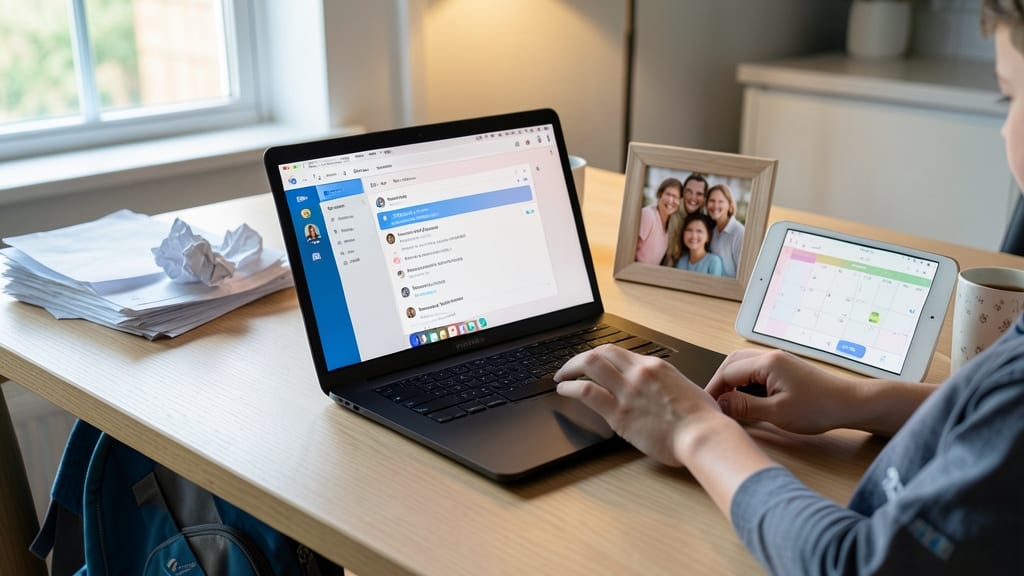
Tired of parents drowning in emails about homework, events, and grades? Microsoft Teams turns the chaos into a single, organized hub where updates, assignments, and school news flow seamlessly to families—no more lost messages or forgotten deadlines.
With dedicated channels for parents, teachers can share real-time grade updates, event calendars, and even video announcements. The mobile app lets parents check progress on the go, while @mentions ensure critical messages stand out. Plus, role-based permissions keep sensitive info secure while keeping everyone in the loop.
This is perfect for schools balancing transparency and efficiency, giving parents peace of mind and teachers one less administrative headache to manage. ✨
Customizable Classroom Channels
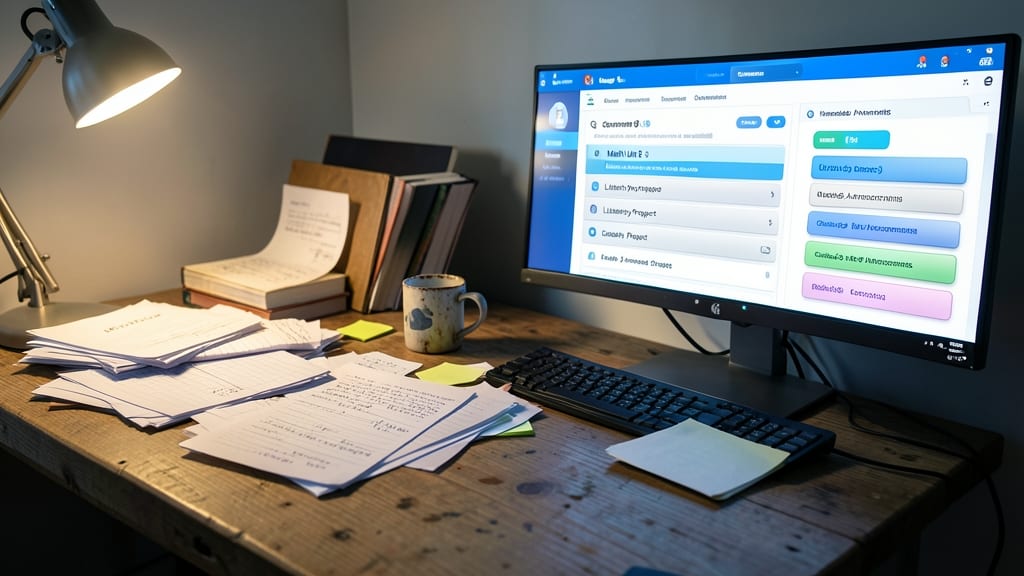
Drowning in a sea of mixed-up files and endless tabs? Customizable Classroom Channels in Microsoft Teams turns chaos into order by letting teachers create dedicated spaces for every subject, project, or grade level—think of it as a digital filing cabinet that actually works.
With unlimited channels (yes, really unlimited), you can organize content by class, topic, or even student groups. Add tabs for assignments, links, and notes to keep everything visible at a glance. The best part? Students only see what’s relevant to them, cutting down on distractions and digital clutter—no more scrolling through irrelevant posts or lost files.
Perfect for schools juggling multiple grades or complex curricula, this feature keeps everyone on the same page—literally. 💻
Real-Time Translation for Multilingual Classrooms
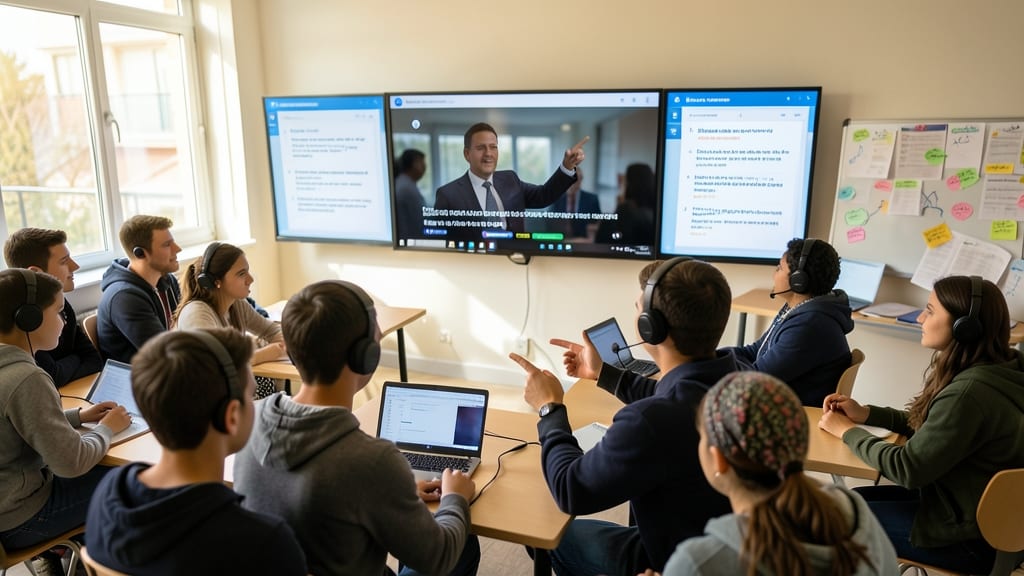
Imagine a classroom where every student—regardless of their native language—can fully participate in discussions, follow along with lectures, and collaborate without confusion. Microsoft Teams makes this a reality with its built-in live captions and real-time translation tools, designed specifically for multilingual classrooms.
With live transcription in over 40 languages, teachers can instantly generate captions during video calls, ensuring students with hearing impairments or non-native speakers never miss key points. The translation feature supports real-time subtitles in meetings, while the Immersive Reader tool breaks down complex text into simpler sentences and highlights vocabulary—perfect for English language learners. These tools integrate seamlessly into lessons, requiring zero additional software or costly add-ons.
This feature is a game-changer for schools with diverse student populations, like international schools or districts with high ESL (English as a Second Language) enrollment. It fosters inclusivity while preparing students for global collaboration in the digital age. ✨
Student Project Collaboration Tools
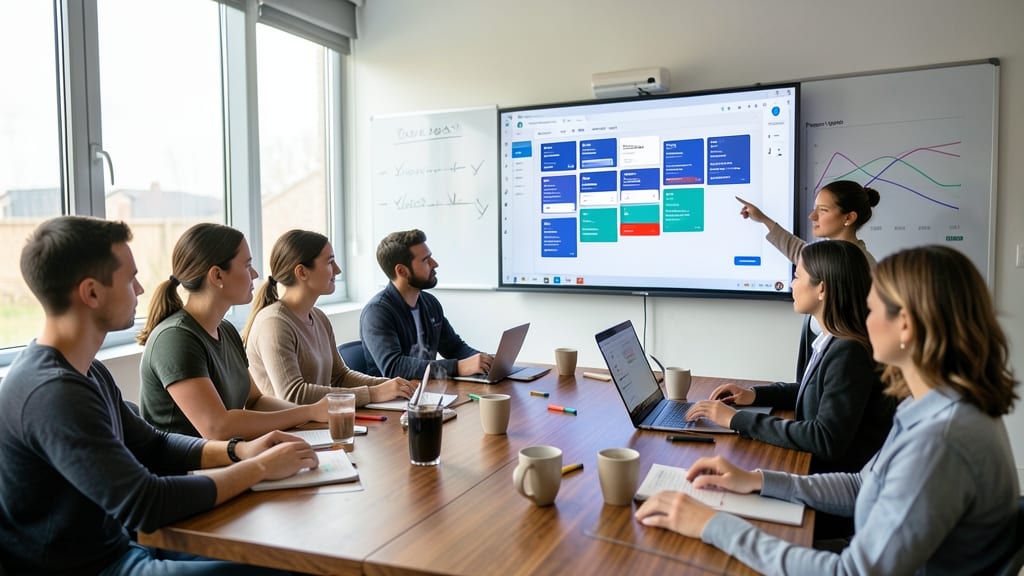
Group projects don’t have to be chaotic—Teams turns them into structured, productive experiences with built-in tools like shared to-do lists and real-time task assignments. Students can track deadlines, delegate responsibilities, and update progress all in one place, mirroring how professionals collaborate in the workplace.
The Planner app (integrated natively) lets teams create Kanban-style boards with customizable stages, while co-authoring in Word/Excel eliminates "who saved last?" conflicts. Teachers can even set due dates and reminders directly in assignments, ensuring no task slips through the cracks.
Perfect for STEM projects, humanities research, or capstone work—this feature bridges the gap between classroom learning and real-world teamwork skills. 💪
Data-Driven Insights for Educators
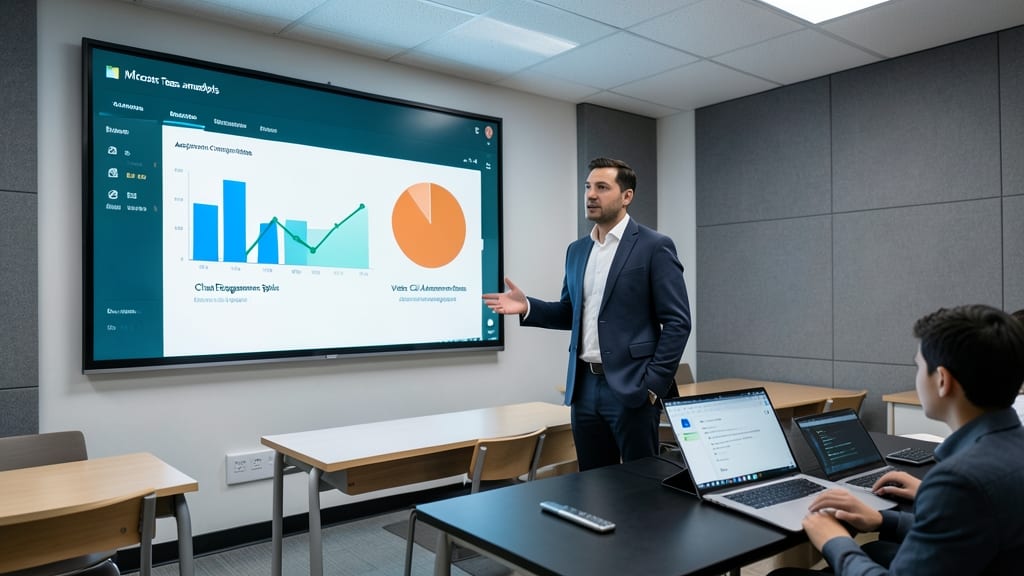
Teachers no longer have to guess which students need extra help—Microsoft Teams’ built-in analytics dashboard turns participation data into actionable insights. Track metrics like assignment completion rates, chat engagement, and video call attendance, all in one place, so you can spot trends before they become problems.
The Student Activity Reports break down participation by individual or class, while assignment analytics highlight which students are submitting work late or struggling with specific tasks. With real-time alerts for low engagement, you can intervene early—whether it’s offering one-on-one support or adjusting lesson pacing. Best of all, these insights integrate seamlessly with Office 365 tools you already use.
This feature is a game-changer for educators juggling diverse learning needs, especially those teaching hybrid or remote classes. 💡