
Operating System
Cyber threats evolve daily, but Windows users can take actionable steps to lock down their systems. These 10 proven tactics—from basic hygiene to advanced tools—will transform your digital defenses without requiring technical expertise.
Enable Windows Security Built-In Firewall
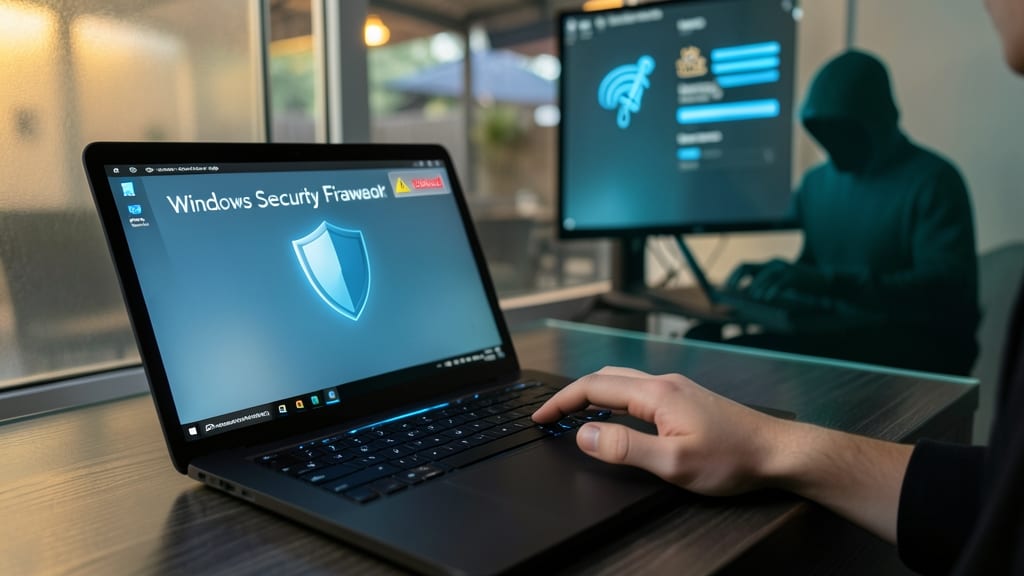
Public Wi-Fi networks and ignored system alerts are a hacker’s dream—unless you’ve got the Windows Security Firewall running. This built-in shield blocks unauthorized network access by default, acting as your first line of defense against intrusions without requiring third-party software.
With real-time monitoring and customizable rules, it stops malicious traffic while allowing safe connections. The Windows Defender Firewall with Advanced Security (accessible via Windows Security) lets you fine-tune settings for private/public networks, ensuring your device stays locked down—even when you’re not paying attention. It’s lightweight, always-on, and backed by Microsoft’s security team.
Perfect for travelers, remote workers, or anyone who’s ever clicked through a firewall warning without a second thought. Enable it in Settings > Windows Security > Firewall & network protection, and rest easy knowing your system’s got a zero-config guard dog. ⚡
Use Microsoft Defender Antivirus Exploit Protection
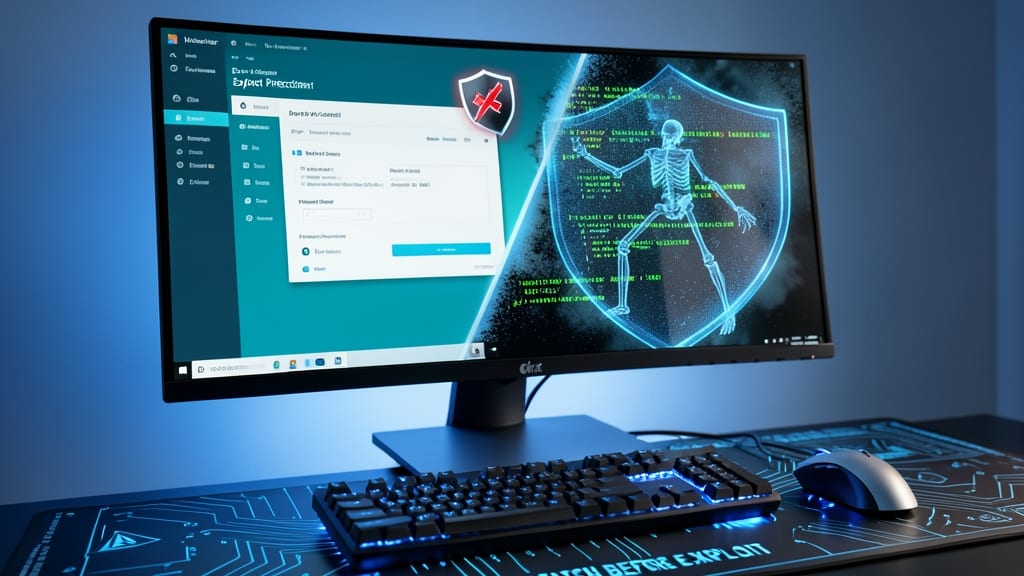
Zero-day exploits are the cybersecurity equivalent of a backdoor hackers use before patches exist. Microsoft Defender’s Exploit Protection feature stops them in their tracks by blocking known attack techniques at the system level—even if they’re brand-new threats.
This isn’t just another antivirus layer. Exploit Protection uses Microsoft’s Attack Surface Reduction (ASR) rules to prevent memory corruption, code injection, and script-based attacks. It’s built into Windows 10 (version 1809+) and Windows 11, requiring zero configuration—just toggle it on in Windows Security > Virus & threat protection > Manage settings > Exploit protection.
Ideal for accountants, healthcare workers, or anyone handling sensitive data, this feature also helps users stuck on outdated software. It’s the digital equivalent of a bulletproof vest for your system. ✨
Implement Strong Passwords with Bitwarden
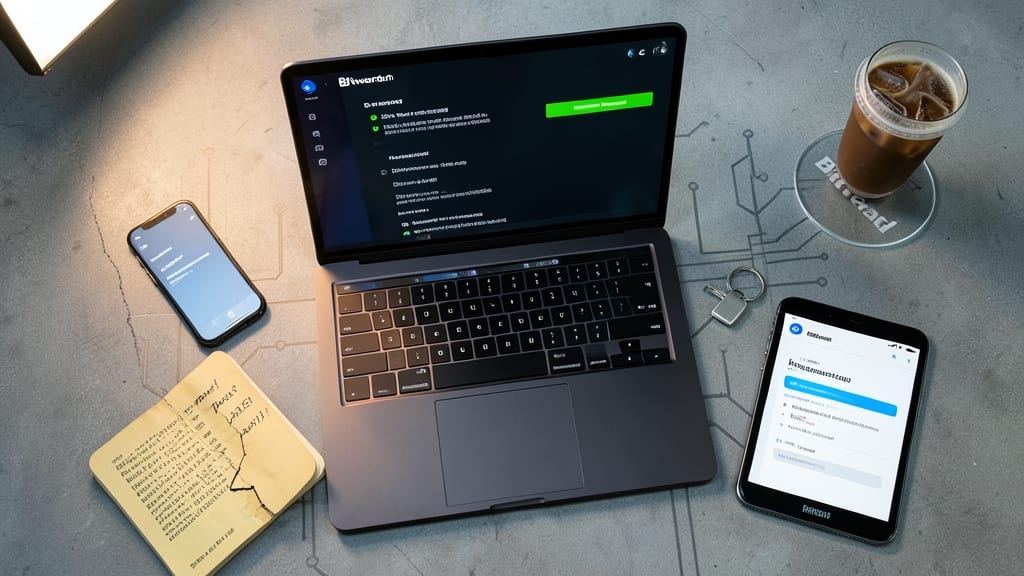
Tired of resetting passwords or worrying about reused credentials? Bitwarden solves both problems with a free, open-source password manager that syncs seamlessly across all your devices—no premium plan required.
It generates ultra-strong, 256-bit encrypted passwords with a single click and auto-fills them across browsers and apps. The zero-knowledge architecture ensures only you can access your vault, while two-factor authentication adds an extra layer of security. With support for 100+ browser extensions, mobile apps, and CLI tools, it works wherever you do.
Perfect for casual users who hate password fatigue or power users managing dozens of accounts. Try it today and never reuse a weak password again. ✨
Disable Macros in Microsoft Office Files
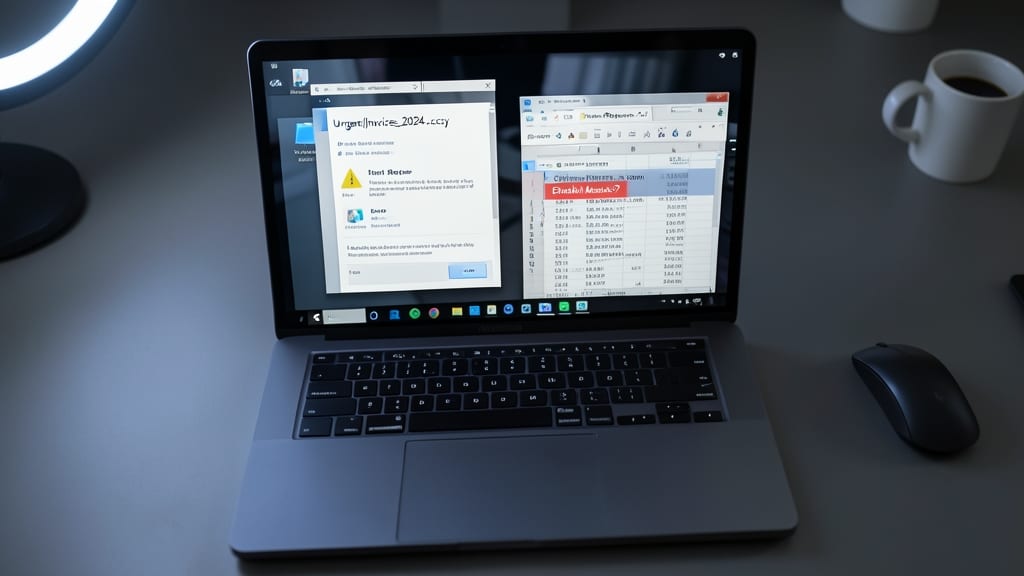
Phishing attacks often hide in plain sight—disguised as innocent Word or Excel files. Macros, automated scripts embedded in Office documents, are a favorite tool for cybercriminals to bypass security and infect your system. Disabling them shuts down 90% of these attacks before they even execute.
To disable macros in Microsoft Office, open your document, click File > Options > Trust Center, then select Trust Center Settings. Under Macro Settings, choose Disable all macros without notification—this stops malicious scripts while still allowing trusted macros to run. For extra security, enable Active Content options to block Office from opening potentially dangerous files from the web.
This setting is a must for professionals handling emails, downloads, or shared files from unknown sources. With just a few clicks, you’ll add a critical layer of defense against one of the most common cyber threats today. ✨
Enable Windows Sandbox for Testing
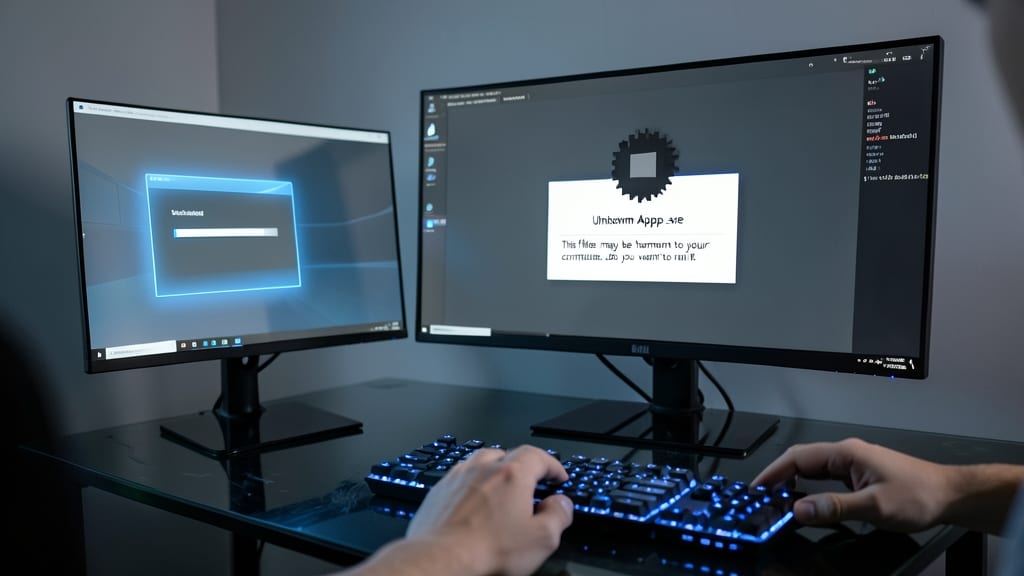
Curious about that sketchy download? Windows Sandbox lets you test suspicious programs in a completely isolated virtual machine—no risk to your real system. This lightweight, disposable environment boots in seconds and resets instantly when closed, making it perfect for IT admins or anyone testing unknown software.
Powered by Hyper-V, it runs Windows 10/11 with full desktop integration but zero persistence—changes vanish when you shut it down. You’ll get 1GB RAM by default (adjustable up to 4GB) and access to core apps like Edge, Notepad, and PowerShell, all while keeping malware contained. No virtualization experience? No problem—it’s built into Windows 10 Pro/Enterprise and Windows 11 Pro with a simple toggle in Settings.
Perfect for security researchers, developers testing untrusted code, or anyone who’s ever hesitated before installing a random file. ⚡
Use Two-Factor Authentication Everywhere
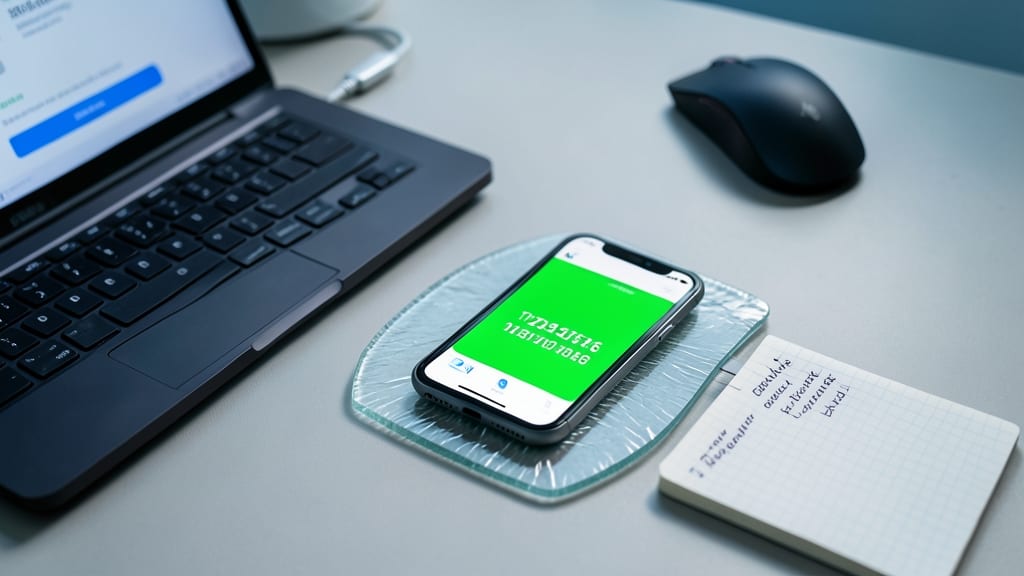
Forget relying on just passwords—two-factor authentication (2FA) is your secret weapon against hackers. Apps like Authy or Google Authenticator generate time-sensitive codes that even stolen passwords can’t bypass, and they’re easier to set up than you’d think.
Most services (email, banking, social media) support 2FA with a tap in their settings. Non-tech users can fall back on SMS backups, while power users prefer hardware keys like YubiKey for maximum security. Even a single compromised account can lead to a domino effect—2FA stops that in its tracks.
This is the one security step that takes less than five minutes to implement but makes your accounts 10x harder to breach. Start with your most critical accounts first. 💪
Regularly Update Windows and Drivers
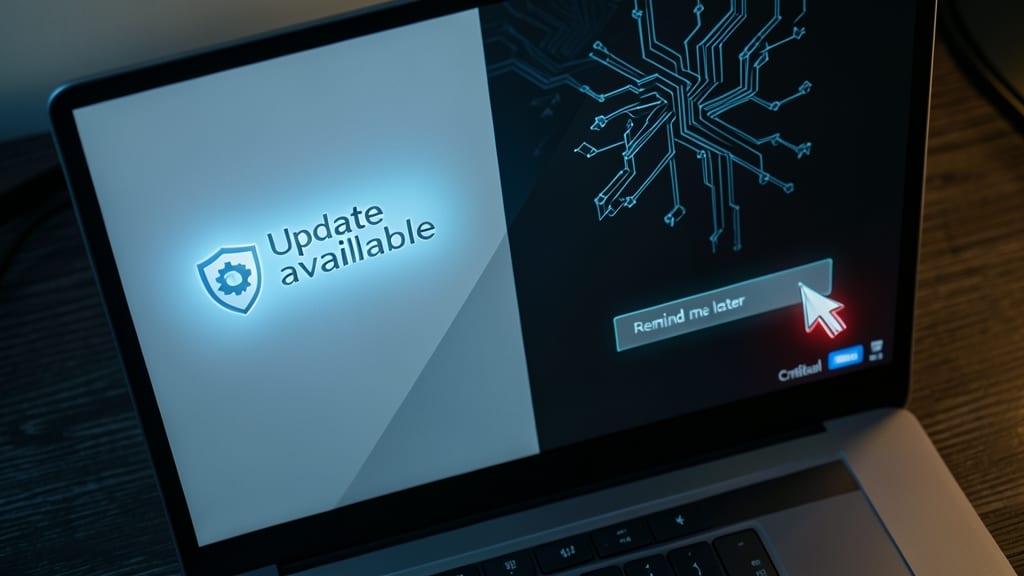
If you’ve ever hit "Remind me later" on Windows updates, you’re leaving your system exposed to exploits that could turn your PC into a hacker’s playground. Microsoft patches hundreds of vulnerabilities monthly, and driver updates often fix compatibility issues that malware exploits. Even legacy hardware benefits—many older systems get critical security tweaks through updates.
Windows 10/11 now auto-downloads updates by default (though you can delay them temporarily). For drivers, use Windows Update (Settings > Windows Update > Advanced options) or tools like Snappy Driver Installer for bulk updates. Pro tip: Check Device Manager for yellow warning icons—those often mean outdated drivers waiting to be patched.
This is the one security habit that takes less than 5 minutes but closes more attack vectors than most users realize. Gamers, remote workers, and anyone running older hardware should prioritize this—especially if you’ve ignored updates for months. ⚡
Block Malicious Websites with DNS Filtering
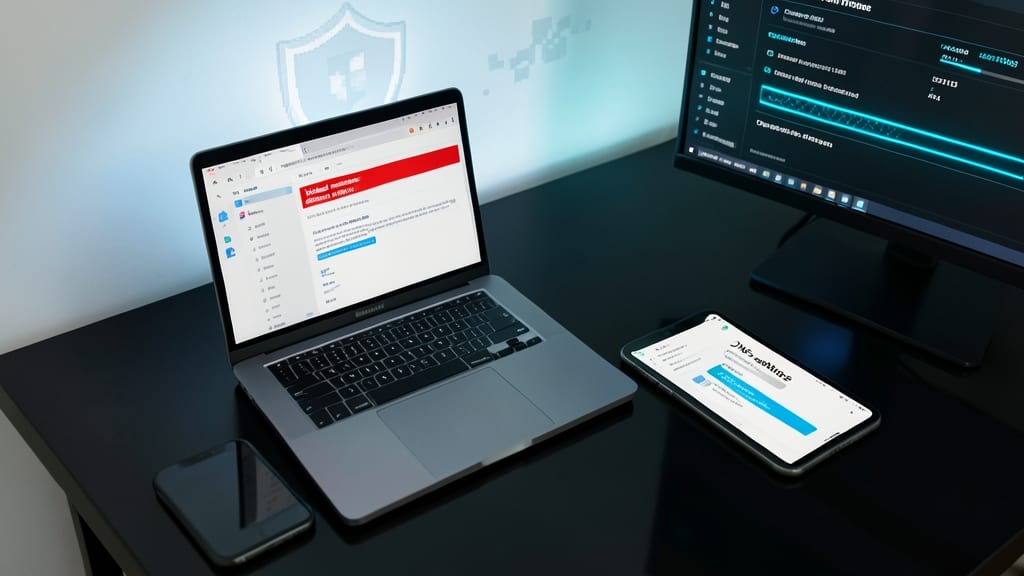
Tired of falling for phishing scams or worrying about family devices accessing risky sites? DNS filtering acts as your first line of defense by rerouting web traffic through trusted servers like Cloudflare (1.1.1.1) or OpenDNS (208.67.222.222)—both block known malicious domains in real time.
Switching your router’s DNS settings takes just minutes and requires zero configuration on individual devices. Cloudflare’s 1.1.1.1 offers privacy-focused blocking, while OpenDNS provides family-friendly filters to restrict adult content or gambling sites. Both are faster than most ISP DNS and work across all your connected devices—phones, tablets, and smart TVs included.
This is especially valuable for remote workers (who may connect to unsecured networks) or families (where kids might stumble upon unsafe content). It’s a passive, always-on layer of security that complements your antivirus and firewall. ✨
Monitor Suspicious Activity with Windows Event Viewer
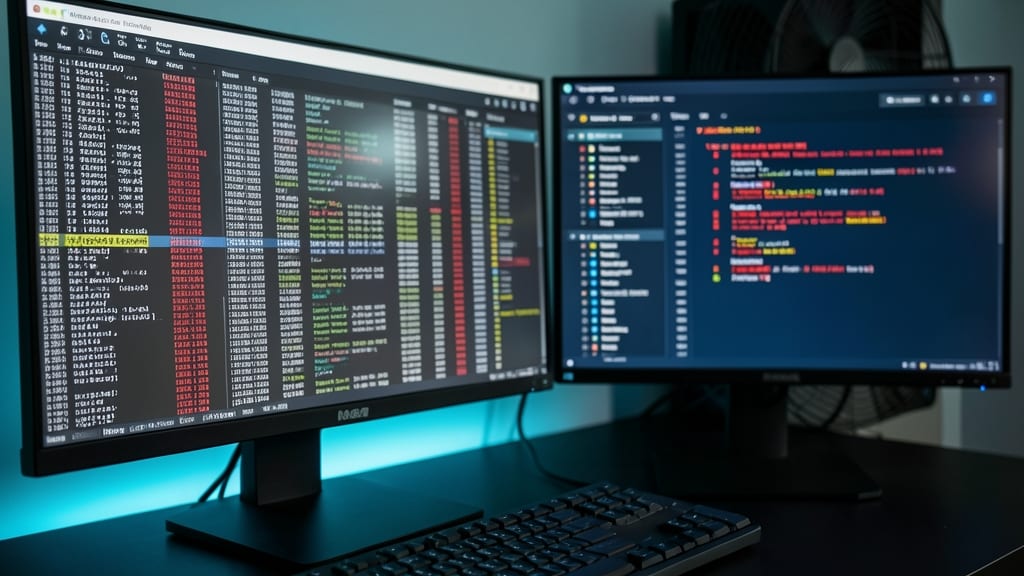
Windows Event Viewer isn’t just a dusty corner of your OS—it’s a real-time detective tool that logs every login attempt, failed access, and system anomaly. While most users ignore it, this built-in utility can catch unauthorized logins or malware behavior before they escalate, especially when configured to trigger alerts for critical events.
Dive into the Security log to spot red flags like repeated failed logins (common in brute-force attacks) or unexpected process executions (a hallmark of malware). Advanced users can set up custom alerts via Task Scheduler, ensuring you’re notified instantly when suspicious activity—like a midnight login from another country—happens. No third-party software needed.
Perfect for IT admins, security-conscious professionals, or anyone who’s ever wondered why their system feels "off." It’s your free, always-on cybersecurity watchdog—if you know where to look. 💻
Backup Critical Files with Windows File History
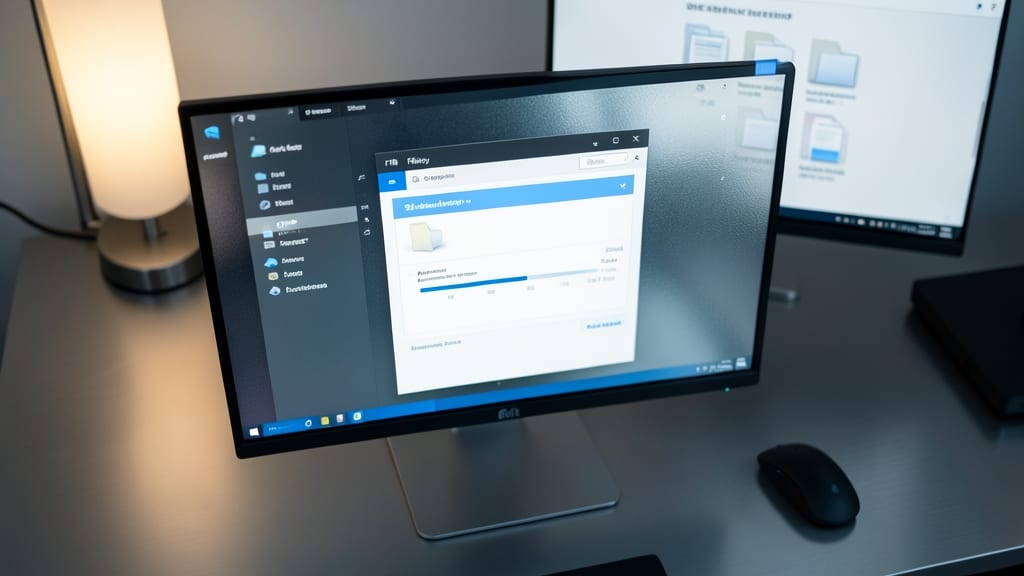
Forget manual backups that get forgotten—Windows File History silently protects your files while you work. It’s the perfect tool for users who’ve never lost data to ransomware, yet still want peace of mind without lifting a finger.
This built-in feature automatically saves versions of your files to an external drive or OneDrive, with no need for complex scheduling. It tracks changes to documents, photos, and videos in real-time, restoring them in seconds if something goes wrong. The setup takes minutes: plug in a drive, select folders, and let it run—zero config required.
Ideal for home users, small business owners, or anyone who’s ever hit "save" too late, File History turns backup from a chore into a hands-off safety net. 💻